
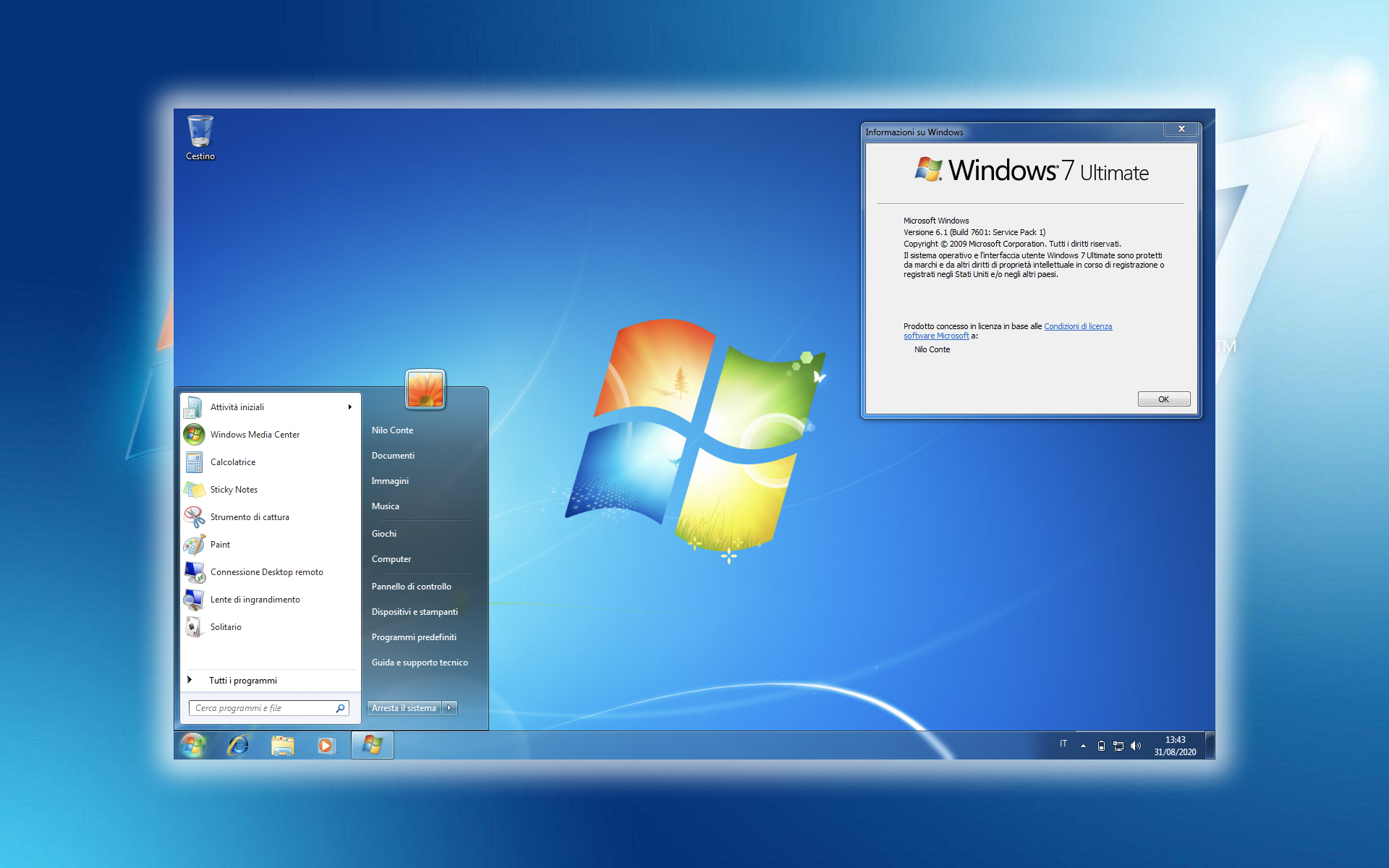

점프 목록 그것은 a입니다 특징 알 Windows 7 care ne permite sa adaugam 지름길~의 프로그램 제작자, 의 전단지, 의 문서, 이미지 그리고 주소 웹 ~에 작업 표시 줄-UL Windows 7. Gruparea mai multor 지름길-uri intr-un singur loc in 작업 표시 줄 este posibila numai pentru 전단지, 인터넷 익스플로러 8 그리고 Windows Media Player 12.
점프 목록 – Windows 7 Features
Jump Lists—new in Windows 7—take you right to the documents, pictures, songs, or websites you turn to each day. To open a Jump List, just right-click a program icon on the Windows 7 taskbar. (You’ll also find them on the Start menu.)
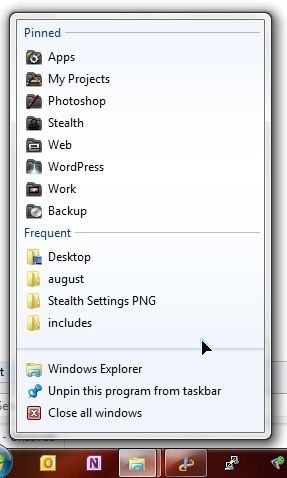
추가하려면 지름길~의 프로그램 제작자 ~에 점프 목록 (grupate intr-un singur loc in taskbar) este nevoie sa folosim o aplicatie creata special pentru a putea adauga programe, documente, poze si alte fisiere din 계산자. In acest fel avem la indemana programele si documentele folosite frecvent, grupate sub un singur icon in taskbar.
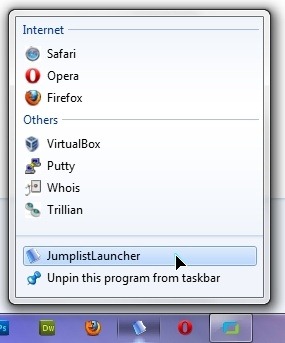
Download Jumplist Launcher v7 21 – Windows 7
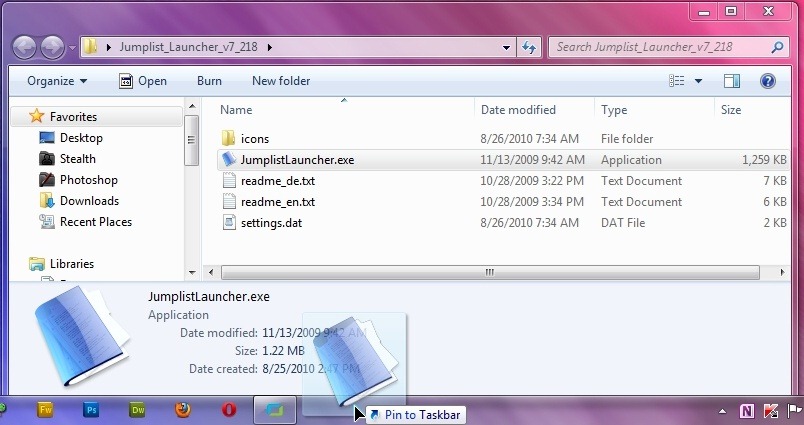
Dupa ce descarcati si dezarhivati Jumplist_Launcher_v7_21.rar, trageti (drag & 떨어지다) JumplistLauncher.exe in taskbar (sau click-dreapta pe JumplistLauncher.exe si “작업 표시 줄에 핀“).
Dupa ce punem Jumplist Launcher in taskbar, click pe el pentru a configura grupurile si programele care dorim sa apara aici.
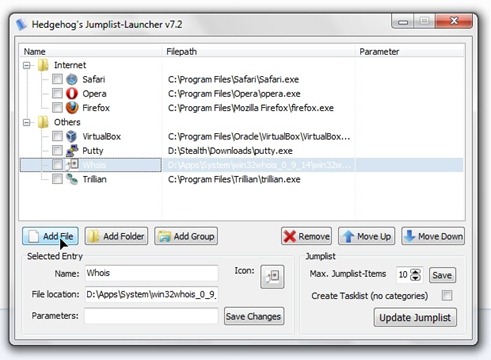
Jumplist Launcher – update-uri si mai multe informatii pe site-ul oficial al aplicatiei.
Jumplist Launcher este o aplicatie free care nu necesita instalare si este compatibila numai pentru sistemele de operare Windows 7.


당신은 또한에 관심이있을 수 있습니다 ...

13가지 생각 “Windows 7 작업 표시줄 점프 목록(JumpList Launcher)의 Adauga 단축키 Pentru 프로그램”