
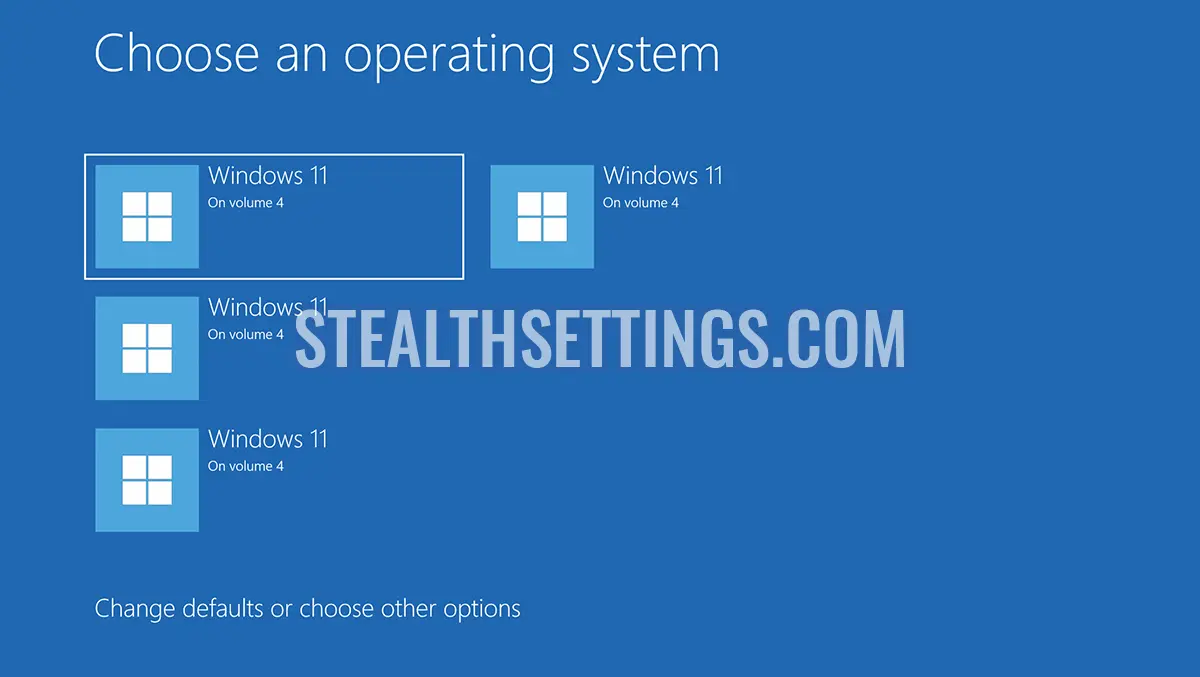

“Izvēlieties operētājsistēmu. Windows 11 4. sējumā” ir zils ekrāns, kas parādās, startējot datoru un no kura lietotājs var izvēlēties, kuru operētājsistēmu palaist (sāknēt). Šis ekrāns ir raksturīgs datoriem, kuros ir instalētas vairākas Windows 11 versijas dažādos cietā diska nodalījumos vai sējumos.
apmierināts
Sunt și cazuri când această pagină apare în urma unui update major al Windows 11, iar volumele (sistemele de operare) afișate nu există în realitate. Nu știu exact de ce apare această problemă, însă poate fi rezolvate foarte ușor.
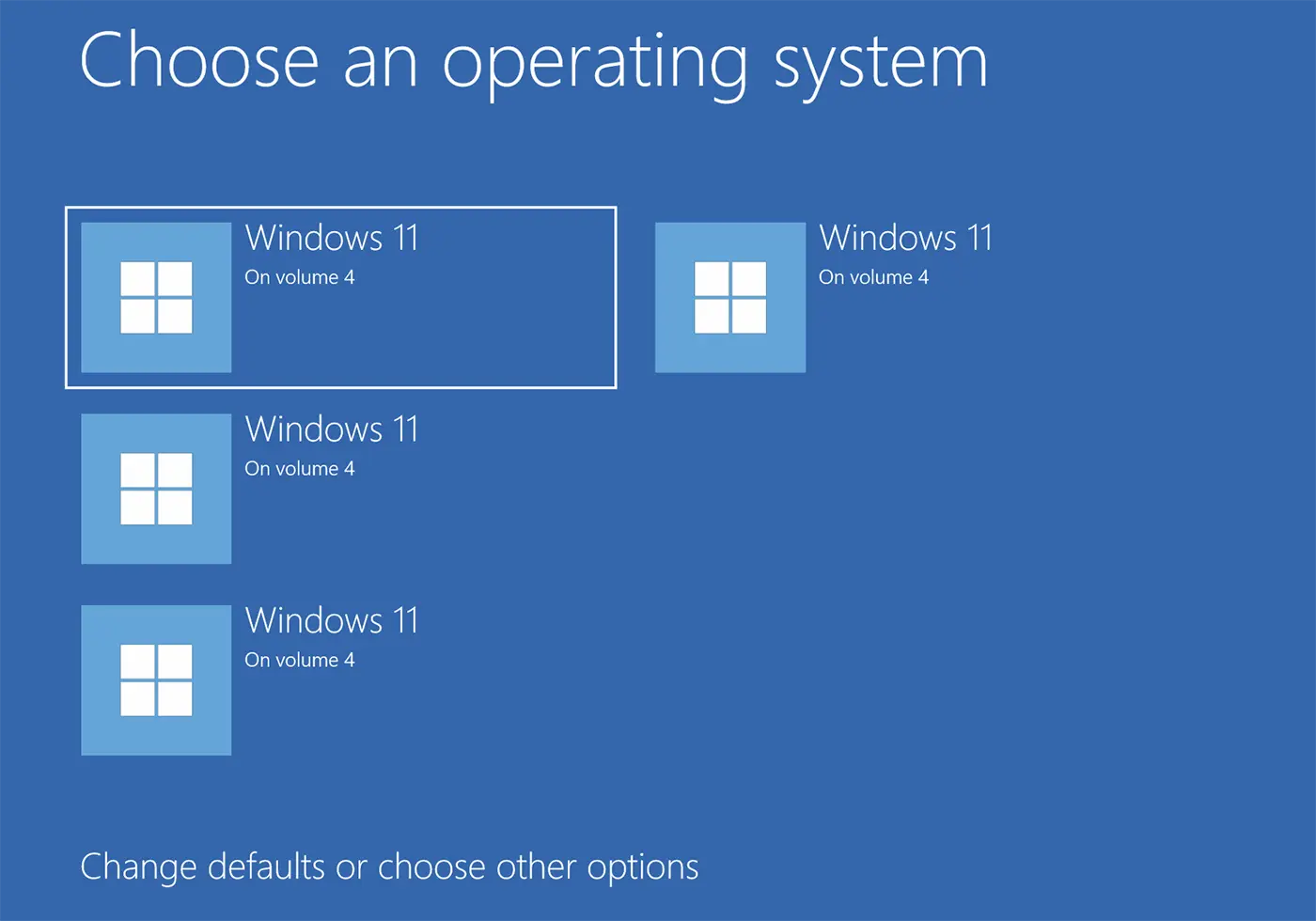
Fix Blue Screen: Choose an operating system. Windows 11 on Volume 3, 4.
Dacă nu ai mai multe sisteme de operare instalate pe PC și nu folosești dual boot, dar apare “Choose an operating system. Windows 11 on Volume 4”, sunt două metode prin care poți să treci peste acest ecran albastru fără să fie nevoie să alegi manual sistemul de operare pe care vrei să pornească calculatorul.
Pirmā metode
Cel mai simplu este să stabilești de pe care volum al hard diskului dorești să pornească calculatorul și să setezi un timp mic de așteptare pentru pornirea sistemului de operare de pe volumul sau partiția selectată.
1. În ecranul albastru faci click pe “Mainiet noklusējuma iestatījumus vai izvēlieties citas opcijas”Apvidū
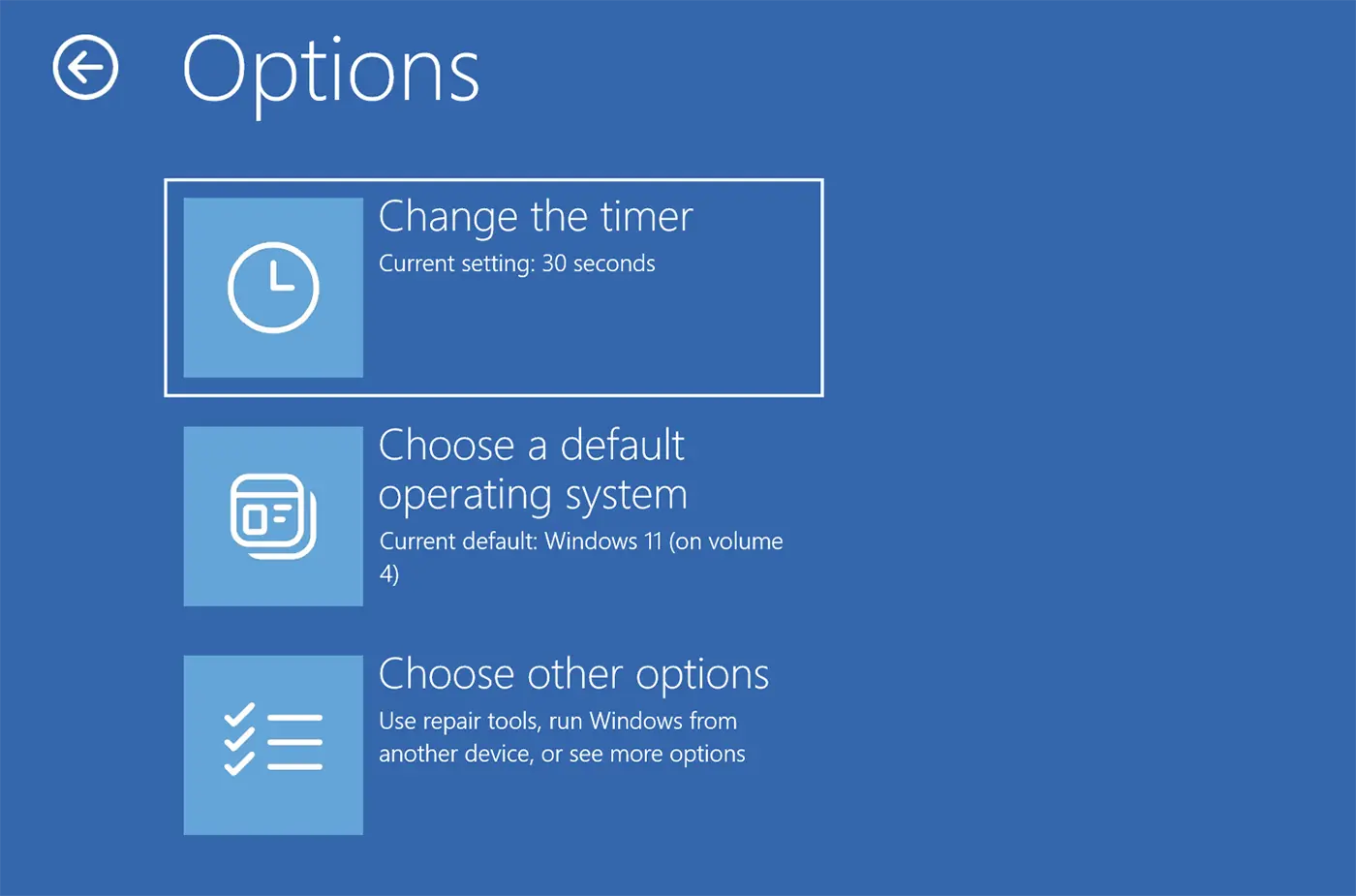
2. În ecranul de opțiuni, click pe “Change the timer”Apvidū
3. Stabilește un timp de 5 secunde pentru pornirea automată a sistemului selectat de tine. Windows 11 on Volume 3, Volume 4 sau oricare altul care dorești să fie lansat automat.
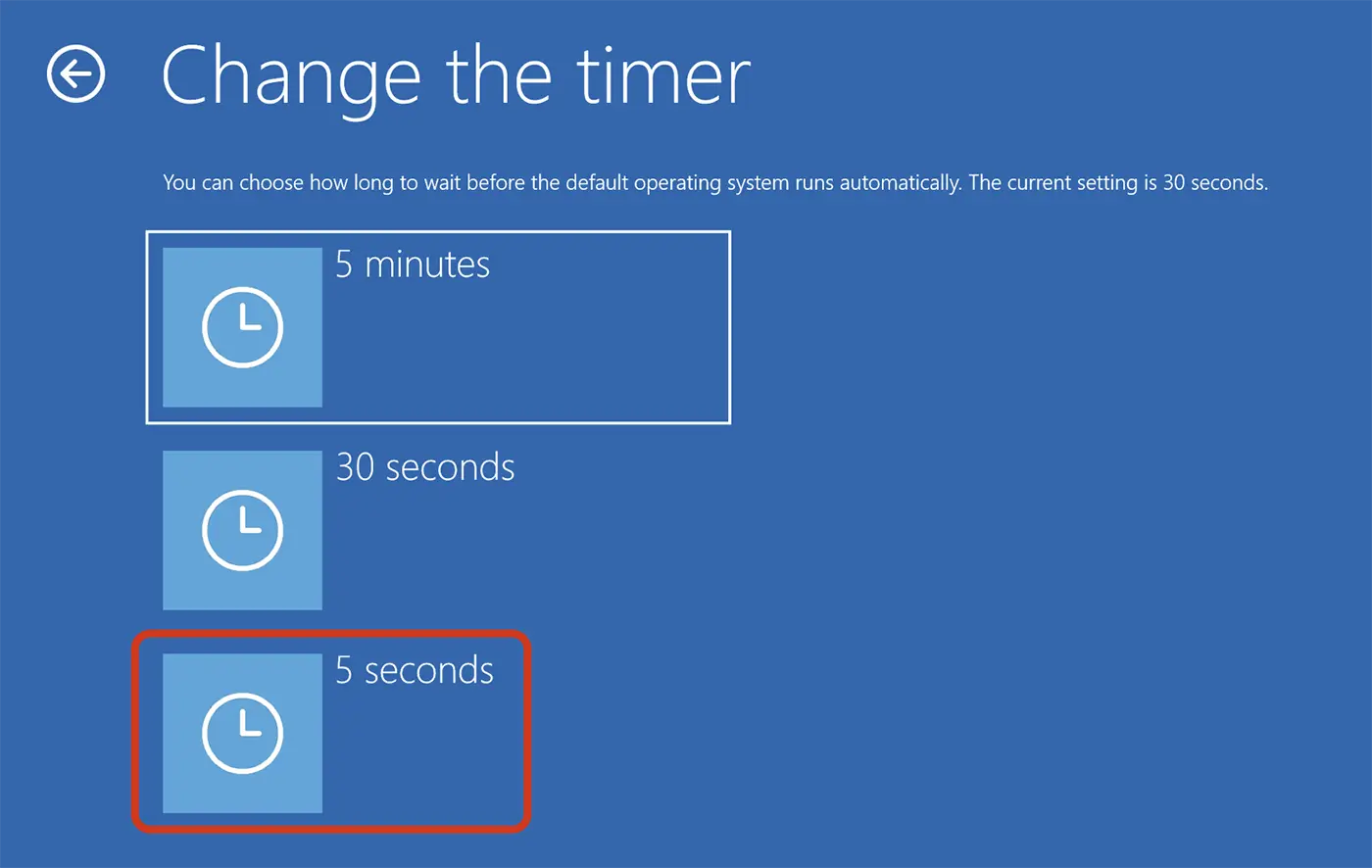
Pēc šīs darbības, nākamreiz restartējot datoru, zilais ekrāns paliks tikai 5 sekundes, pēc tam tas automātiski palaiž operētājsistēmu no izvēlētā sējuma vai cietā diska.
Otrā metode
Ja vēlaties, lai ziņojums vairs netiktu rādīts “Choose an operating system. Windows 11 on Volume 4” ieslēdzot datoru, uzmanīgi izpildiet tālāk sniegtajā apmācībā norādītās darbības. Šī metode ir ieteicama, ja vienā datorā nav instalētas vairākas Windows 11 operētājsistēmas vai ja netiek veikta Windows duālā sāknēšana ar Linux vai citu operētājsistēmu.
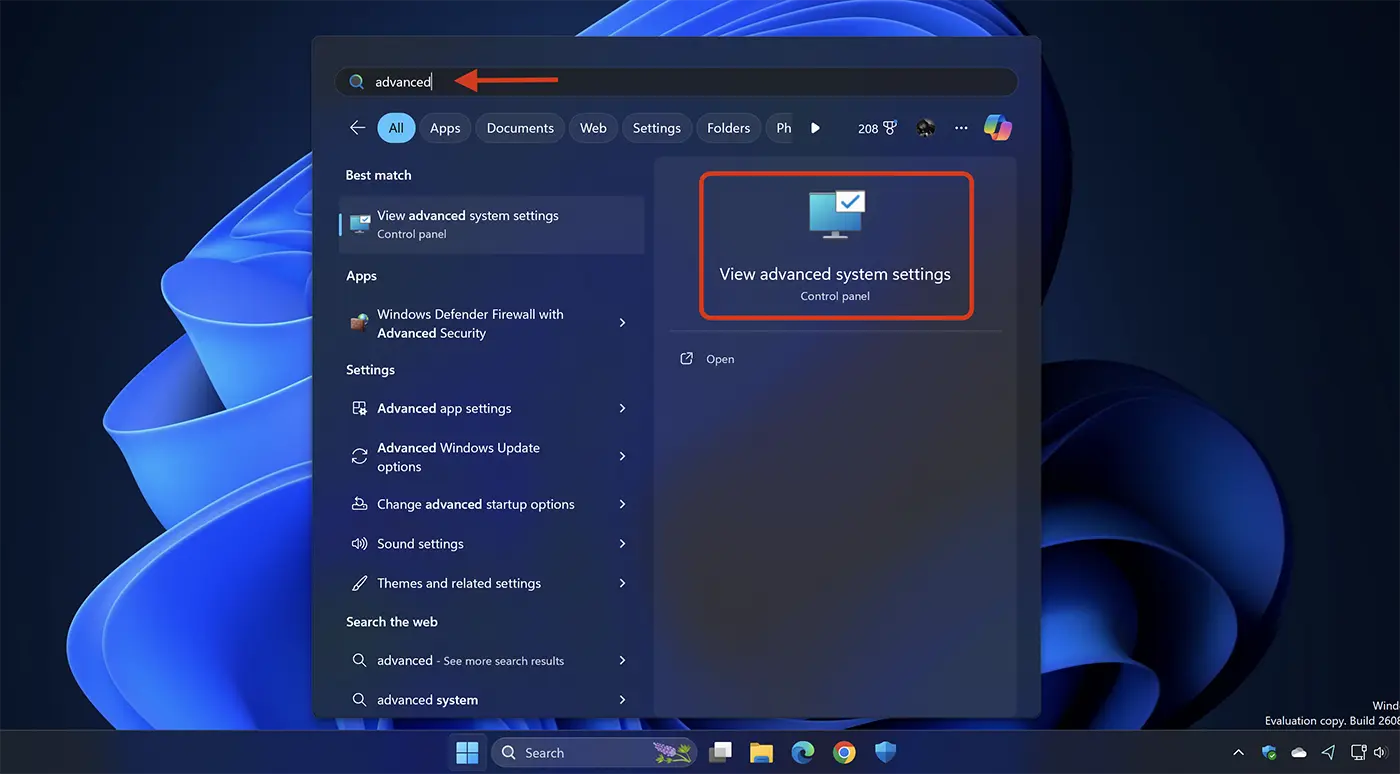
1. Atveriet Windows 11 izvēlni Sākt un atveriet Sistēmas papildu iestatījumi.
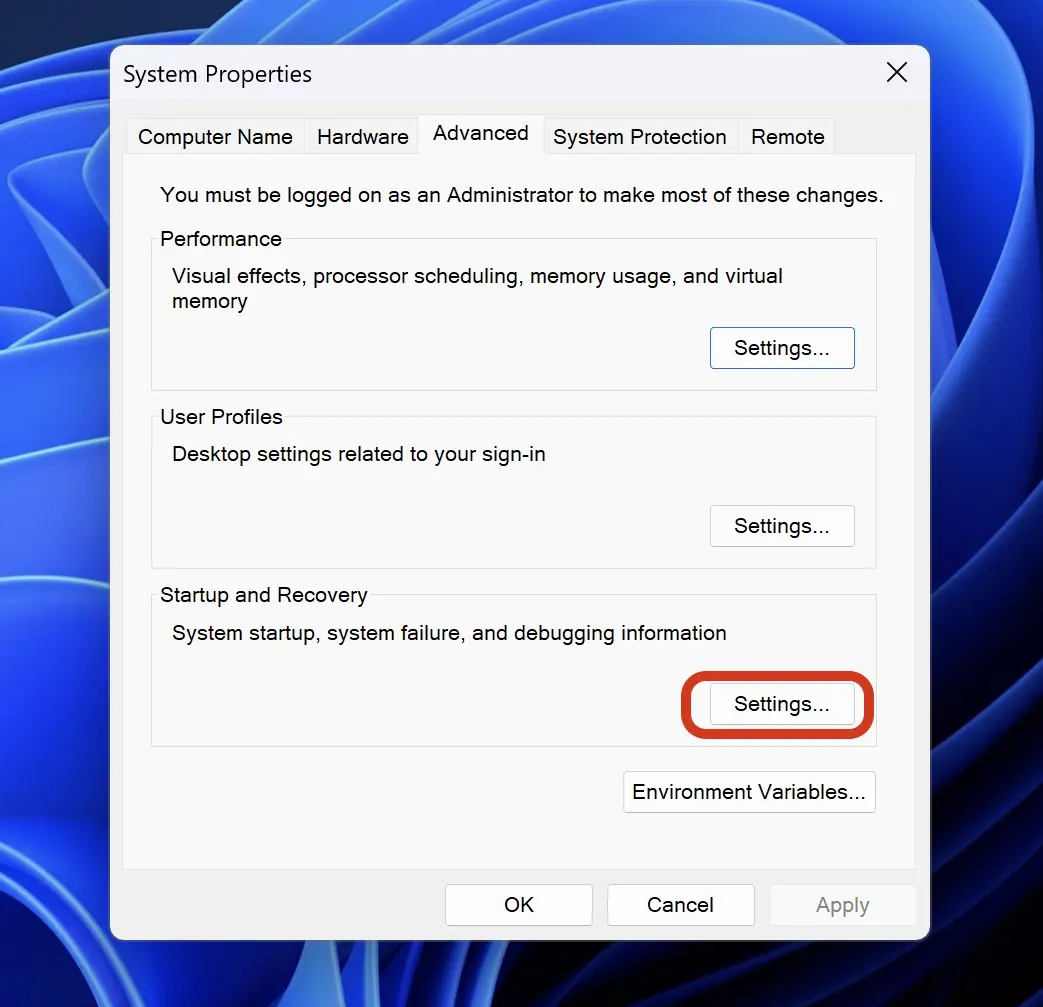
2. Cilnē “Attīstīts” noklikšķiniet uz pogas “Iestatījumi” no “Startup un atkopšana”Apvidū
3. Iestatījumos “Startup un atkopšana” selectați sistemul de operare pe care calculatorul să pornească automat și debifați opțiunea “Time to display list of operating systems”Apvidū
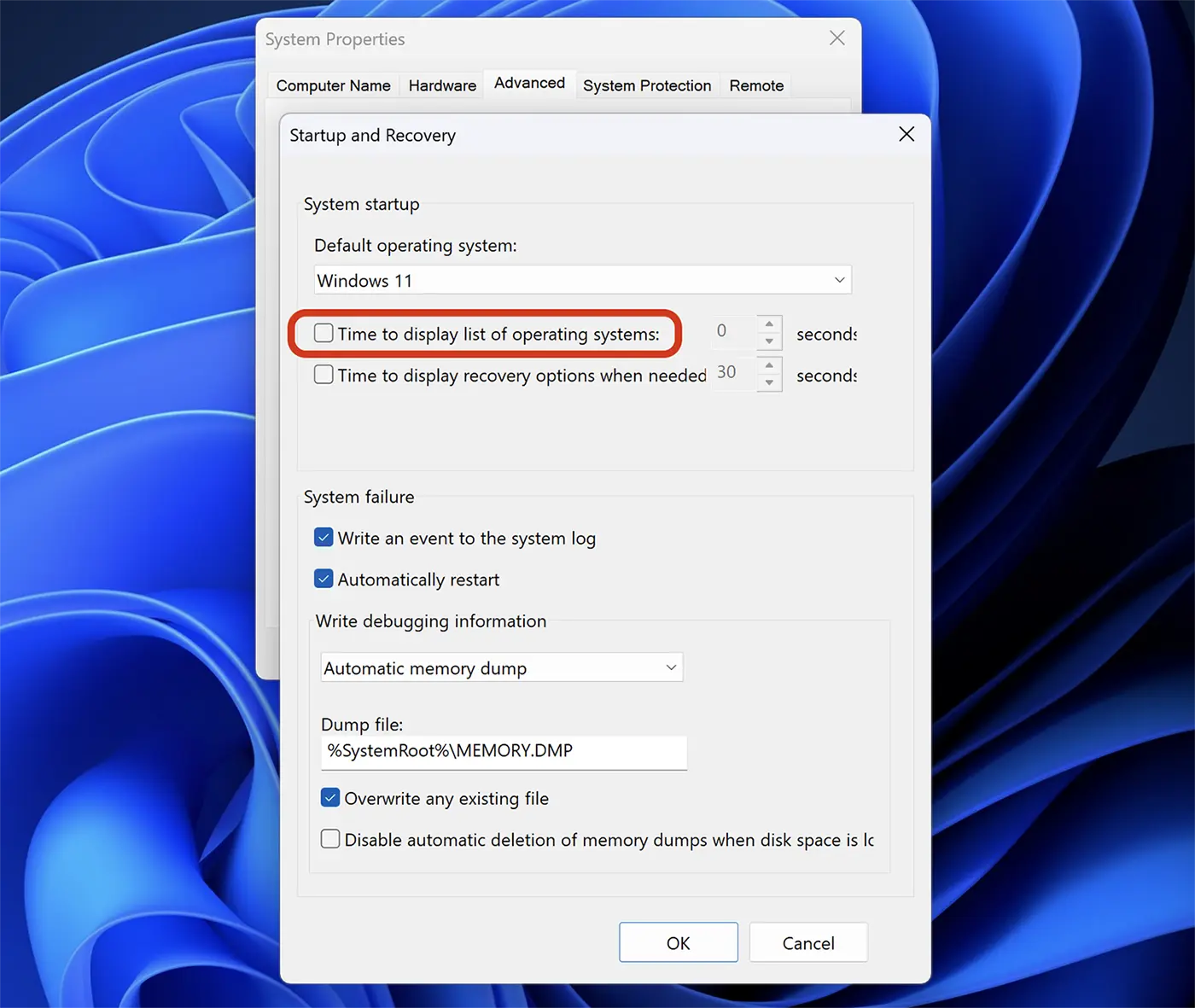
4. Noklikšķiniet “Piemērot”, noklikšķiniet “Labi”Apvidū
După ce faceți această modificare, la repornirea calculatorului nu ar mai trebui să apară opțiunea prin care să alegeți volumul pe care este sistemul de operare. Windows 11 On Volume 3, 4 sau alt număr.
Pentru utilizatorii care au calculatoarele Windows 11 înrolate în Insider Preview Dev Channel sau Canary, această problemă a fost rezolvată în actualizarea “Cumulative Update Build 26080.1300 (KB5037139)“Apvidū
Saistīts: Kā jūs aktivizējat Kanāriju kanālu atjauninājumus operētājsistēmai Windows 11
“UPDATE 3/18: We are starting to roll out two servicing updates to Windows Insiders in the Dev Channel. Both these updates do not include anything new and are designed to test our servicing pipeline for Windows 11, version 24H2. Most Insiders in the Dev Channel will receive Cumulative Update Build 26080.1300 (KB5037139). However, Insiders that have Virtualization Based Security (VBS) turned on will receive Build 26080.1400 (KB5037140) and may not experience a restart upon installing the update. Arm64 devices, even with VBS turned on, will only receive Build 26080.1300 (KB5037139).“


Iespējams, jūs interesē arī...
