

If you get used to using USB-Stickuri or External HDDs, you know of course that they can break down very easily if they are "suddenly". More precisely, if they are wrenched FROM USB slot without first clicking on Safely Remove Hardware. If it seems too "difficult" to move the mouse cursor to System Tray (although, seriously speaking, sometimes it gets a little out of hand), then you can solve the problem simply by creating one shortcut which you can lega to any key you want. In addition, this also ensures that your sticks will have a longer life.
To create a shortcut for Safely Remove Hardware, follow these steps:
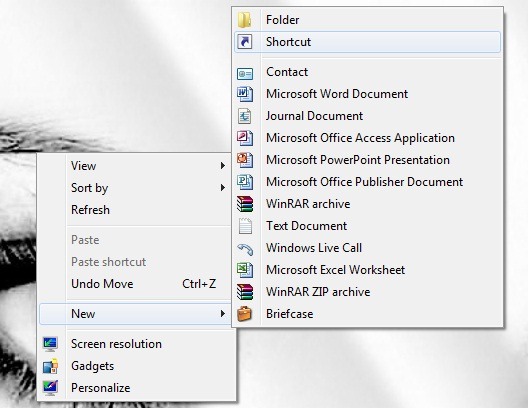
- right-click on any empty place on the desktop and select New –> Shortcut from the displayed menu
- copy the next line
RunDll32.exe shell32.dll,Control_RunDLL hotplug.dll
- yes data pastes in location
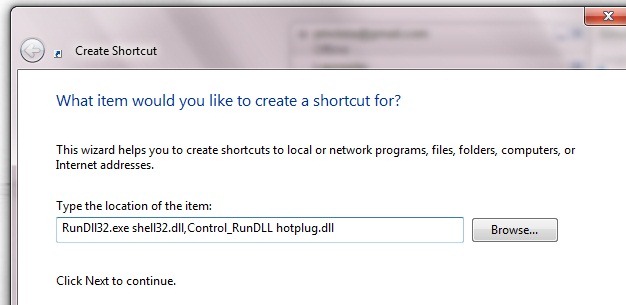
- give a name to the shortcut and choose one icon (if you wish) for this one
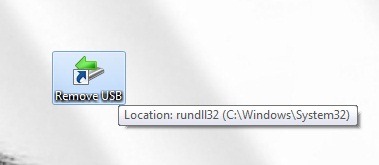
To assign a key to the created shortcut, right-click on the shortcut and select Properties from the menu. Select the tab Shortcut and click on the right Shortcut key
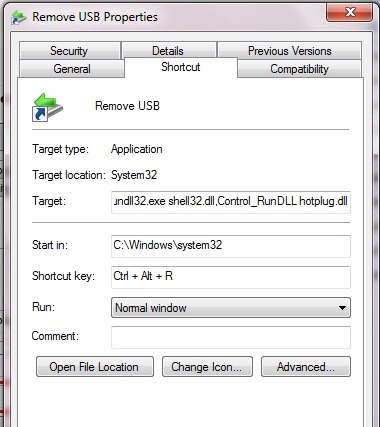
Then press the key you want the shortcut for Safely Remove Hardware And give OK. As simple as that! ;)


You may also be interested in...
