


“The file you are attempting to preview could harm your computer. If you trust the file and the source you received it from, open it to view its contentsIf this is the message that appears when previewing PDF, Excel, Word, or other files in Windows 11, this tutorial will be helpful to you
content
After installing the update KB5066835 Since October 2025, many Windows 11 users have noticed an unexpected change. Files downloaded from the internet can no longer be previewed in File Explorer using the feature Preview PaneUnfortunately, this new restriction also affects files that are accessed from shared locations, even if they are on a local area network (LAN). This change, although intended by Microsoft to improve system security, has caused inconvenience for those who rely on quickly previewing PDF, Word, Excel, or PowerPoint documents without opening them. For example, a person who works extensively with documents and needs to preview them quickly would, after this update, have to open each file individually to see its contents.
Fortunately, there are several solutions through which users can unlock and enable the preview of PDF, Excel, Word, or PowerPoint files in Windows 11.
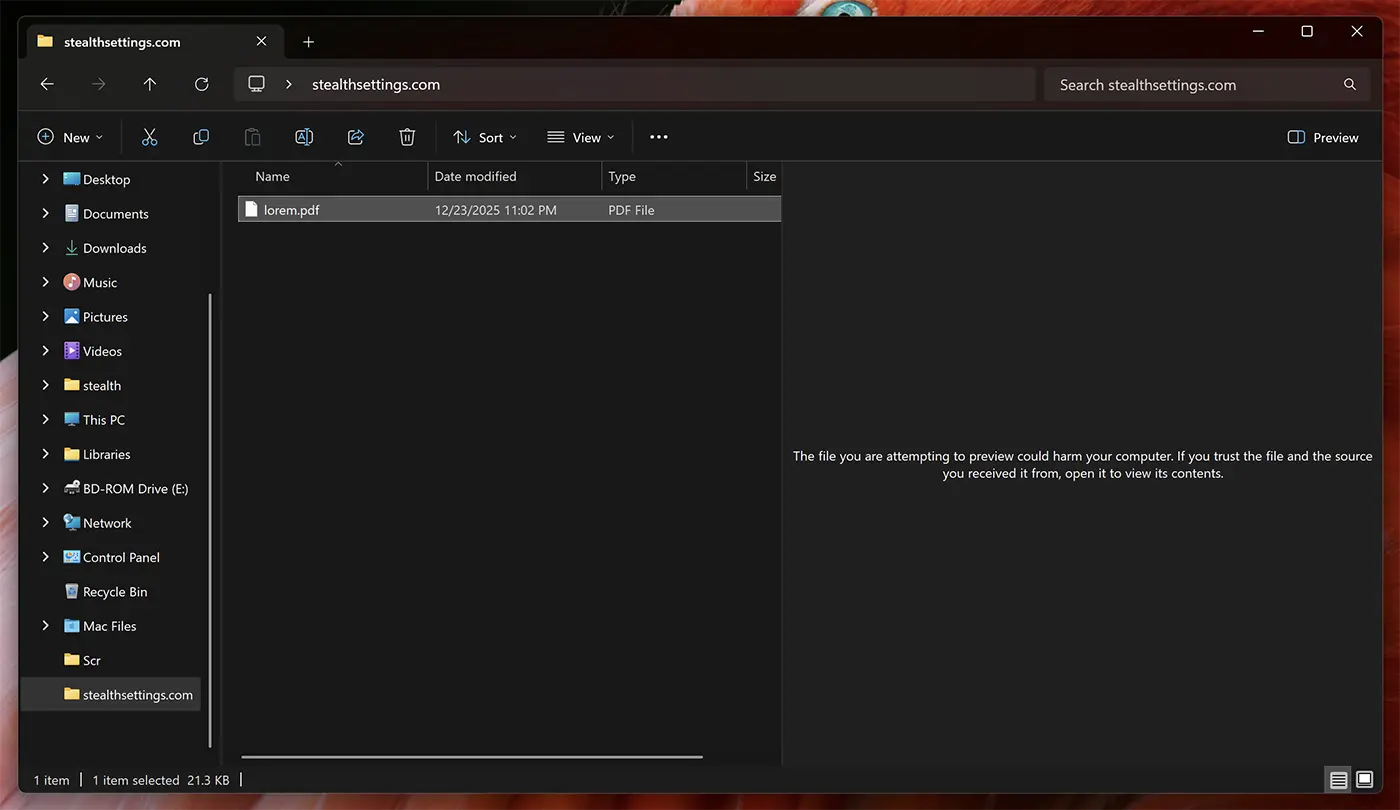
How to unlock file preview
Method 1: Unlocking file preview using PowerShell
1. Open the PowerShell utility on Windows 11.
2. Execute the command to unlock the files.
Unblock-File -Path "C:\Users\admin\Documents\*.pdf"In the example above, we showed how to unlock the preview for PDF files in the folder “Documents” of the user “admin”, this command can also be adapted for other locations on the disk or on the network and for other types of files.
Unblock-File -Path "D:\Download\*.xlsx"
Unblock-File -Path "D:\Download\*.docx"
Unblock-File -Path "D:\Download\*.pptx"
After executing the command line, all files in the specified location will be unlocked and accessible for preview.
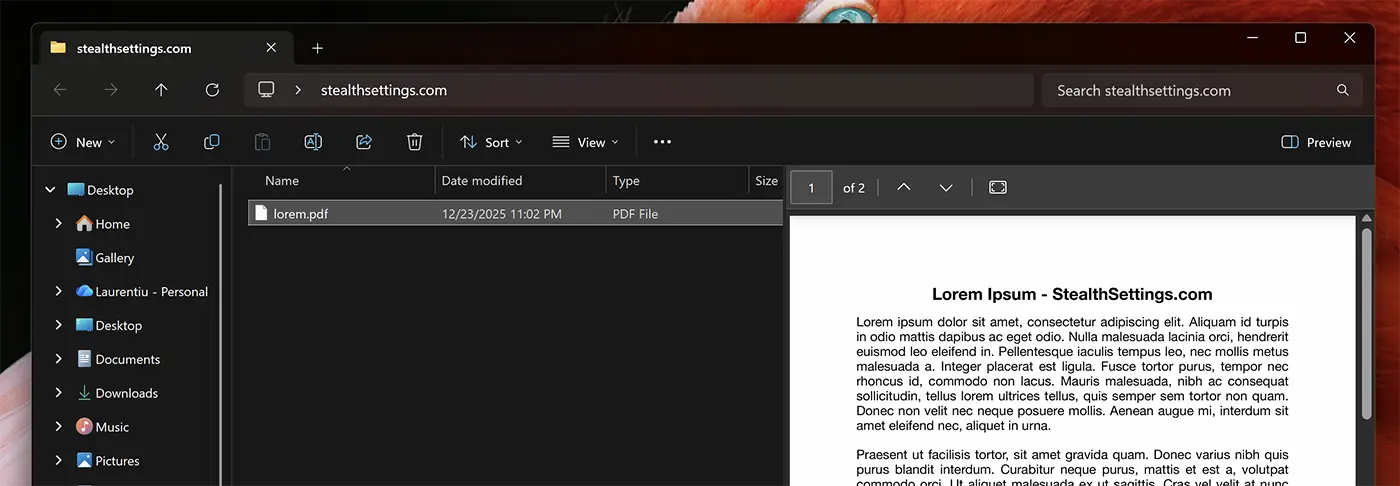
Files downloaded after executing the command will be blocked.
Method 2: Unlocking file previews using the Windows Registry
Compared to the first method, this one permanently unlocks file previews in File Explorer.
1. Open the Windows registry editor. (Run → regedit)
2. Navigate to:
HKEY_CURRENT_USER\Software\Microsoft\Windows\CurrentVersion\Policies3. Click-right on “Policies” I add a new key “Attachments“.
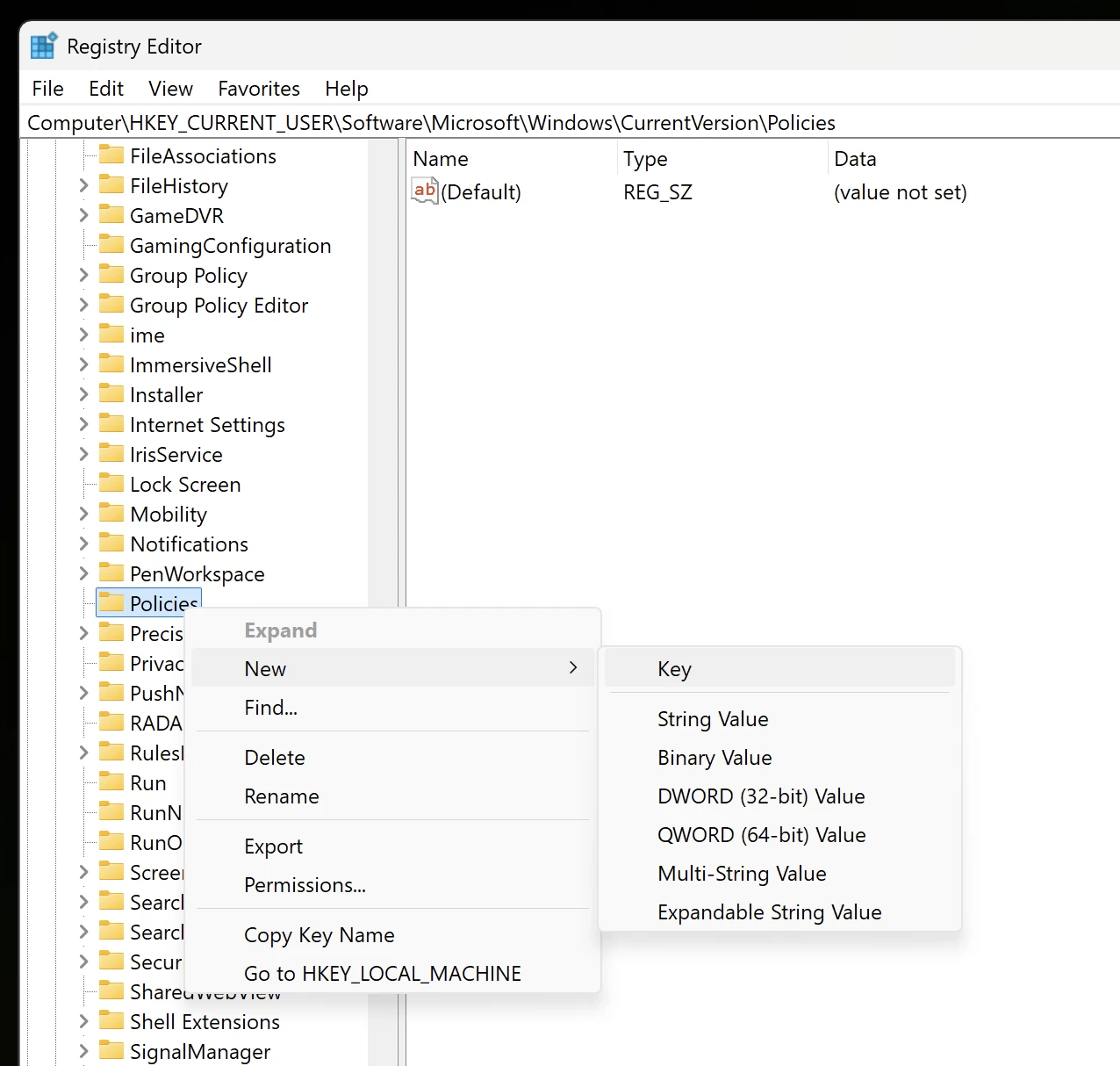
4. Right-click on Attachments și adaugă o nouă valoare: DWORD (32-bit) Value.
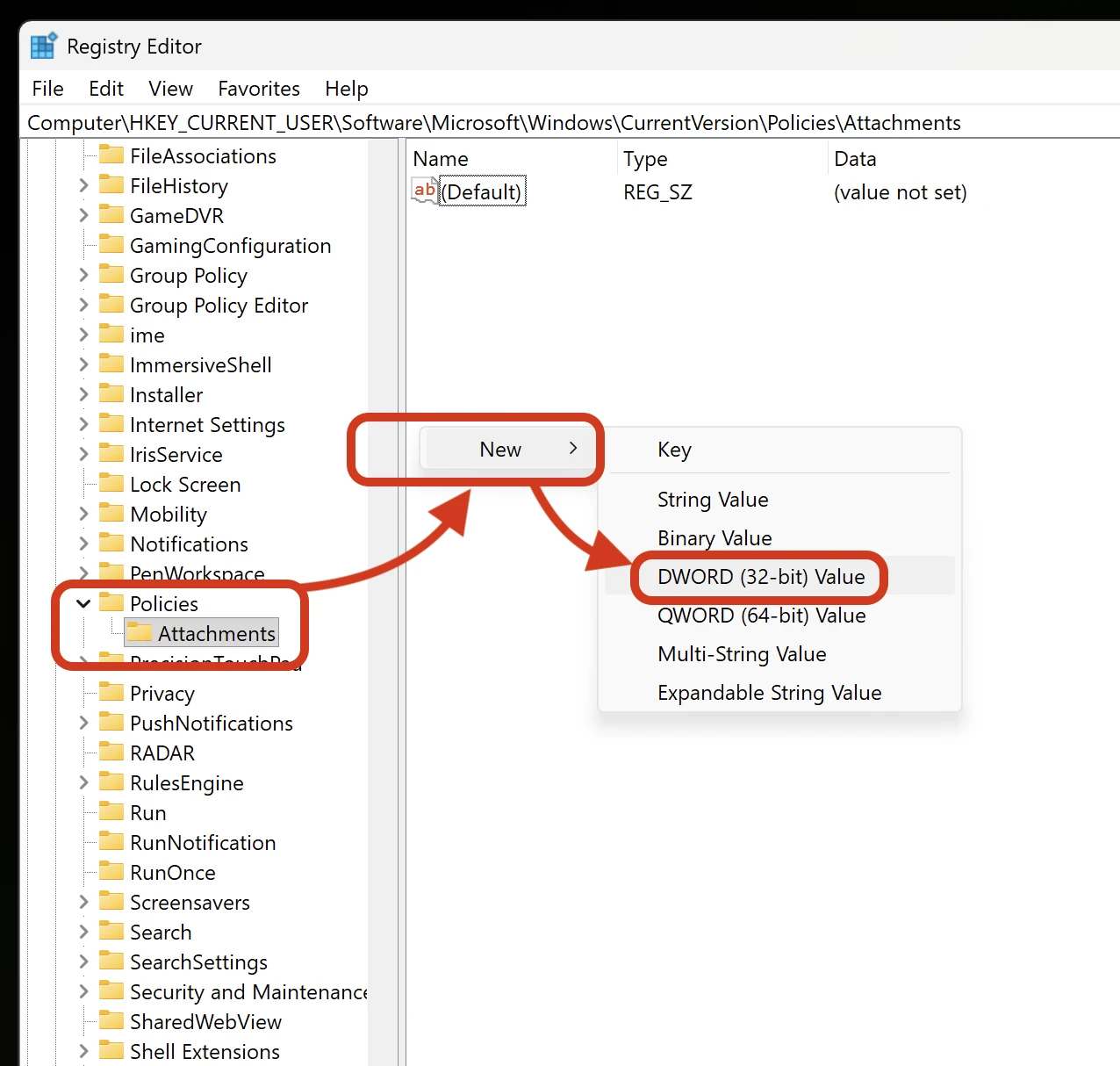
5. Name it “SaveZonelnformation“, double-click on it and assign the value “1“.
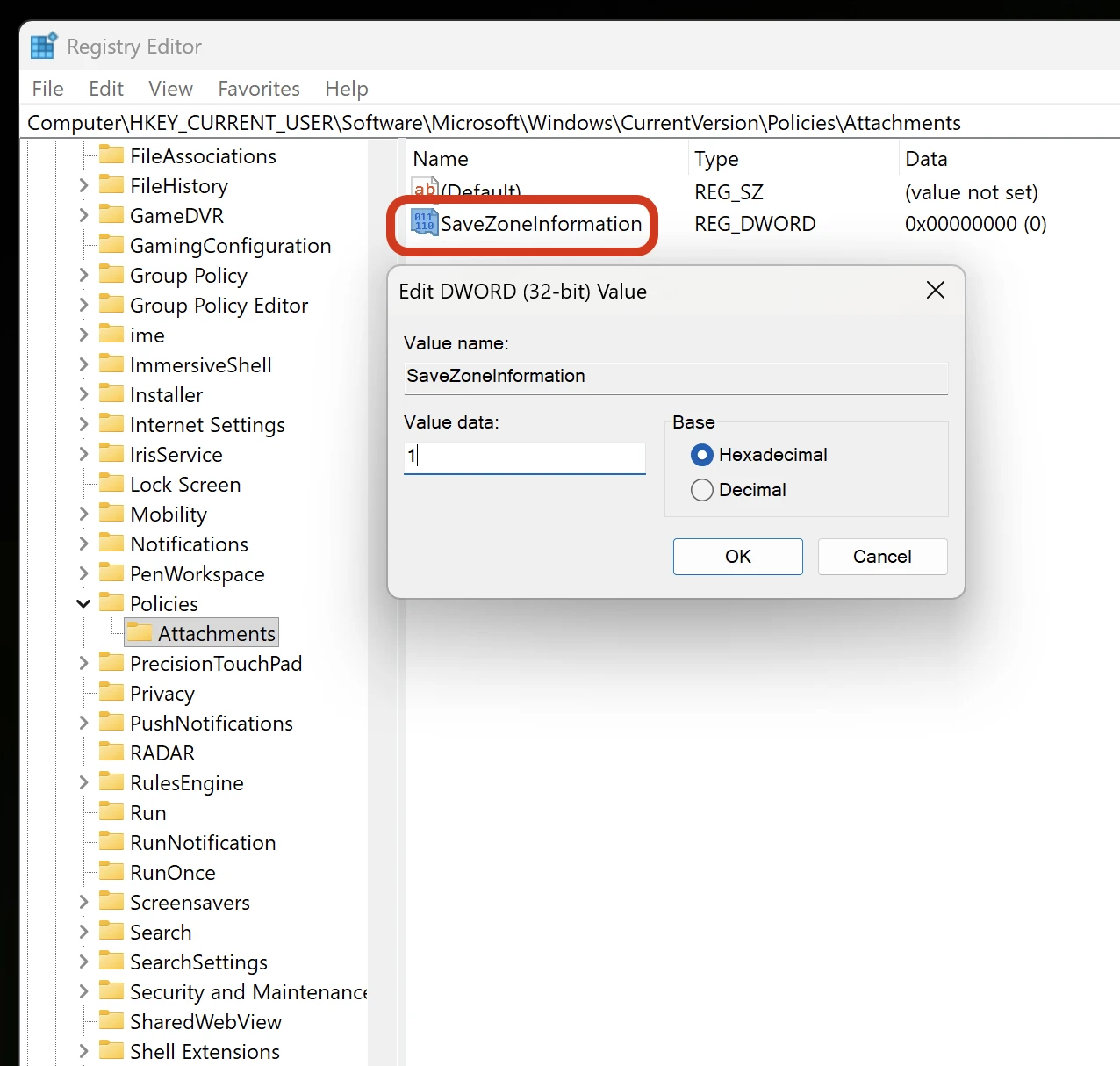
Restart the computer after this step.
After restarting the computer, all files downloaded from the internet or from a local network will be able to be previewed in File Explorer.
Method 3. Add the network share in trusted areas
Access Control Panel → Internet Options → Security Then add the network share address to Local intranet or Trusted sites. Thus, if you access shared files on the network, you will be able to preview them in File Explorer without seeing the message: 'The file you are attempting to preview could harm your computer. If you trust the file and the source you received it from, open it to view its contents.'


You may also be interested in...

One thought on “Enable preview for PDF, Excel, or Word files in Windows 11 – (Preview Pane)”
Thank you for this tutorial, I got around this restriction with “QuickLook” but this still required me to press the space bar to open a preview window then Esc to close the window, I validated the solution with the modification of the registry.