


May you intend but you are not yet determined to buy a device cu Sistem of operate Android, whether you just want to test some Android applications or whether you prefer to play Android games on a slightly more generous screen than al mobile phone, BlueStacks is the ideal solution to run any developed application for Android OS (Finish .apk) directly on COMPUTER equipped with Windows installed.

BlueStacks It's O Free Windows application, with the help of which Windows users can run Android applications only through a simple switch Between the operating systems (it is not necessary to restore the computer). This comes with a package with 10 pre -installed applications and gives the user the opportunity to download up to 26 free applications from Android Market using BROWSER default din Windows.
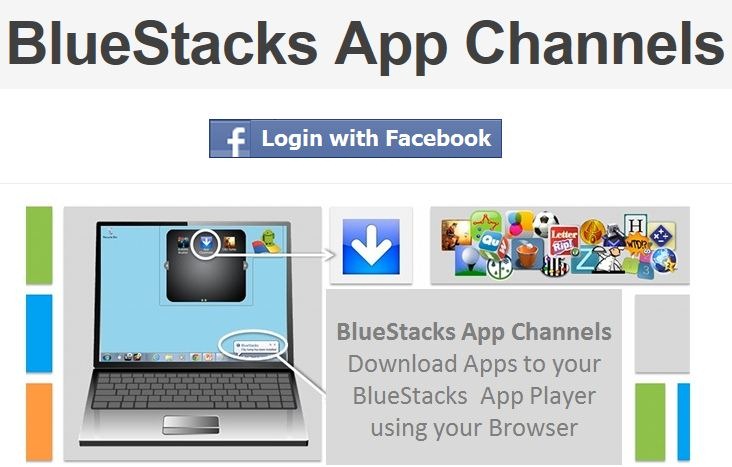
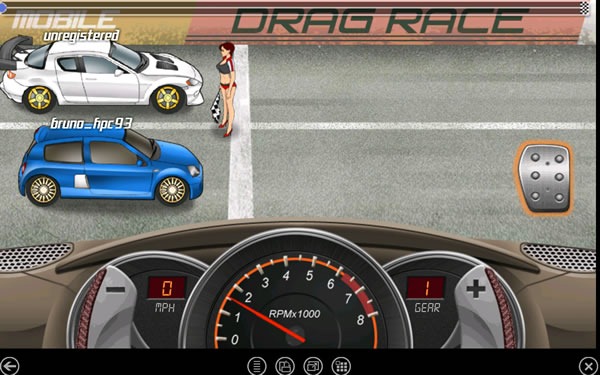
To run an Android application opens Bluestacks (after installation, the program "places" an icon in system tray and one widget in the right-hand corner of the desktop) and click on the desired application (this will open in full screen).
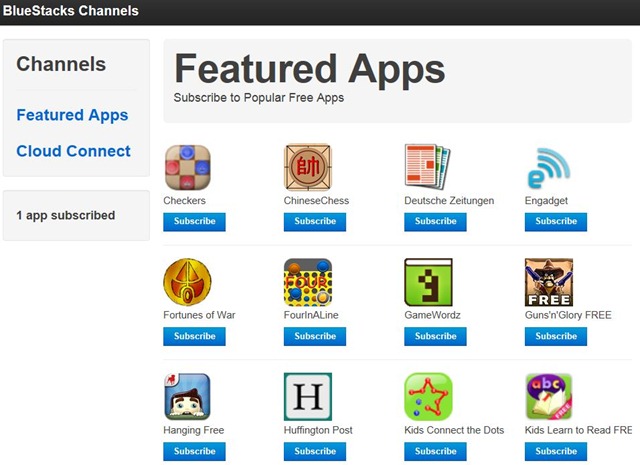
To download and other Android applications click on Get More Apps in Bluestacks (an account is required Facebook to have access to applications).
In order to Close the Bluestacks application data click-right on the icon in Systra and select Quit.
Download BlueStacks App Player (alpha version)
Note: The application is compatible only with Windows 7 (32 and 64 bits).


You may also be interested in...

5 thoughts on “Run Android applications (APK) in Windows with Bluestacks”