


이 튜토리얼은 “Windows Insider Program on Windows 11” 지원되지 않는 PC가 있는 경우 TPM 2.0 Windows 11을 설치하려면 장치가 Windows 11에서 Windows 참가자 프로그램에 참여할 자격이 없는 문제를 해결하세요.
이전 튜토리얼에서 보여드린 MacBook Pro에 Windows 11을 어떻게 설치하나요?, 다소 복잡한 시나리오에서. 찾아보세요 여기 튜토리얼 (딸깍 하는 소리).
특히 Microsoft에서 부과한 하드웨어 요구 사항을 충족하지 않는 PC 또는 Mac에 Windows 11을 설치한 후 TPM 지원은 UEFI입니다., 새로 설치된 시스템에서는 Windows 업데이트를 통해 업데이트를 받게 됩니다. PC는 베타 또는 개발 업데이트를 설치하는 데 여전히 제한됩니다. Windows Insider Programme.
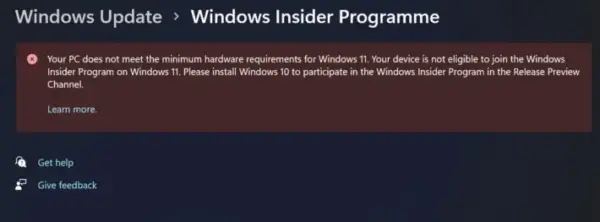
Your PC does not meet the minimum hardware requirements for Windows 11. Your device is not eligible to join the Windows Insider Program on Windows 11. Please install Windows 10 to participate in the Windows Insider Program in the Release Preview Channel.
이러한 제한은 Microsoft의 시스템 요구 사항을 충족하지 않는 컴퓨터에 Windows 11을 성공적으로 설치하기 위해 우회 방법을 사용하는 컴퓨터에 일반적으로 적용됩니다.
다행스럽게도 Windows 커뮤니티에서 개발한 방법이 있습니다. Windows Insider Program TPM 또는 UEFI를 지원하지 않는 Windows 11이 설치된 컴퓨터.
Windows 11 Insider Preview를 설치하여 TPM 및 UEFI 계산기를 사용하세요(귀하의 장치는 적합하지 않습니다)
OfflineInsiderEnroll이라는 유틸리티가 개발되었으며 이를 사용하여 설치할 수 있습니다. Windows 11 Insider Preview TPM(Windows 11의 Windows 참가자 프로그램)이 없는 PC에서. 우리가 해야 할 일은 이 유틸리티를 다운로드하는 것뿐입니다.
1. GitHub로 이동하여 명령 프롬프트 스크립트를 다운로드합니다. 오프라인내부자등록.
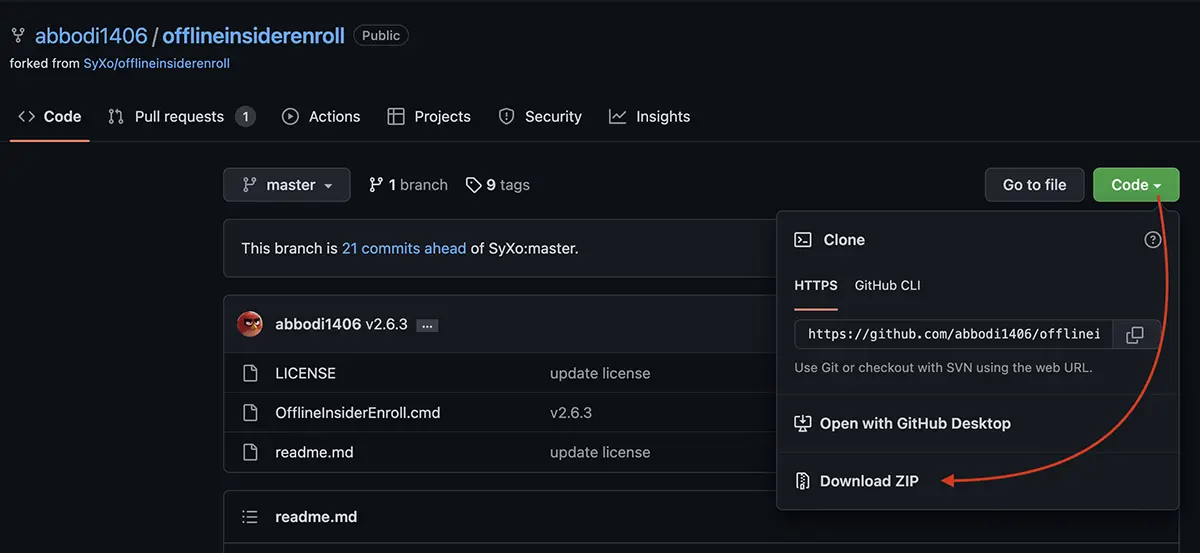
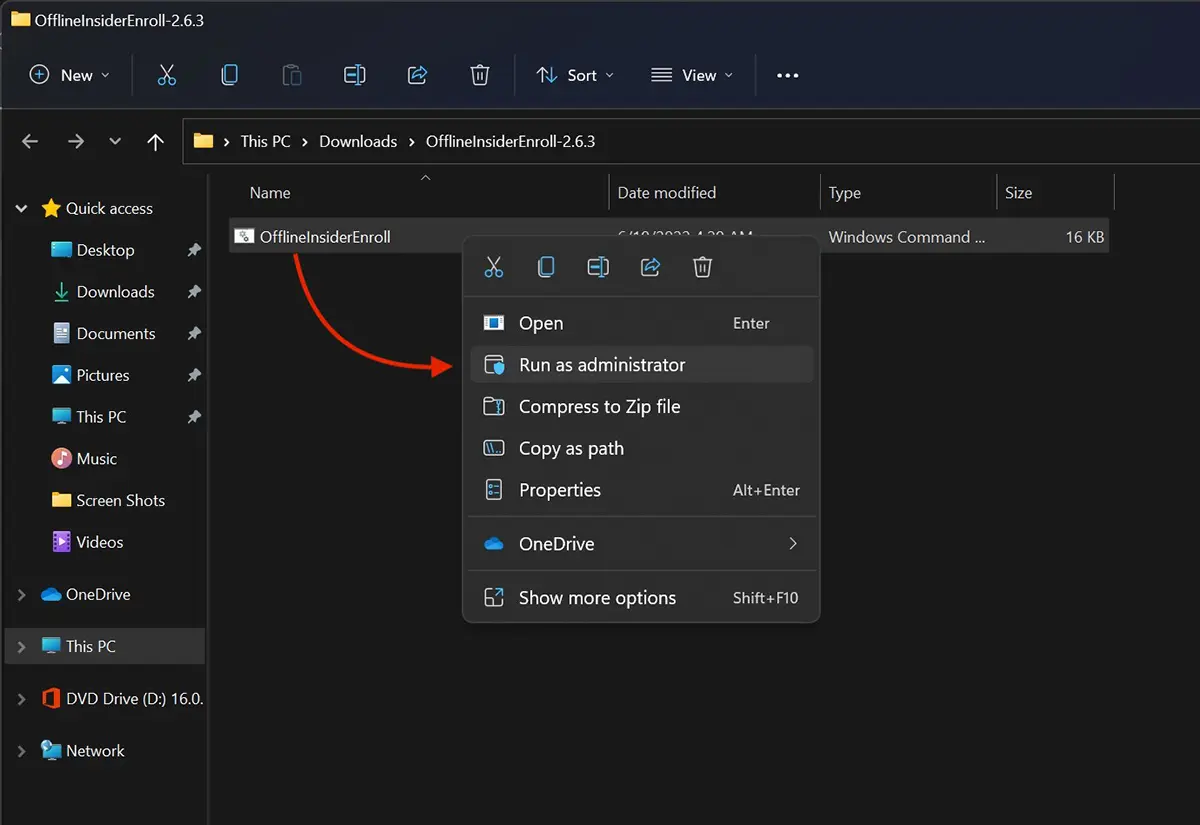
2. 압축을 풀고 관리자 권한으로 스크립트를 실행하세요 OfflineInsiderEnroll.cmd.
3. 대화 상자에서 Microsoft Defender SmartScreen 우리는 클릭합니다 “추가 정보”.
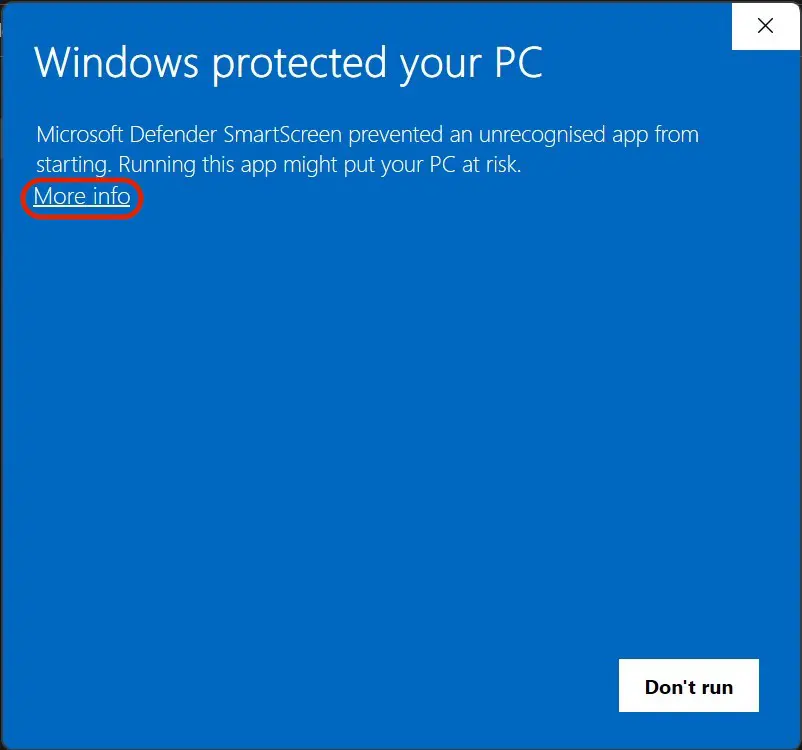
4. “어쨌든 실행” OfflineInsiderEnroll을 실행하려면 다음을 클릭합니다. “추가 정보”.
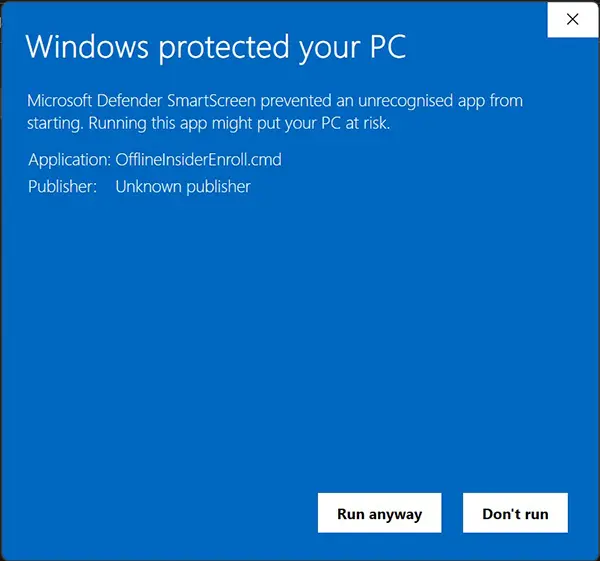
귀하의 장치가 Windows 참가자 프로그램에 참여할 자격이 없는 문제를 해결하세요
5. 열릴 거예요 Command Prompt, 여기서 어떤 프로그램을 선택하는지 Windows 11 Insider PC등록을 하려고 합니다. 다음에 해당하는 숫자를 입력합니다. Dev Channel, Beta Channel 또는 Release Preview Channel.
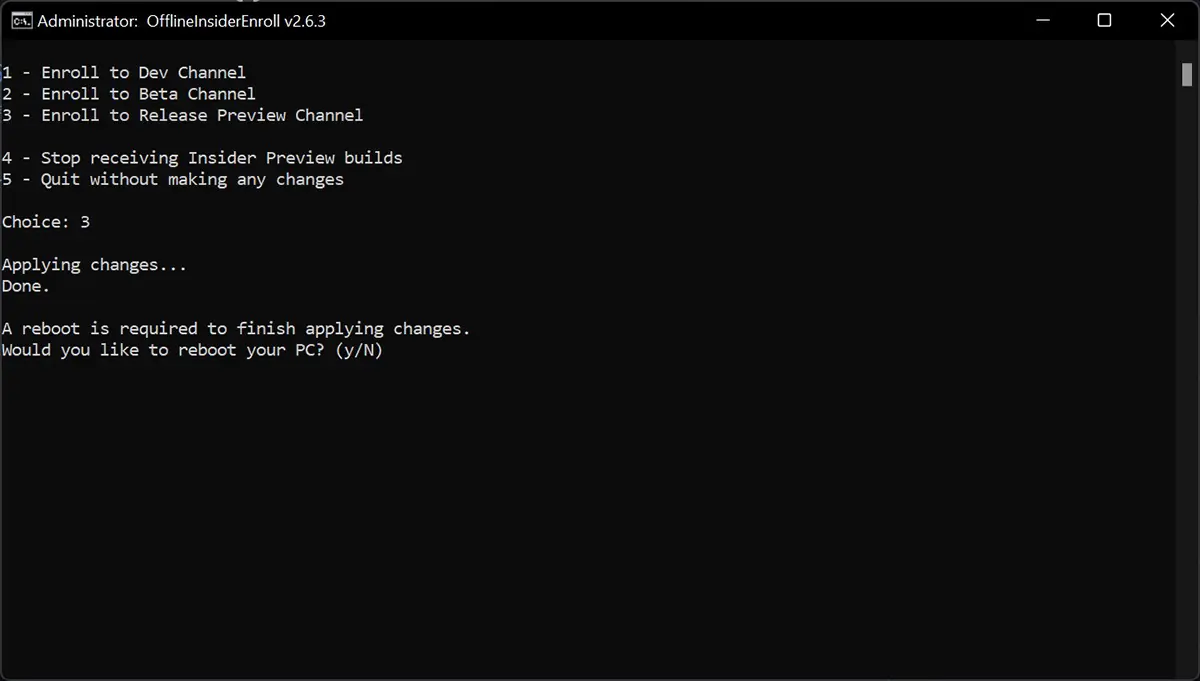
6. 인롤라레아 윈도우 11 Release Preview Channel PC를 다시 시작해야 합니다. 맛본 “y” 명령 프롬프트에서 PC가 다시 시작될 때까지 기다립니다.
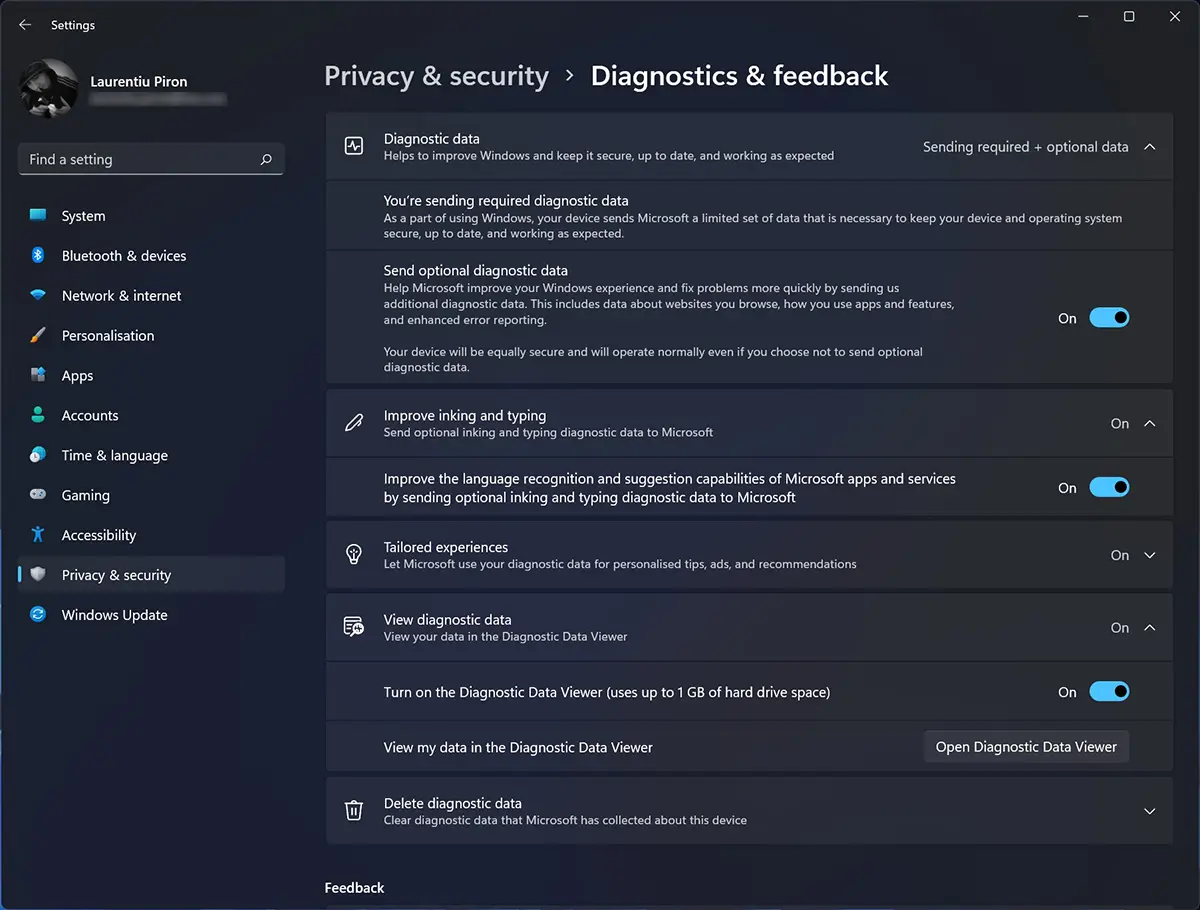
7. PC를 다시 시작한 후 Windows 11로 이동하여 다음을 수행합니다. Settings > Privacy and Security > Diagnostics & feedback. 여기에서 설정했습니다. “~에” 모든 옵션에 대해.
위의 옵션을 확인한 후 다음으로 이동합니다. Windows Update > Windows Insider Programme. 여기서는 PC가 다음에서 업데이트를 받도록 등록되었음을 확인합니다. Windows 11 Release Preview Channel.
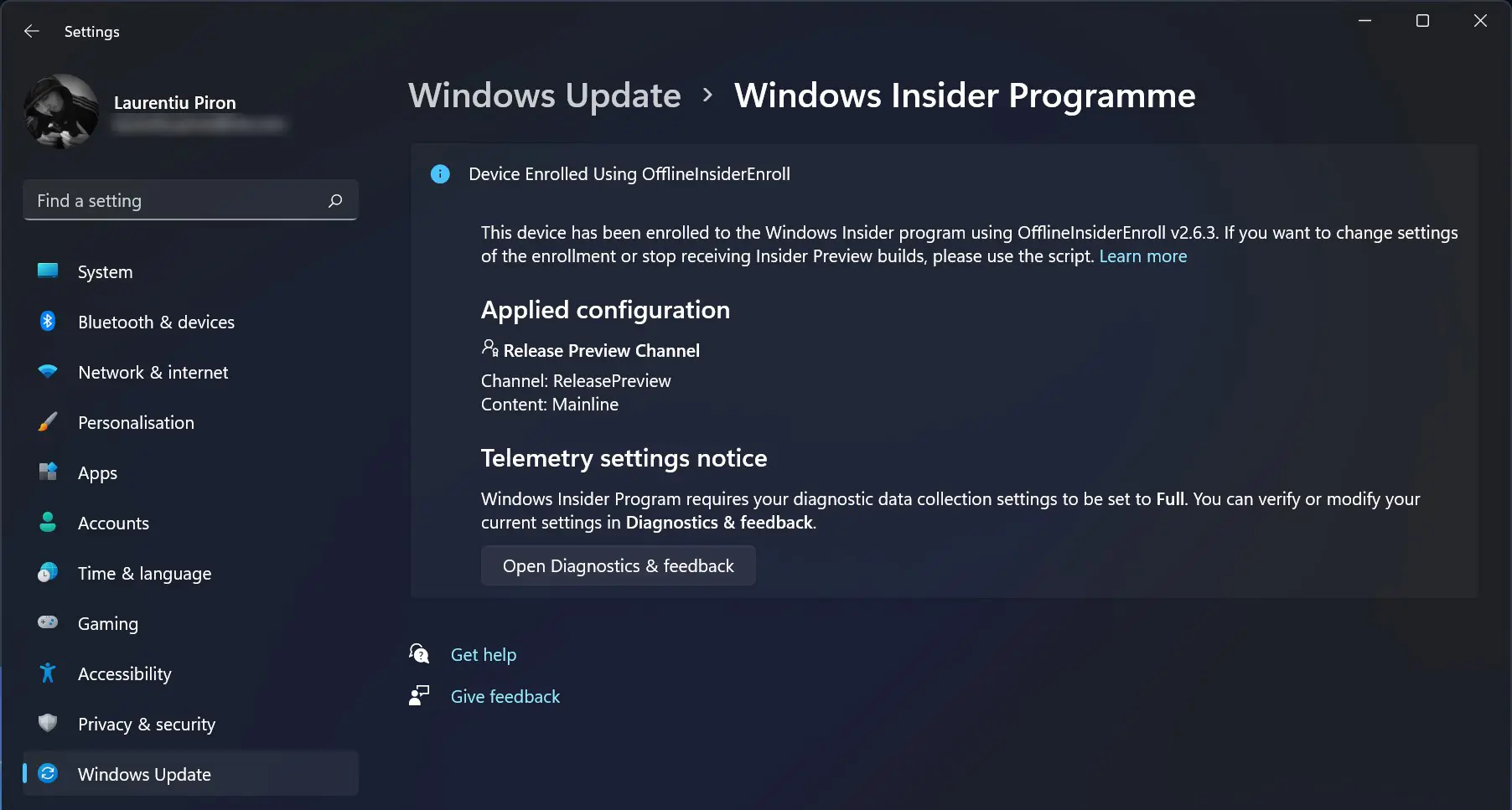
8. Windows 업데이트로 이동하여 Windows 11 Insider Preview 업데이트를 시작합니다.
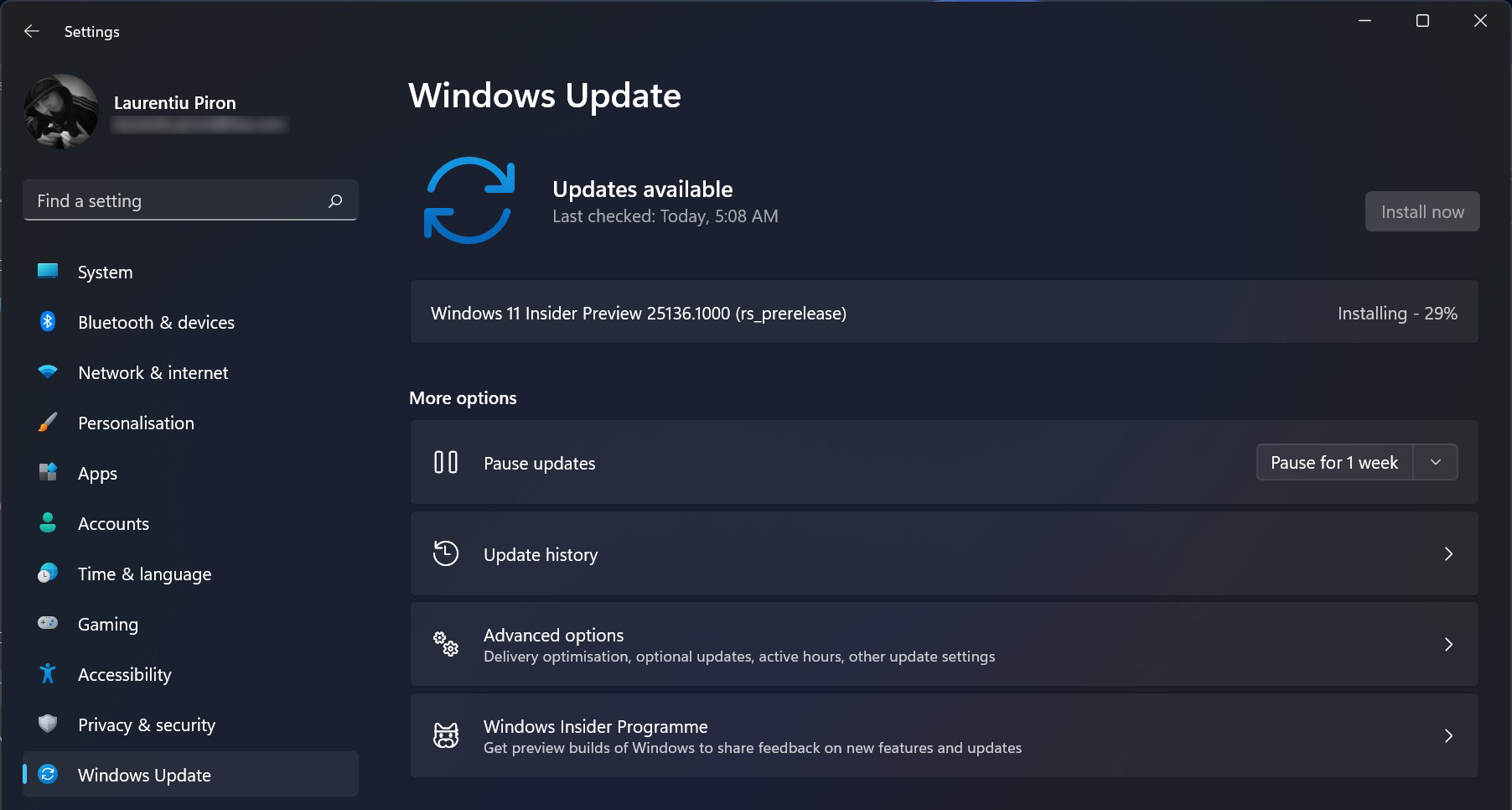
Windows 11 Insider Preview 업데이트 중에 오류가 발생하는 경우 “Download Error 0x80888002“, 이 링크에서 해결책을 찾을 수 있습니다.
제 생각에는 학교나 업무용으로 사용하지 않는 PC에만 베타 버전(Insider Preview)을 설치하는 것이 좋은 것 같습니다. 언제든지 오류, 버그 또는 특정 드라이버가 더 이상 호환되지 않을 수 있습니다.


당신은 또한에 관심이있을 수 있습니다 ...
