


Det er også kritiske øyeblikk når vi av ulike årsaker ikke lenger har tilgang til e-postadressen vi registrerte brukeren vår på Administrator WordPress, vi kjenner ikke tilgangslegitimasjonen til databasen lenger, og vi husker ikke engang passordet til administrasjonsbrukeren. I dette scenariet må vi finne en løsning for hvordan du tilbakestiller WordPress Administrator-brukerpassordet. Tilbakestill WordPress administratorpassord.
Innhold
Metoden nedenfor, av tilbakestille passordet til en WordPress-bruker krever tilgang til FTP eller en filbehandling (via cPanel) for å lage en fil i rotmappen der WordPress-bloggen eller nettstedet er installert som vi ønsker å gjenopprette admin-passordet for.
Hvordan tilbakestille passordet til WordPress Administrator-brukeren hvis vi ikke har tilgang til e-posten eller databasen
Tilbakestill WordPress Administratorpassord
1. Vi oppretter på WordPress-vertsserveren i rotmappen (public_html) en PHP-fil (reset_password.php, for eksempel) der vi legger til koden nedenfor:
<?php
/*
	This program is free software; you can redistribute it and/or modify
    	it under the terms of the GNU General Public License as published by
    	the Free Software Foundation; either version 2 of the License, or
    	(at your option) any later version.

	This program is distributed in the hope that it will be useful,
    	but WITHOUT ANY WARRANTY; without even the implied warranty of
    	MERCHANTABILITY or FITNESS FOR A PARTICULAR PURPOSE.  See the
    	GNU General Public License for more details.

	You should have received a copy of the GNU General Public License
    	along with this program; if not, write to the Free Software
    	Foundation, Inc., 59 Temple Place, Suite 330, Boston, MA  02111-1307  USA
*/

require './wp-blog-header.php';

function meh() {
	global $wpdb;

	if ( isset( $_POST['update'] ) ) {
		$user_login = ( empty( $_POST['e-name'] ) ? '' : sanitize_user( $_POST['e-name'] ) );
		$user_pass  = ( empty( $_POST[ 'e-pass' ] ) ? '' : $_POST['e-pass'] );
		$answer = ( empty( $user_login ) ? '<div id="message" class="updated fade"><p><strong>The user name field is empty.</strong></p></div>' : '' );
		$answer .= ( empty( $user_pass ) ? '<div id="message" class="updated fade"><p><strong>The password field is empty.</strong></p></div>' : '' );
		if ( $user_login != $wpdb->get_var( "SELECT user_login FROM $wpdb->users WHERE ID = '1' LIMIT 1" ) ) {
			$answer .="<div id='message' class='updated fade'><p><strong>That is not the correct administrator username.</strong></p></div>";
		}
		if ( empty( $answer ) ) {
			$wpdb->query( "UPDATE $wpdb->users SET user_pass = MD5('$user_pass'), user_activation_key = '' WHERE user_login = '$user_login'" );
			$plaintext_pass = $user_pass;
			$message = __( 'Someone, hopefully you, has reset the Administrator password for your WordPress blog. Details follow:' ). "\r\n";
			$message  .= sprintf( __( 'Username: %s' ), $user_login ) . "\r\n";
			$message .= sprintf( __( 'Password: %s' ), $plaintext_pass ) . "\r\n";
			@wp_mail( get_option( 'admin_email' ), sprintf( __( '[%s] Your WordPress administrator password has been changed!' ), get_option( 'blogname' ) ), $message );
			$answer="<div id='message' class='updated fade'><p><strong>Your password has been successfully changed</strong></p><p><strong>An e-mail with this information has been dispatched to the WordPress blog administrator</strong></p><p><strong>You should now delete this file off your server. DO NOT LEAVE IT UP FOR SOMEONE ELSE TO FIND!</strong></p></div>";
		}
	}

	return empty( $answer ) ? false : $answer;
}

$answer = meh();
?>
<!DOCTYPE html PUBLIC "-//W3C//DTD XHTML 1.0 Transitional//EN" "http://www.w3.org/TR/xhtml1/DTD/xhtml1-transitional.dtd">
<html xmlns="http://www.w3.org/1999/xhtml">
<head>
	<title>WordPress Emergency Password Reset</title>
	<meta http-equiv="Content-Type" content="<?php bloginfo( 'html_type' ); ?>; charset=<?php bloginfo( 'charset' ); ?>" />
	<link rel="stylesheet" href="<?php bloginfo( 'wpurl' ); ?>/wp-admin/wp-admin.css?version=<?php bloginfo( 'version' ); ?>" type="text/css" />
</head>
<body>
	<div class="wrap">
		<form method="post" action="">
			<h2>WordPress Emergency Password Reset</h2>
			<p><strong>Your use of this script is at your sole risk. All code is provided "as -is", without any warranty, whether express or implied, of its accuracy, completeness. Further, I shall not be liable for any damages you may sustain by using this script, whether direct, indirect, special, incidental or consequential.</strong></p>
			<p>This script is intended to be used as <strong>a last resort</strong> by WordPress administrators that are unable to access the database.
				Usage of this script requires that you know the Administrator's user name for the WordPress install. (For most installs, that is going to be "admin" without the quotes.)</p>
			<?php
			echo $answer;
			?>
			<p class="submit"><input type="submit" name="update" value="Update Options" /></p>

			<fieldset class="options">
				<legend>WordPress Administrator</legend>
				<label><?php _e( 'Enter Username:' ) ?><br />
					<input type="text" name="e-name" id="e-name" class="input" value="<?php echo attribute_escape( stripslashes( $_POST['e-name'] ) ); ?>" size="20" tabindex="10" /></label>
				</fieldset>
				<fieldset class="options">
					<legend>Password</legend>
					<label><?php _e( 'Enter New Password:' ) ?><br />
					<input type="text" name="e-pass" id="e-pass" class="input" value="<?php echo attribute_escape( stripslashes( $_POST['e-pass'] ) ); ?>" size="25" tabindex="20" /></label>
				</fieldset>

				<p class="submit"><input type="submit" name="update" value="Update Options" /></p>
			</form>
		</div>
	</body>
</html>
<?php exit; ?>
2. Åpne nettadressen til den nyopprettede filen i nettleseren: https://example.com/reset_password.php og i de to feltene skriv inn administratorbrukeren og det nye passordet, og klikk deretter på “Oppdateringsalternativer”
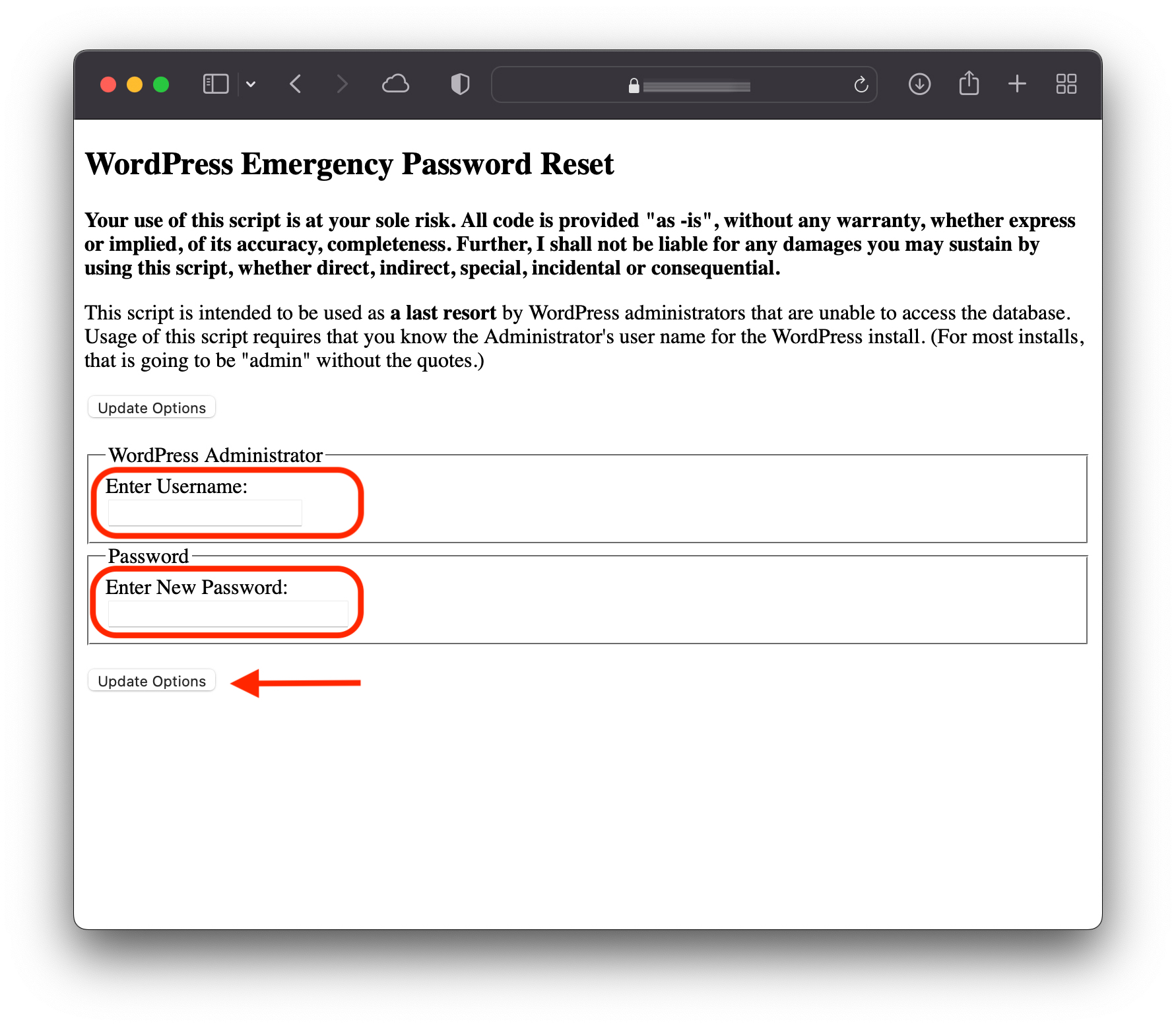
3. Etter å ha klikket på oppdater passordet (Oppdateringsalternativer), vil en melding med det nye passordet du har valgt bli sendt til e-posten til brukeren med administratorrangering som du gjorde tilbakestillingen for.
4. Slett filen umiddelbart fra serveren. Den kan brukes av enhver bruker.
Your password has been successfully changed
An e-mail with this information has been dispatched to the WordPress blog administrator
You should now delete this file off your server. DO NOT LEAVE IT UP FOR SOMEONE ELSE TO FIND!
Dette er den enkleste og mest effektive metoden for å tilbakestille WordPress-administratorpassordet, for scenariet der du ikke har tilgang til databasen eller til e-postkontoen for å gjenopprette passordet ditt.


Du kan også være interessert i...
