


Są też krytyczne momenty, kiedy z różnych powodów nie mamy już dostępu do adresu e-mail, na którym zarejestrowaliśmy naszego użytkownika Administrator WordPressa, nie znamy już danych dostępowych do bazy danych i nie pamiętamy nawet hasła użytkownika administracyjnego. W tym scenariuszu musimy znaleźć rozwiązanie, jak zresetować hasło użytkownika administratora WordPress. Zresetuj hasło administratora WordPressa.
treść
Poniższa metoda, wg resetowanie hasła użytkownika WordPress wymaga dostępu do FTP lub menedżera plików (poprzez cPanel) w celu utworzenia w folderze głównym, w którym zainstalowany jest blog lub witryna WordPress, pliku, dla którego chcemy odzyskać hasło administratora.
Jak zresetować hasło użytkownika Administrator WordPress, jeśli nie mamy dostępu do poczty e-mail lub bazy danych
Zresetuj hasło administratora WordPress
1. Tworzymy na serwerze hosta WordPress w folderze głównym (public_html) plik PHP (reset_password.phpna przykład), w którym dodajemy poniższy kod:
<?php
/*
	This program is free software; you can redistribute it and/or modify
    	it under the terms of the GNU General Public License as published by
    	the Free Software Foundation; either version 2 of the License, or
    	(at your option) any later version.

	This program is distributed in the hope that it will be useful,
    	but WITHOUT ANY WARRANTY; without even the implied warranty of
    	MERCHANTABILITY or FITNESS FOR A PARTICULAR PURPOSE.  See the
    	GNU General Public License for more details.

	You should have received a copy of the GNU General Public License
    	along with this program; if not, write to the Free Software
    	Foundation, Inc., 59 Temple Place, Suite 330, Boston, MA  02111-1307  USA
*/

require './wp-blog-header.php';

function meh() {
	global $wpdb;

	if ( isset( $_POST['update'] ) ) {
		$user_login = ( empty( $_POST['e-name'] ) ? '' : sanitize_user( $_POST['e-name'] ) );
		$user_pass  = ( empty( $_POST[ 'e-pass' ] ) ? '' : $_POST['e-pass'] );
		$answer = ( empty( $user_login ) ? '<div id="message" class="updated fade"><p><strong>The user name field is empty.</strong></p></div>' : '' );
		$answer .= ( empty( $user_pass ) ? '<div id="message" class="updated fade"><p><strong>The password field is empty.</strong></p></div>' : '' );
		if ( $user_login != $wpdb->get_var( "SELECT user_login FROM $wpdb->users WHERE ID = '1' LIMIT 1" ) ) {
			$answer .="<div id='message' class='updated fade'><p><strong>That is not the correct administrator username.</strong></p></div>";
		}
		if ( empty( $answer ) ) {
			$wpdb->query( "UPDATE $wpdb->users SET user_pass = MD5('$user_pass'), user_activation_key = '' WHERE user_login = '$user_login'" );
			$plaintext_pass = $user_pass;
			$message = __( 'Someone, hopefully you, has reset the Administrator password for your WordPress blog. Details follow:' ). "\r\n";
			$message  .= sprintf( __( 'Username: %s' ), $user_login ) . "\r\n";
			$message .= sprintf( __( 'Password: %s' ), $plaintext_pass ) . "\r\n";
			@wp_mail( get_option( 'admin_email' ), sprintf( __( '[%s] Your WordPress administrator password has been changed!' ), get_option( 'blogname' ) ), $message );
			$answer="<div id='message' class='updated fade'><p><strong>Your password has been successfully changed</strong></p><p><strong>An e-mail with this information has been dispatched to the WordPress blog administrator</strong></p><p><strong>You should now delete this file off your server. DO NOT LEAVE IT UP FOR SOMEONE ELSE TO FIND!</strong></p></div>";
		}
	}

	return empty( $answer ) ? false : $answer;
}

$answer = meh();
?>
<!DOCTYPE html PUBLIC "-//W3C//DTD XHTML 1.0 Transitional//EN" "http://www.w3.org/TR/xhtml1/DTD/xhtml1-transitional.dtd">
<html xmlns="http://www.w3.org/1999/xhtml">
<head>
	<title>WordPress Emergency Password Reset</title>
	<meta http-equiv="Content-Type" content="<?php bloginfo( 'html_type' ); ?>; charset=<?php bloginfo( 'charset' ); ?>" />
	<link rel="stylesheet" href="<?php bloginfo( 'wpurl' ); ?>/wp-admin/wp-admin.css?version=<?php bloginfo( 'version' ); ?>" type="text/css" />
</head>
<body>
	<div class="wrap">
		<form method="post" action="">
			<h2>WordPress Emergency Password Reset</h2>
			<p><strong>Your use of this script is at your sole risk. All code is provided "as -is", without any warranty, whether express or implied, of its accuracy, completeness. Further, I shall not be liable for any damages you may sustain by using this script, whether direct, indirect, special, incidental or consequential.</strong></p>
			<p>This script is intended to be used as <strong>a last resort</strong> by WordPress administrators that are unable to access the database.
				Usage of this script requires that you know the Administrator's user name for the WordPress install. (For most installs, that is going to be "admin" without the quotes.)</p>
			<?php
			echo $answer;
			?>
			<p class="submit"><input type="submit" name="update" value="Update Options" /></p>

			<fieldset class="options">
				<legend>WordPress Administrator</legend>
				<label><?php _e( 'Enter Username:' ) ?><br />
					<input type="text" name="e-name" id="e-name" class="input" value="<?php echo attribute_escape( stripslashes( $_POST['e-name'] ) ); ?>" size="20" tabindex="10" /></label>
				</fieldset>
				<fieldset class="options">
					<legend>Password</legend>
					<label><?php _e( 'Enter New Password:' ) ?><br />
					<input type="text" name="e-pass" id="e-pass" class="input" value="<?php echo attribute_escape( stripslashes( $_POST['e-pass'] ) ); ?>" size="25" tabindex="20" /></label>
				</fieldset>

				<p class="submit"><input type="submit" name="update" value="Update Options" /></p>
			</form>
		</div>
	</body>
</html>
<?php exit; ?>
2. Otwórz w przeglądarce adres internetowy nowo utworzonego pliku: https://example.com/reset_password.php i w obu polach wprowadź użytkownika Administrator i nowe hasło, a następnie kliknij “Opcje aktualizacji”
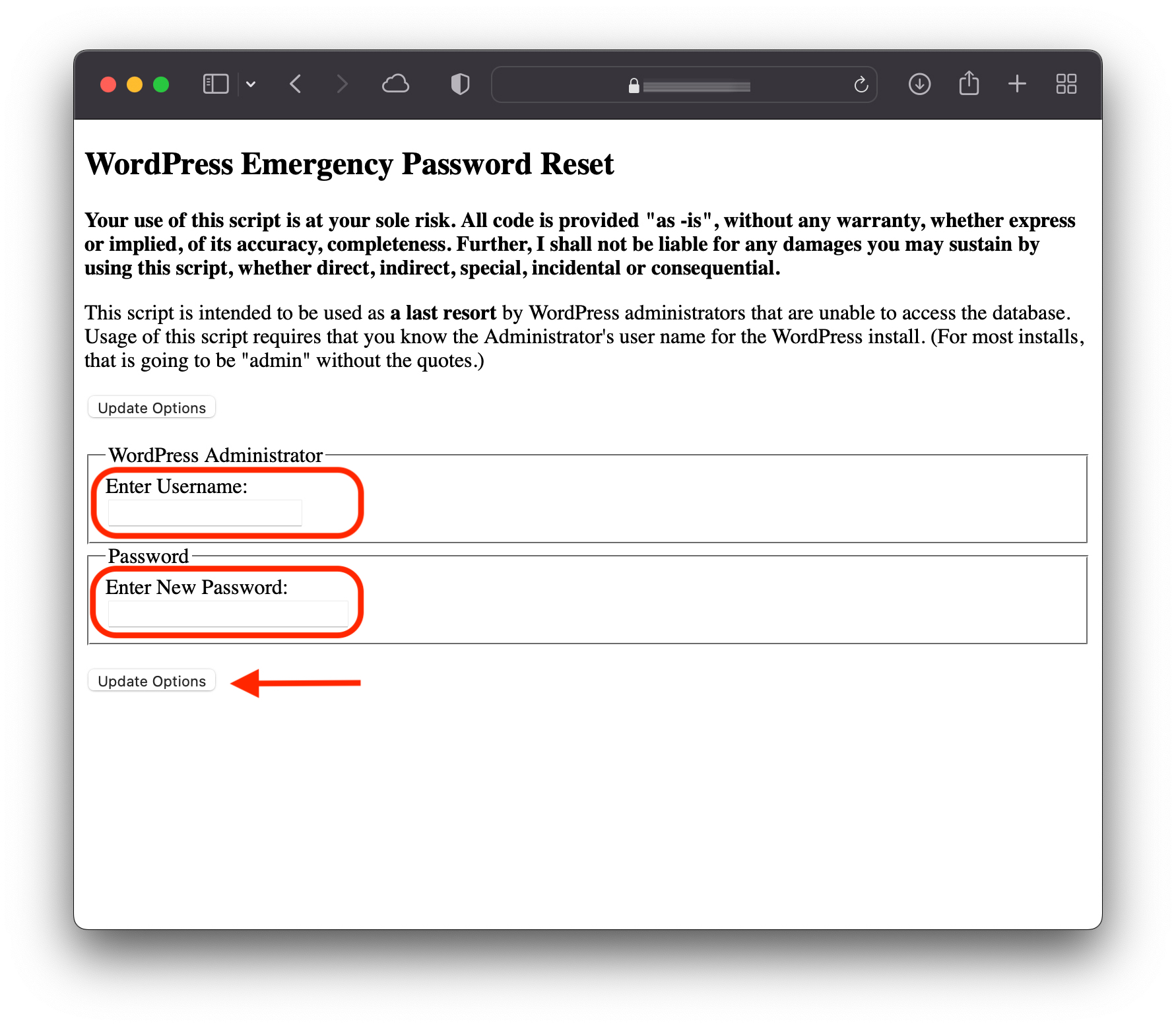
3. Po kliknięciu na opcję aktualizacji hasła (Opcje aktualizacji) na adres e-mail użytkownika z rangą administratora, dla którego wykonywałeś reset, zostanie wysłana wiadomość z wybranym przez Ciebie nowym hasłem.
4. Natychmiast usuń plik z serwera. Może z niego korzystać każdy użytkownik.
Your password has been successfully changed
An e-mail with this information has been dispatched to the WordPress blog administrator
You should now delete this file off your server. DO NOT LEAVE IT UP FOR SOMEONE ELSE TO FIND!
Jest to najprostsza i najskuteczniejsza metoda resetowania hasła administratora WordPressa, w sytuacji, gdy nie masz dostępu do bazy danych lub konta e-mail, na którym możesz odzyskać hasło.


Może zainteresują Cię także...
