

I saw it at my colleagues on howtosetup.info an article that gives serious thought to those who have installed their new operating system Microsoft Windows 7 pe laptop-hate. It's not about the resources CPU / RAM / video plate as we all think before installing a new operating system, but about energy resources. Specifically, many problems have been reported at bATTERY / BATTERIES laptopon which it was installed Windows 7.
After the official launch of the operating system Windows 7, many users who have laptopand they did upgradethe from Windows Vista to Windows 7, faced with laptop battery problemsof the Iconic of "power", the one with battery, from the corner of right-bottom indicates ca the battery is charged 100%, but it is physically finished. “Considering replacing your battery”
Windows 7 Battery Notification – Full but … “Considering replacing your battery”
Compared to systems Desktop which is powered directly from the socket, laptopthe and netbook- have three power options. Power supply directly from the socket with the battery removed, power from the socket with the battery connected (in many cases it is an energy plan similar to the first) and power supply only from the battery.
A year ago I explained in a post how to set the power plan in Windows Vista (it's similar in Windows 7), but when you use your laptop intensively “on the battery” you need to make some additional adjustments to avoid the destruction / premature termination of the laptop battery. The good part is that you don't have to make these adjustments blindly. Power Efficiency Diagnostics Report va analyze the system operating, softwarethe and processes auxiliary, after which it will display a report from which you can understand very easily what exactly you have to do in order to protect the laptop batteryof the What are the errors? “Power Policy” what needs to be corrected and what are the recommended settings “Warnings” what must be done in Power Options (click on the battery icon in the lower right), plus basic information about the laptop battery. Battery ID, Platform Power Management Capabilities, Platform Timer Resolution and Power Policy you can find them from the Power Efficiency Diagnostics Report.
How do we get the energy report on a Windows 7 laptop.
1. We open Command Prompt (with Administrator privileges) – see the tutorial here.
2. In Command Prompt dam comanda :
powercfg /energy
After writing this command line press Enter and wait 60 seconds until the system is analyzed and the report is generated.
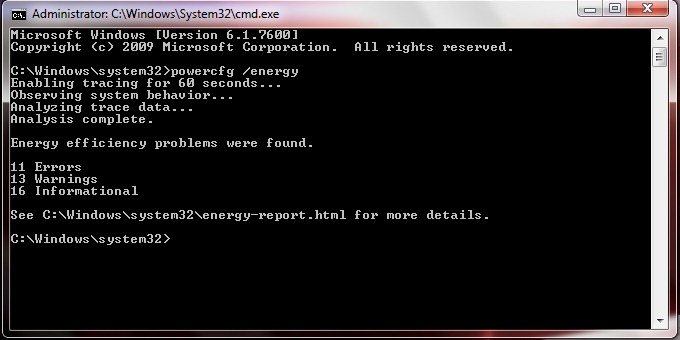
In my case they are 11 fall and 13 warnings. To view the report (Power Efficiency Diagnostics Report) go to C:WindowsSystem32 And open energy-report.html in Internet Browser.
Here's how the report I generated for this tutorial looks.
The report for one laptop Toshiba Satellite A300 – Energy Report.
Analyze the errors well and try to remove them. Search in the report “Battery:Battery Information” and check the values from “Design Capacity” and “Last Full Charge“. For a battery to support the Windows 7 architecture, the value Last Full Charge must be greater than Design Capacity.
We'll be back with a few posts (tutorial – experiments on our laptops) to explain exactly how they can be removed “energy errors” and how the operating system and energy plan can be optimized for laptops with Windows 7.


You may also be interested in...

35 thoughts on “Does your laptop battery support Windows 7? (Power Efficiency Diagnostics Report)”