


Many times, when we work with more Applications or we open a lot FILES and leaflets, WinXP begins to respond very hard to commands due to high consumption of resources. Usually, the release of resources by closing some of the applications/files solves to some extent the problem of the system resumption, but in some cases (especially if the computer has not been closed/restored for several hours/good days) the emergency intervention of a restart (to restore system processes and services and issue the resources of "hanging" processes of applications that have run between 2 restarts). But what do we do when we have to work with files from multiple folders, spread randomly on hard drive, again COMPUTER Does it start to react slowly and get stuck more and more often?
There are in Windows an option that forces reopening/restoring windows explorer windows (ie folders) that were open before the restart. To activate this option you only have to follow the steps below:
- open a window of Windows Explorer (or anything folder) and click on Organize (left-handed corner)
- Select Folder and search options from the menu
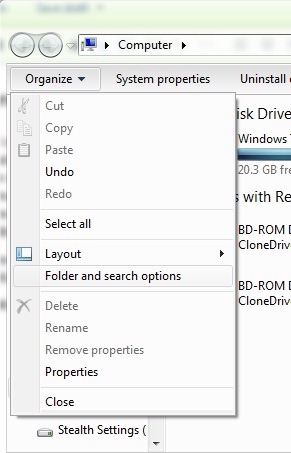
- in Folder Options Click on the tab View And check the option Restore previous folder windows at logon
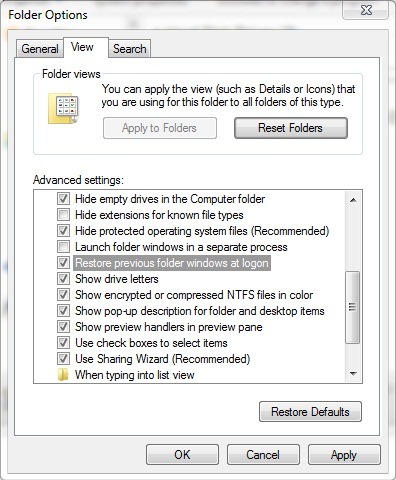
- click Apply, then OK
Using this simple method, every time you have to give a restart, all folders open before it will be restored after logon.
Note: Valid for Vista and 7. XP users will be able to activate this option by accessing my computer > Tools (in Menu bar) > Folder Options.
STEALTH SETTINGS – HOW TO RESTORE OPENED EXPLORER WINDOWS ON REBOOT


You may also be interested in...
