

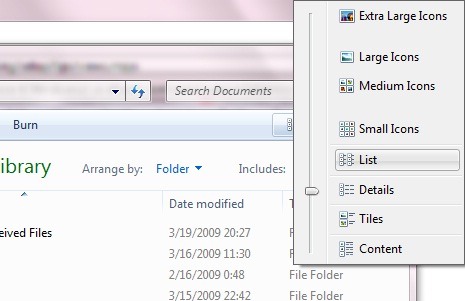
Definitely and you have a favorite way of display a Folder contents. Thumbnails (or the new extra extra Large/Large/Medium Icons) is of real help when you have to look quickly through The collection of photos, Tiles and Icons (Small Icons) offers an "airy" display, Details (And the new Content FROM Vista and Windows 7) offers you information existing, again List It's the most simplicity display of a folder's content and the most efficiency.
So if you are tired of finding in each folder separately different settings of the contents of the content (and, especially, different from the type of favorite display), we will continue to tell you how you can set the same way of displaying for all folders from your PC.
1. Open My Documents/Documents (Start–>My Documents) and set the desired content display mode.
2. Then enter in Folder Options (Tools–>Folder Options or Organize–>Folder and Search Options; daca Bar menu is not displayed, as is the case in Windows 7, press the key Alt), select the tab View and click on Apply to Folders.

Click Yes for confirmation later OK. If you want to return to the previous settings, follow the same steps and click on Restore Defaults (in the lower-right corner of the window) instead of Apply to Folders.
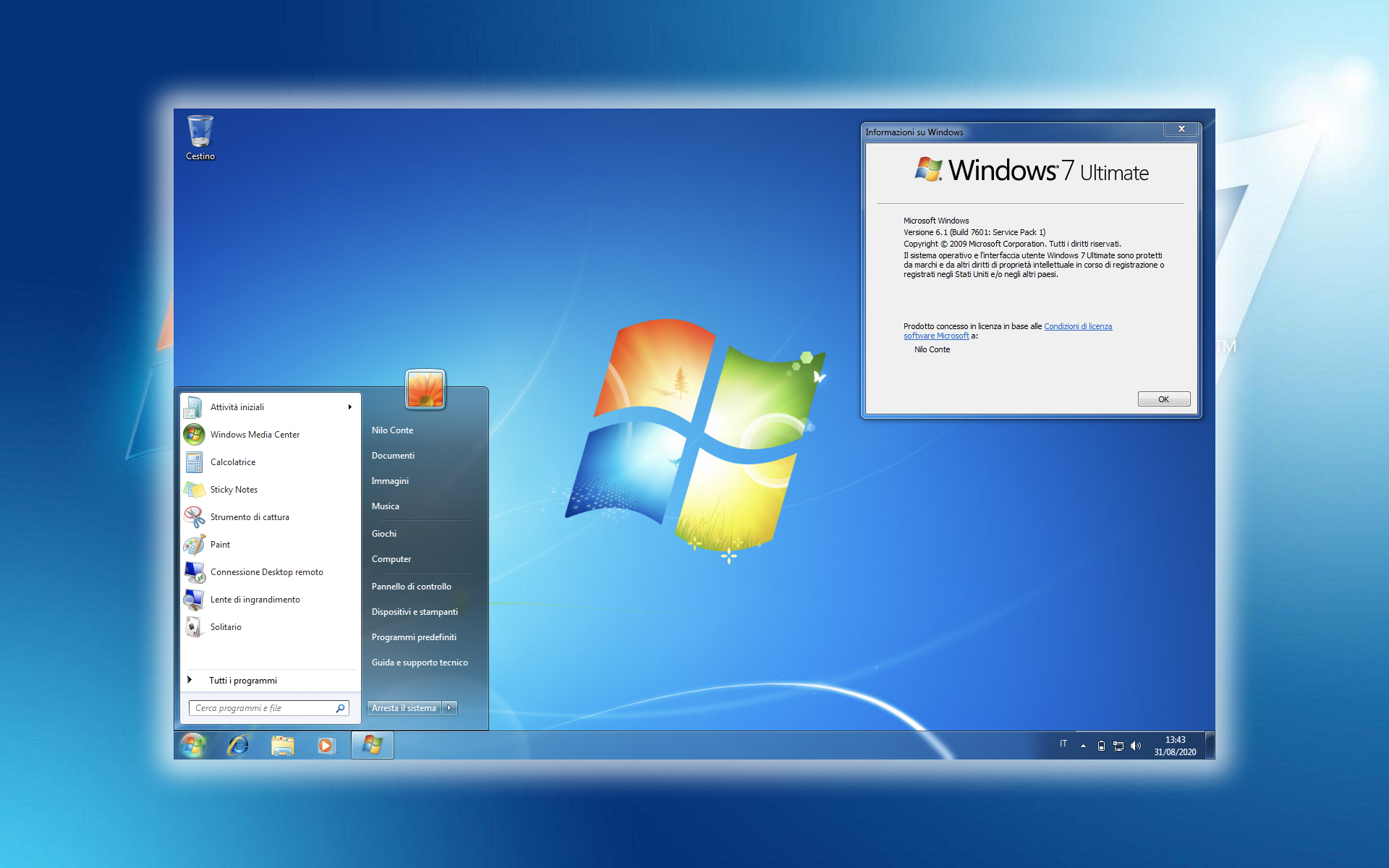
Note: this tutorial was made on Windows 7, but it is also valid for XP or Vista.


You may also be interested in...
