

When uploadam more Photos at the same time on Facebook, they are arranged in a way default in function of the name. Once uploaded, friends from the contact list will be able to view in News Feed only the first photos in the group uploaded, they have to access the whole List of photos to have access to all uploaded photos. If in the group of photos you want to upload on Facebook You have some photos that you want to display the first, but they are randomly arranged (in the middle or at the end of the uploaded photos) because of their names, you can Rearrange the order of photos upload respectively with the help dear feature&drop included in Facebook (in this way You will not have to rename the photos to ensure that they will be displayed in the desired order after upload).
How can we arrange the order in which the photos uploaded on Facebook will be displayed after upload?
- log in to Facebook account, then Upload the photos desired using either button in the form of camera displayed under the field for Update Status, either using the tab Add Photos/Video
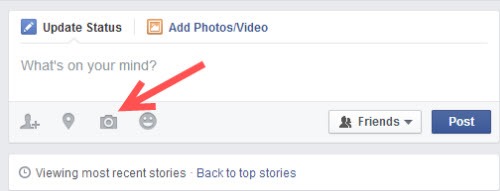
- Add all the photos you want to upload (use the key Ctrl in order to Select multiple photos, then click on Open) without giving click on the button Post
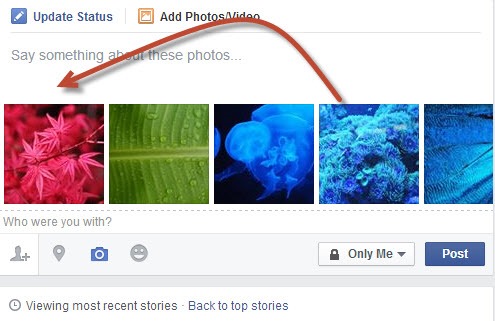
- after Uploading the photos You will notice that they will be displayed by Facebook according to the name; USING drag&drop, you can rearrange the order to them (this being the order in which the photos will be displayed after posting)
- After you are satisfied with the order in which the uploaded photos will be displayed in Facebook, click on the button Post
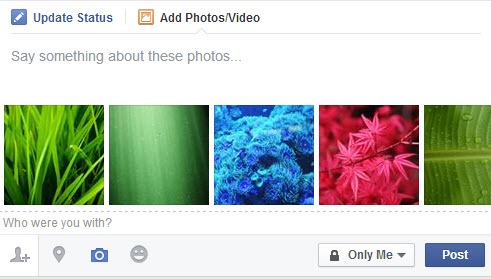
And ready. In this way you can rearrange the order in which uploaded photos pe Facebook at the same time they will be afisate in News Feed and on Timeline-ul DVS. Success!
Note: You can use the scroll bar to reach the last uploaded picture in the group (before posting the photos); In the case, if the group contains a large number of photos, you will need to repeat the dear action&Drop several times to move a photo to the desired position.
STEALTH SETTINGS – How to rearrange the displaying order of uploaded photos in Facebook


You may also be interested in...

One thought on “How can we rearrange the order of uploaded photos in the Facebook account”
If it's already posted on the post, how do you do it?