


Each application which we install in system make changes in registry of it through adding your own registries. Registries that have the stupid habit of not "leaving" together with the applications when we decide to use them uninstall, which leads to o accumulation of useless registers care reduce system performance and its reaction speed (one of the most "invoked" causes - but not necessarily demonstrated – being that with every order given to him, the system takes all registers in turn until it reaches those who need it for that order; that's why registries left behind by uninstalled applications are not useful to the system, on the contrary, they make it difficult). Because it would be a huge waste of time to try to manually identify useless registries and remove them from the system, it is necessary to periodically use a program to clean the registries from the remains of applications that were once installed (registry cleaner). But although these programs are very helpful userilor Windows, cannot guarantee a complete cleaning, and the useless registries that remain behind can still trouble the system on various occasions (of course, chosen on the "eyebrow", causing its crashes when we the dearest world).
WhatChanged It's O Portable application (that is, it does not require installation and does not add its own registries to the already existing ones) and free care monitors the changes made in the system registries, thus helping us to identify in the shortest possible time registers left behind by the applications which we uninstalled.
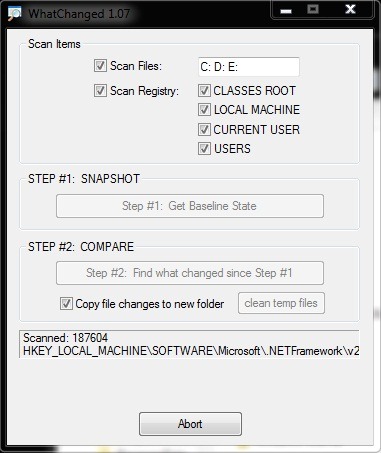
How does WhatChanged work?
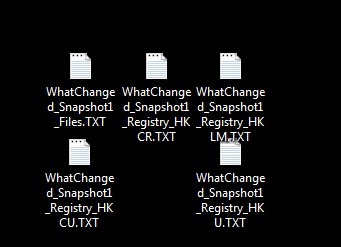
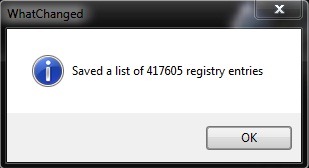
After installing the application and selection of registry categories that you want it to monitor (our recommendation is to monitor absolutely all system registries), it creates the first log, which will contain information about existing registers at that moment.
 |  |
Every time a new application will be installed, WhatChanged creates another log in which they are specified exactly changes in the registers: adding new ones or modifying existing ones. In this way, users can identify exactly which registers are created by various applications, and I can find them very easily to delete them manually after uninstalling the respective applications.
Note: In order for logs with registry changes to be created, you must run WhatChanged immediately after installing a new application (then compare the most recent log with the log created before it).


You may also be interested in...
