

Virtual CloneDrive It is a very good alternative in front of any other program / application that allows us to mount pictures ISO, BIN and CCD. I say this for two reasons.
1. Virtual CloneDrive It's an application freeware (100% free).
2. Do not consume resources and do more than it should do. That is to load the computer with toolbars, meaningless options and other fools as it is Daemon Tools.
Virtual CloneDrive behave like a unit CD/DVD physics, allowing the user to create up to 15 partitions DVD/CD virtual on which to mount images. It is ideal for those using installation kits .ISO (Most of the big games and applications are found in format .ISO) and for those who choose to hold their archived folders.Creates ISO images from folders).
Virtual cloneDrive installation
After downloading the file SetupVirtualCloneDrive5450.exe You can start the installation. The installation process lasts only a few seconds does not require much knowledge. During installation you are asked if you want to associate with Virtual CloneDrive next to the files .ccd, .dvd, .iso and files .img, .udf and .bin.
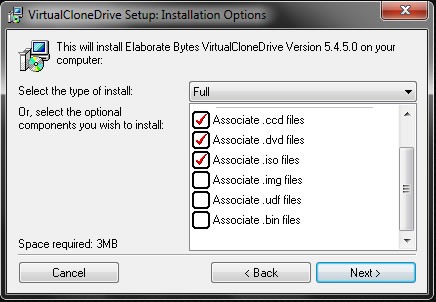
“Next” to continue the installation.
Presentation and Virtual CloneDrive use
After installing the application, on Desktop yes in Installed Programs you will have “a sheep“. This is the icon chosen by Doctrous teeth SlySoft For this application :-)
The graphic interface of the application makes it very easy to use. Basically you have to choose the number of virtual devices you need to install the images and press OK.
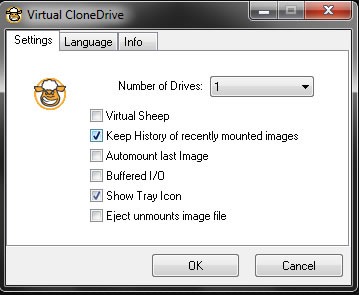
option “Virtual Sheep” is to put in “Computer” the sheep icon for virtual devices. A useful option to highlight them, where there are several media units installed.
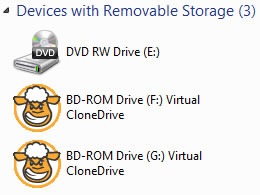
With the option “Virtual Sheep” unchecked, the drives will look like normal media partitions (BD-ROM Drive)
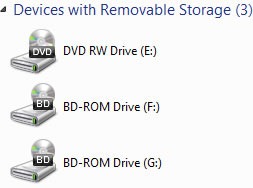
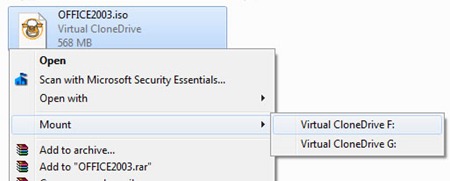
After choosing the number of virtual partitions you need, you can mount the images (mount .ccd, .dvd, .iso files), in two ways. Either right-click on the virtual partition and “Virtual CloneDrive” > “Mount…”, or simpler, by right-clicking directly on the image file using the option put in by the application Context Menu.
VirtualClone Drive is a free, developed application by SlySoft and is compatible on all operating systems Windows 98, Windows ME, Windows 2000, Windows XP, Windows Vista and Windows 7 (32 bit si 64 bit).


You may also be interested in...
