

Regardless of whether you are a user Windows or The x, in case you want to know MAC address a computer you can do this very simply by following one of the methods described below.
How do we find the MAC address of the computer in Windows?
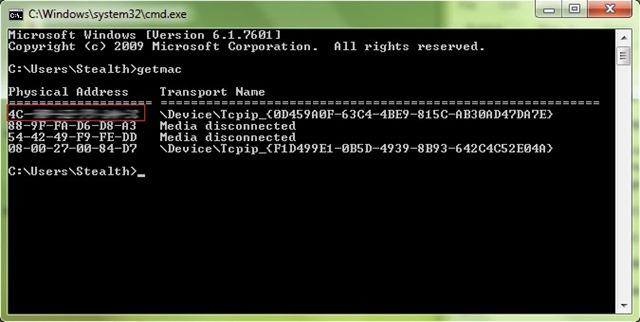
uSERS Windows i can find out MAC address of the computer either from Control Panel, either through Command Prompt. Of these two methods, the fastest is the one via Command Prompt:
- open Command Prompt (taste cmd in Run yes data Enter)
- Then cut your order getmac you give ENTER
- your computer's MAC address will be the first address displayed under Physical Address
If you prefer to find out MAC address FROM Control Panel, follow the instructions below:
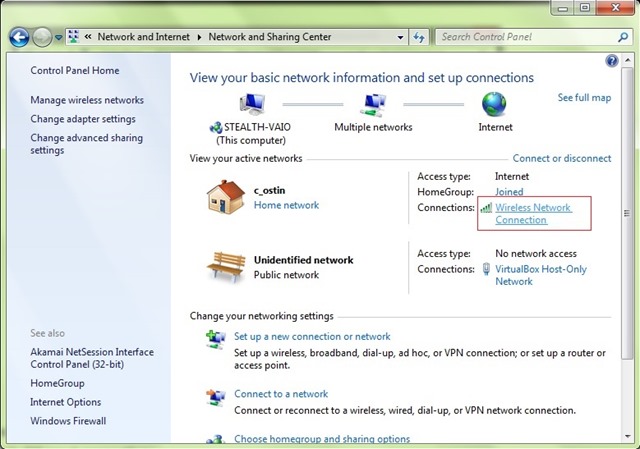
- open Control Panel and navigate to Network and Internet > Network and Sharing Center
- Click on network connection displayed on the right side of the window (in this case it is a Wireless network, but it can also be one ethernet, daca PC-ul is connected to the internet via cable)
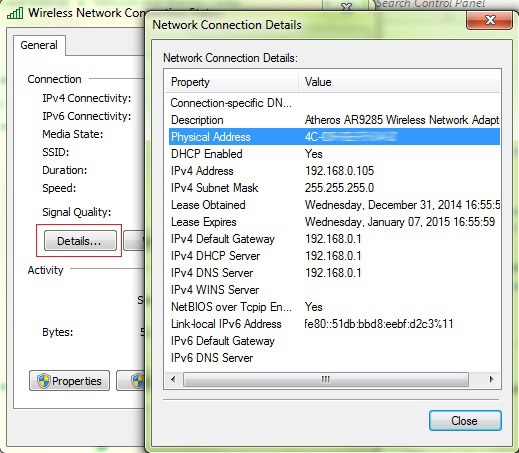
- Then click on the button Details; MAC address is the address shown on the right Physical Address
How do we find the MAC address of the computer in OS X?
If you are a user The x, you can find out MAC address (Media Access Control) of your Mac (Macintosh) using the following instructions:
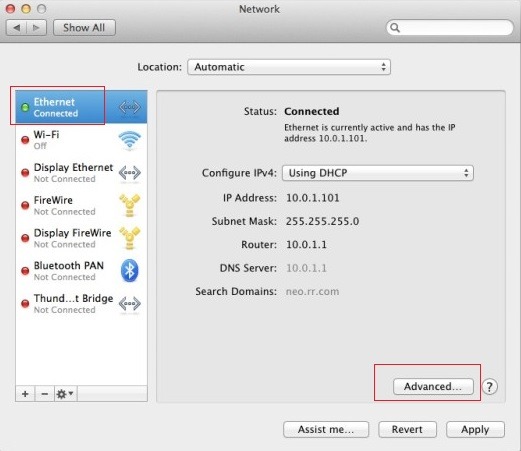
- open System Preferences and click on Network
- In the open window, select active network (to which you are currently connected) on the left, then click on the button Advanced (bottom right side)
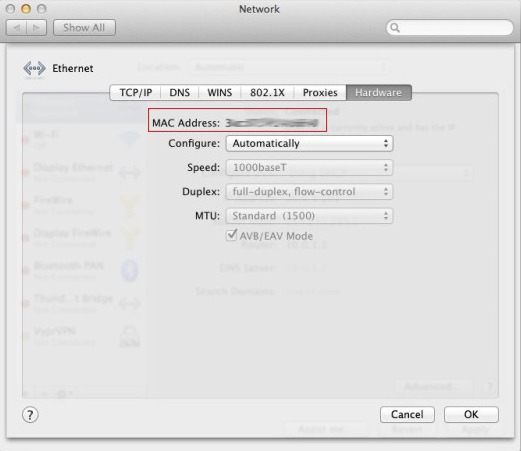
- Then click on the tab Hardware to view MAC address
STEALTH SETTINGS – How to find MAC address in Windows and OS X


You may also be interested in...
