


Microsoft has recently launched (on October 17) the newest operating system Windows, Windows 8.1, as an update for the system Windows 8. If the users of some previous Windows systems I wish to upgrade to Windows 8.1, they will receive a system installation ISO image when purchasing one License code. But Windows 8 users, for whom the Windows 8.1 update is free, they have the possibility to upgrade only through Windows Store (although Microsoft announced some time ago that they will make available Windows 8.1 installation ISO files and for Windows 8 users, it seems that they have changed their minds, becoming quite clear after the release of the update that they do not plan this), and in the event that it is planned upgrading multiple computers, this method can become quite inconvenient.
uSERS Windows 8 who are subscribed to MSDN and/or TechNet have the opportunity to download the Windows 8.1 installation ISO image from the download pages of the respective sites.
Download Windows 8.1 RTM from MSDN.
Download Windows 8.1 RTM from TechNet.
Also, if you already have one License Code for Windows 8.1 you can use it to download the system installation ISO image from the download page of the official Microsoft website.
Download Windows 8.1 RTM from Microsoft (only with license code for Windows 8.1!).
If you only have one License Code for Windows 8 and you want to download the Windows 8.1 ISO image to perform a clean installation of the system (without having to first on reinstalati Windows 8 in order to upgrade later), one of the following methods will definitely help you.
1. Download the Windows 8.1 installation ISO image from the Microsoft website
- from download page of the Microsoft website download that the windows 8 installer, as well as the one for Windows 8.1 (click on the buttons Install Windows 8 and Install Windows 8.1)
- run the Windows 8 installer and enter License code that you have for the system
- once what the download process of installation files for Windows 8 start, close the installer
- then run the installer for Windows 8.1; the installation files will start downloading without prompting entering a license code for Windows 8.1
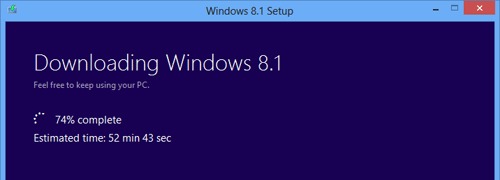
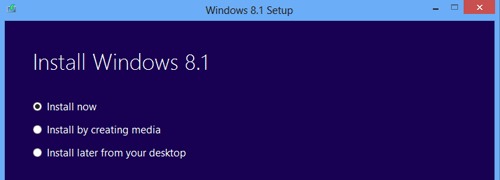
- after download the setup files for Windows 8.1, created a USB drive bootabil or o imagine ISO
2. Copy the Windows 8.1 installation files from the hidden upgrade folder
- download the installation files ale Windows 8.1 through Windows Store
- immediately after downloading, they will be extracted into the folder C:\ESD\Windows (also, in some cases, they can be found in the folder C:\Windows\SoftwareDistribution\Download)
- Copy the folder which contains the installation files of Windows 8.1 on a USB drive or on one DVD, then use the file setup.exe from these for a instala Windows 8.1 on other computers
Succes!
Note: If you clean install Windows 8.1, you can use the method here to be able to install the system using a Windows 8 license code.
STEALTH SETTINGS – How to download Windows 8.1 RTM ISO setup files


You may also be interested in...
