


registry A Windows Opere System, Windows Registry, represents the heart of the system. They are basically database where they are all stored configurations and SETTINGS operating system and others programs installed on the system. In the tutorials we have used ours many times Windows registry to change certain functions and choice operating system defaults.
Windows Registry in Stealth Settings
We can say that the registers of the operating system are in permanent change. Every time when we change a Windows setting or when we install / uninstall a program, something changes in the registries. Either existing keys are modified, deleted or new ones appear.
change “manual” in the registers (Windows Registry Hacks) can be risky when we try to make changes, delete or add new entries. An average PC user should not be interested in this part of Windows. I can defend myself registry errors which can lead to the instability of the operating system or even to the loss of data on the hard disk.
For a more advanced user who still wants to enter Registry Editor to make changes, we recommend a backup the Windows System Registry before starting work.
How can we backup system registries in Windows 7.
1. Open the registry editor (Registry Editor) : Win + R (to open the Run box) > tastam “regedit” > Enter or OK.
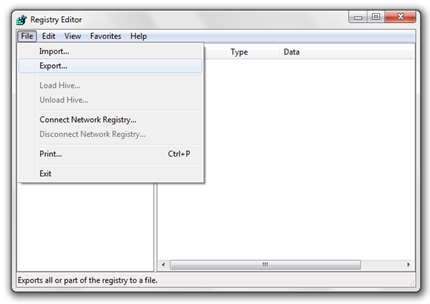
2. In “Registry Editor” we select “Computer” (appears on the left column), then we go to File > click Export…
3. Give the file a name (“backup” in our example) and il salvam pe hard disk with the extension .reg.
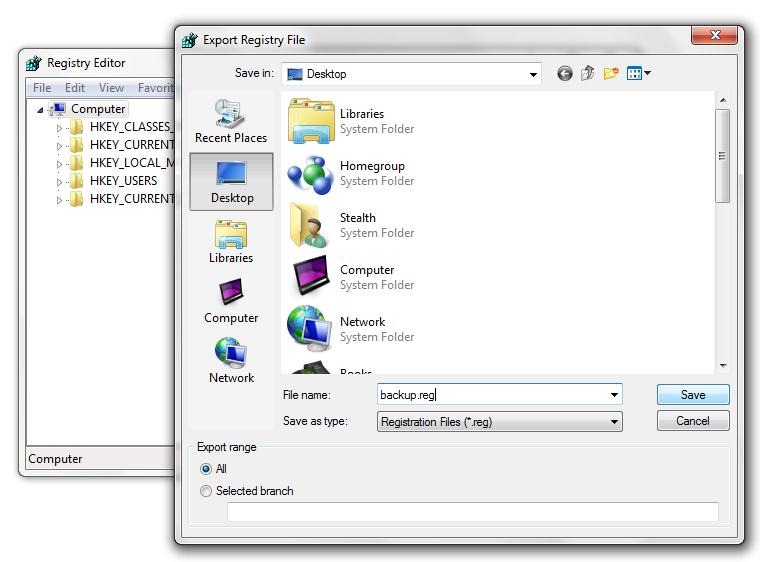
file backup.reg will contain all system configurations and settings and al pROGRAMS installed on your system. If you encounter errors after the changes in the registries, you can use this backup to return to the state at the time of export. Restore Windows 7 Registry.


You may also be interested in...

2 thoughts on “Backup Registrii de Sistem (Windows Registry) in Windows 7”