

Whatever hdd storage capacity or HDDs installed in the system, it never hurts to have a "reserve" of free space at hand - such as a hard-disk extern – for any eventuality. For example for backup-uri or resources. Or cartoons with Tom and Jerry.
If you have such a hdd (i.e. external) that you tend to use a lot for various reasons and that you want to access quickly whenever needed, then you will probably want to add it to the Taskbar. Those who have already tried to do this using the "traditional" method drag&drop have already noticed that this does not work for drives as well, the hdd being added in Windows Explorer Jumplist instead of Taskbar.
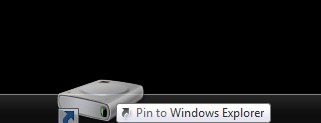
How do we add an external hdd to the Windows 7 Taskbar?
The solution is simpler than you imagine:
- open Notepad (New Text Document) then give it whatever name you want (hdd-usb, external drive, storage, etc.) and save it.
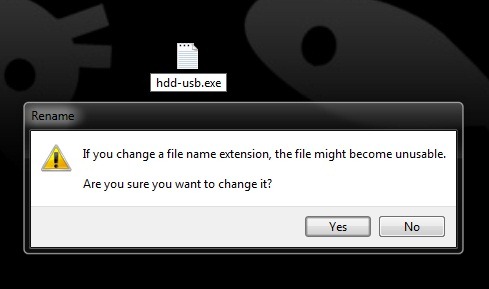
- change the extension of the document from .txt in .exe, then confirm by clicking on Yes
- right-click on the newly created file and select Pin to Taskbar from the menu
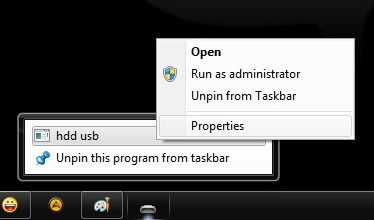
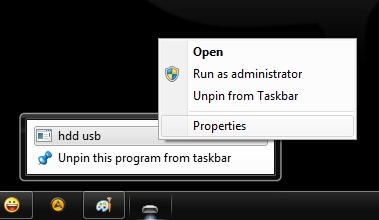
- then right-click on the file in the Taskbar, then right-click again on the file name in the Jumplist and select Properties from the menu
- in tab-ul Shortcut modify the path in the field on the right Target with the path to the external hdd (for example H:) or, if you want to access a single one folder from the hdd than the entire drive, with the path to the respective folder (for example H:Backups)
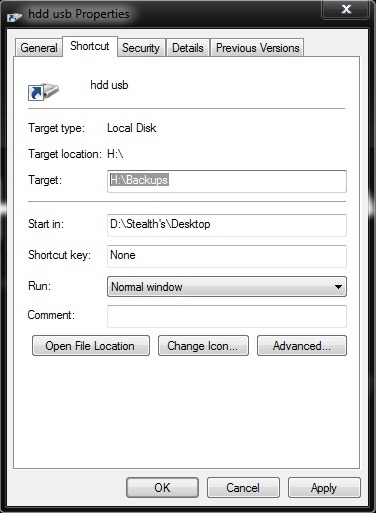
- then (optionally) click on Change Icon and select an icon for the new shortcut in the Taskbar
Click on OK and that's it, you have a new shortcut in the Taskbar with which you can quickly access the external hard drive.
Note: Valid only for Windows 7 editions.
STEALTH SETTINGS – HOW TO PIN A DRIVE TO TASKBAR (WINDOWS 7 ONLY)


You may also be interested in...
