


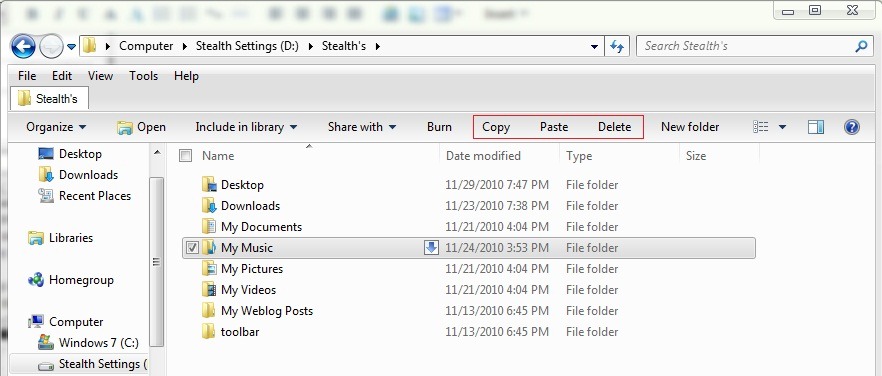
In Windows Vista and Windows 7, as opposed to Windows XP, from the toolbar Windows Explorer the buttons are completely missing Copy, Paste and Delete. Although these options (valid for both leaflets as well as for FILES) can be accessed through the menu below Organize (top left corner),
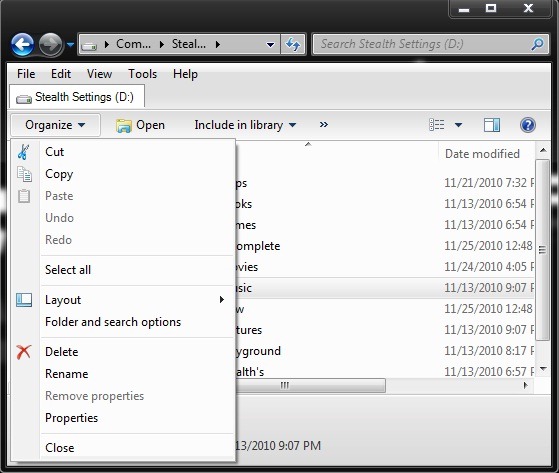
for those who prefer to have them at hand, they can add Copy, Paste and Delete in Explorer toolbar with the help of a small register hack.
open Registry Editor (taste regedit in Search-ul FROM Start Menu And give Enter) and navigate to the way HKEY_LOCAL_MACHINESOFTWAREMicrosoftWindowsCurrentVersionExplorerFolderTypes{5c4f28b5-f869-4e84-8e60-f11db97c5cc7}
Because this key is one protected by the system, you must first grant permissions to be able to make changes to it.

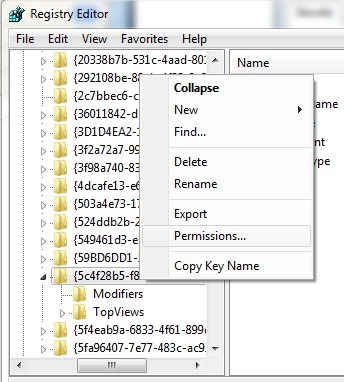
- right-click on the key and then select Permissions from the displayed menu
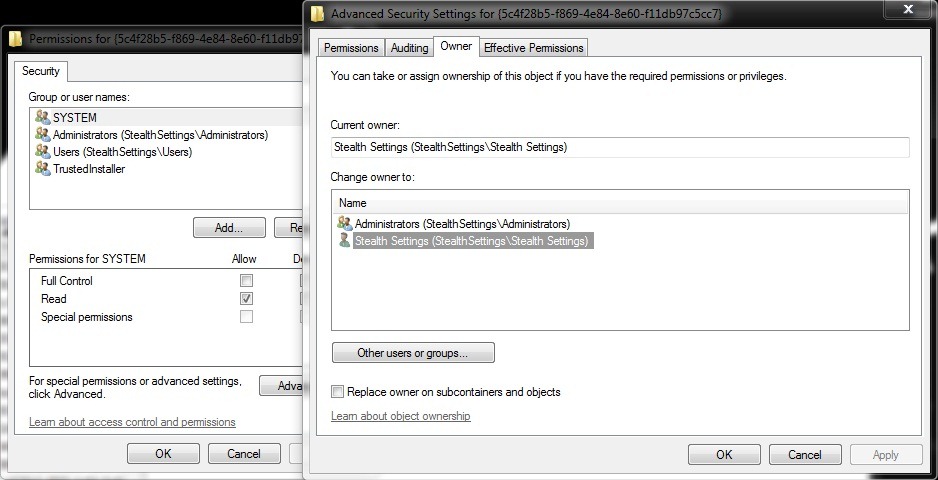
- in the newly opened window, click on Advanced, then on the tab Owner
- Select Customer with which you log in frequently (in this case it is Stealth Settings) and click on Apply then on OK
- then select your user again and check the box on the right Full Control And give OK
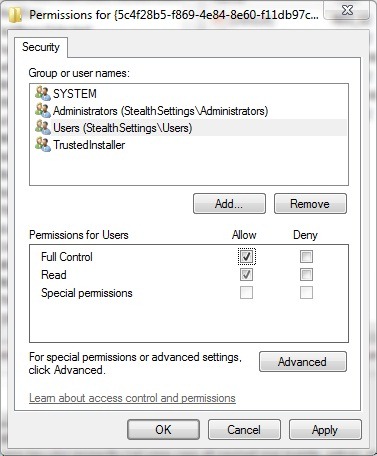
After you have granted permissions on the respective key (the one you navigated to before, that is):
- right click on it and select New > Key from the displayed menu
- name the new key TaskItemsSelected, then, in the right panel, right-click on the entry Default and select Modify
- in the field of below Value enter the next line
Windows.Copy; Windows.Paste; Windows.Delete;
- Then click on OK
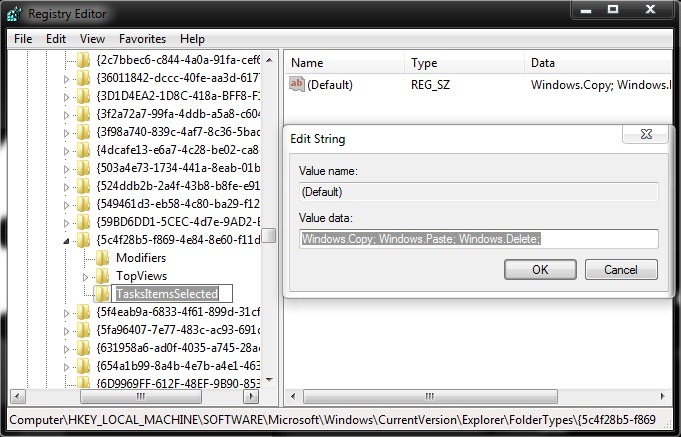
- Close the regedit and give refresh the explorer
After the refresh, you will notice that three new buttons have appeared Windows Explorer: Copy, Paste si Delete.
Note: Before making any changes to the system registries, we recommend creating a backup of them to avoid possible unpleasant consequences. Also, after you have finished making the changes, we recommend returning to the default settings of the keys on which you have granted permissions.


You may also be interested in...
