

Windows XP is the most used operating system at the moment on the majority COMPUTER from all over the world. Compared to Windows Vista, which was largely a failure, Winodws XP looks like it will be the system from which the transition will be made to Winodws 7. Until then, some time will pass again XP users- you have to optimize the operating system as best as possible, to obtain a increased PC speed. Operating system optimization does not necessarily mean speed. A correct maintenance of the system saves you time lost with closing popups, cu devirusing the system and its reinstallation after some crash-uri fatale.
XP Speed Secret #1: Disable extra applications from StartUp
A large part of installed applications activates itself processes and StartUp (more accurate run processes when the computer starts). These processes slow down the reaction speed of the PC because each one "pays attention" to a "portion" of processor (CPU). If you know which processes you don't need in StartUp, then it will be very easy to get rid of them. If you are unsure about a certain process, you can disable it and then restart your PC to check if everything is working as it should. Otherwise, you can reactivate the respective process at any time.
To disable the processes you do not need in StartUp, you must follow a few simple steps:
- go to the button Start and click on Run
- in Run taste msconfig And give Enter
- In the open window select tab-ul StartUp
- in the StartUp tab you will notice a process list (some selected/checked, others not), and all you have to do is to uncheck the processes you don't need (if you have one antivirus installed, it is not recommended to uncheck its process) then give a restart
- after restarting, a will appear on the PC screen dialog in which you will be warned that some StartUp processes have been disabled (so that this dialog does not appear every time you restart the PC, it is necessary to check the "not showing" option)
XP Speed Secret #2: Rid your PC of Spyware, Malware and Adware
It is recommended that scan your computer at least once a week to detect if you have unwanted guests such as viruses And others Taps (spyware, Adware, malware). At present one in six computers is infected with different types of spyware or malware, they dramatically slow down the speed of the PC because they use resources to generate popups and to send spam-uri or interferes with the processes of applications that you use regularly (messenger, video players, editors, etc.).
To avoid infecting your computer with viruses it is recommended to have one installed antivirus, or scan your PC weekly using one of the antivirusii available online.
XP Speed Secret #3: Optimizeaza Display Settings
Surely everyone wants their operating system to look as good as possible. For this you have at your disposal many possibilities such as the multitude of THEMES from which you can choose or even visual effects made available even by Windows. But if you have one computer with a weaker configuration or you need a PC that responds quickly to your commands more than a stylish PC, then it is recommended to keep the system clean you are disable visual effects in Windows.
In order to optimiza Display Settings it is necessary to follow the steps:
- go to the button Start and select Control Panel
- double-click on the icon System (in category Performance & Maintenance) then in the opened window select the tab Advanced
- Click on Settings from the category Performance; in tab-ul Visual Effect leave only the following checked: 1. Show shadows under menus
2. Show shadows under mouse pointer
3. Show translucent selection rectangle
4. Use drop shadows for icons labels on the desktop
5. Use visual styles on windows and buttons
- Then click on Apply and OK
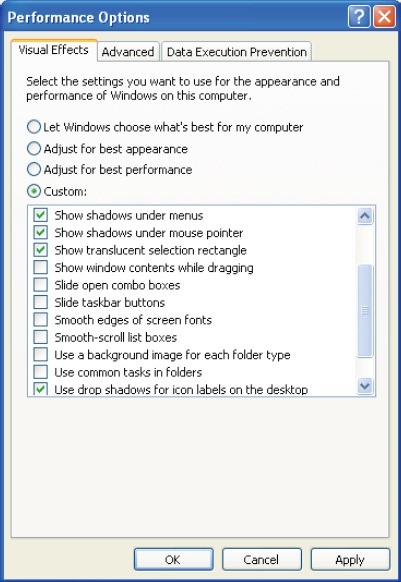
For an increased performance, you can select the option Adjust for best performance.
XP Speed Secret #4: Speed-up File Browsing
You have probably noticed that whenever you open My Computer to browse the folders in it, there is a small (or large) delay in the response of the PC. This has been happening for some time, every time you open Windows Explorer, the system will automatically search for files from the network or fax machines and printers. To increase the response speed of the PC when searching for certain files or folders in Windows Explorer (file browsing), follow the steps:
- double-click on My Computer
- click on Tools in the Menu Bar and select the View tab
- in the View tab, uncheck the option Automatically search for network folders and
printers
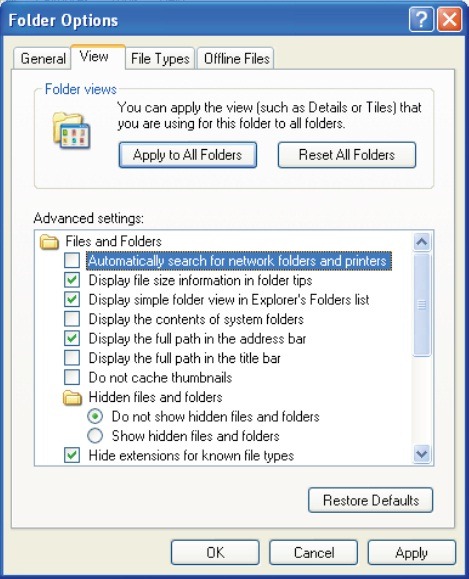
- click Apply and OK Then give restart
XP Seed Secret #5: Curata System Registry
A very easy way to grow performance your operating system is to use a cleaner for System Registry. Although this post shows you several ways to increase the speed of your system, you will find that the simplest and most effective way to increase its performance is registry cleaning. A manual cleaning of them requires a lot of time and is difficult, but it exists special programs who can do this for you in a very short time.
Your computer needs periodic maintenance to operate at optimal parameters. Installing and uninstalling applications, surfing the Internet, sending e-mails and other daily activities are left TRACES in the system. Over time, you will notice that thanks to them, the PC will no longer start as fast as when it was new, it will have a slow reaction speed and its performance will decrease. To avoid these inconveniences, we recommend you to use applications that scan and repair registry errors.
XP Speed Secret #6: Rulati periodic un Disk Clean-Up
If you use to surf a lot on internet or you tend to install and try almost everything you can get your hands on (ie Applications), then you must know that the traces left are materialize in temporary files (temporary files), which, however temporary would be them, papa enough space on hard-ul By default, your PC will move at snail's pace. To avoid that your PC's performance decreases due to temporary files, then we recommend that at least once a month you run a Disk Clean-Up:
- Give double-click on My Computer
- right-click on the partition C:
- Select Properties and click on Disk Cleanup
- check Temporary Internet Files (and possibly Recycle Bin if you are not used to emptying daily)
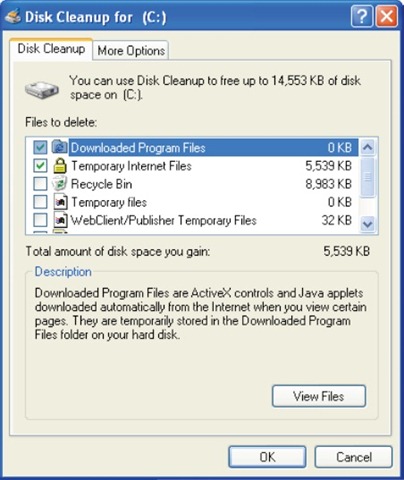
- then click OK
XP Speed Secret #7: Disable File Indexing
Indexing Services is a small program, integrated in Windows, but which uses a lot memory. This program create indexes and update lists with all existing files on the computer, so that when you are looking for a specific file, it will be searched faster by scanning indexes created. The option is useful for those who have a lot of clutter in their PCs or those who have a very large volume of files/information stored on them. If you are not among those mentioned above, then this program is not necessary for you. To disable Index Services follow the steps below:
- go to the button Start And open Control Panel
- click pe Add/Remove Programs Then click on Add/Remove Windows Components (on the right side of the window)
- uncheck Indexing Services
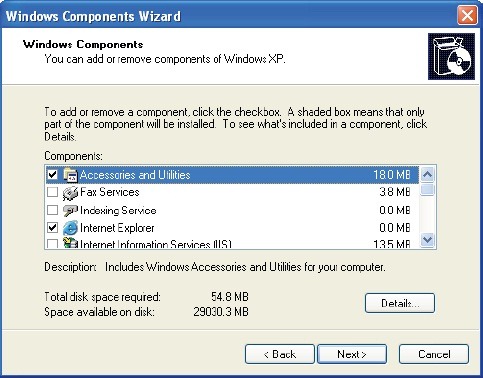
- Click data Next then Finish
XP Speed Secret #8: Get rid of the applications and files you don't need
Among the dozens of programmer that you have installed on your PC, there are certainly some (more or less) that you no longer need. Or programs you never needed (toolbar, download manager, file-sharing etc.), but they came "packaged" with the applications you use. These unwanted guests cause loading delays web pages, increasing the time of startup and generally decreasing your computer's performance.
To uninstall programs you don't need, follow these steps:
- go to the button Start
- Select Control Panel and click on Add/Remove Programs
- identify the programs you don't use or don't need and select the button Remove for these.
research
Note: If you follow the advice written in this post, you can enjoy your computer more young, sprint and intelligent! ;)


You may also be interested in...

9 thoughts on “Winodws XP optimization – Increase your PC work speed [xp speed]”