
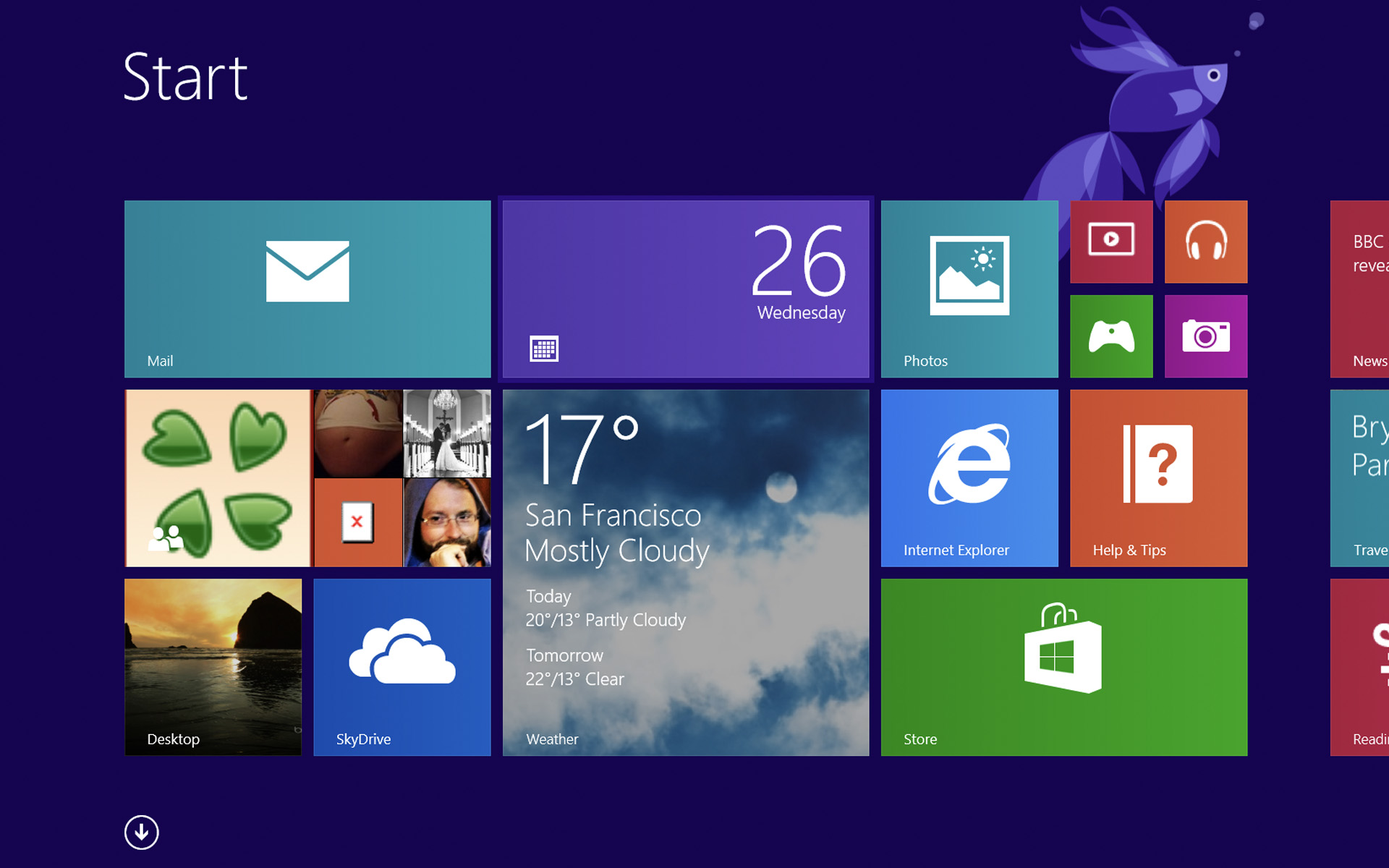

Probably the best known feature of the new Windows 8 Opeare System, but also the most criticized, Start Screen it caused different reactions in each individual user. While some of them have become (more or less) ardent fans of it, there are still quite a few users who prefer it disable and to return to classic Start Menu with the help of some Third-Party applications.
One of the reasons for dissatisfaction (for both categories of users) is the fact that in each new installation of an application, a tile this is what it is for auto-fixat (auto-pinned) in the Start Screen, in a short time it becomes crowded with many applications that are used only occasionally.
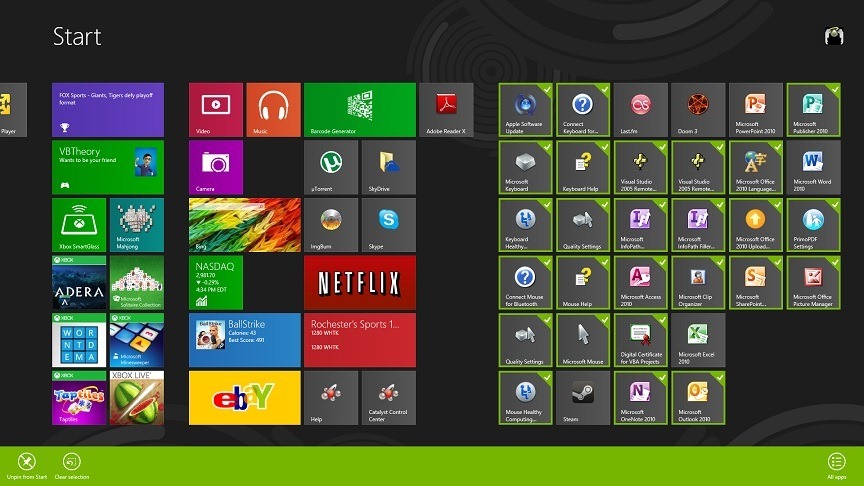
Although the tiles for the new applications can be deleted manually from the Start Screen, a much simpler solution would be preventing the creation of new tiles with each application installation.
AutoPin Controller It's O freeware utility, portable (does not require installation), which prevents the addition of shortcuts on the Start Screen of newly installed applications. With the help of this tool, users can disable the auto-fix feature when they want to install applications for which they do not want creating tiles in the Start Screen, and they can reactivate it on the spot whenever they want to create shortcuts for important or daily used applications.
How to use AutoPin Controller?
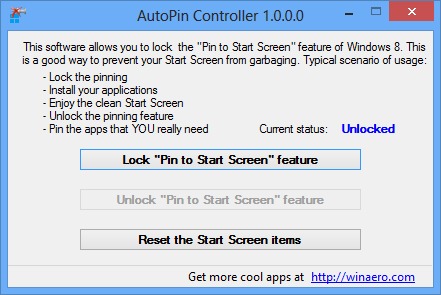
All you have to do is to Roll the application, then click on the button Lock “Pin to Start Screen” feature in order to disable the auto-pinning feature.
This option is of real help to users who are used to install multiple applications at once (eg using services like ninite.com) and I don't want tiles to be created for each application in the Start Screen, but also for users who are used to test constantly new applications and who do not want to manually delete the tile created in the Start Screen after each installation.
If you then want to reactivate the auto-fix feature (creating tiles in the Start Screen of the installed applications), then click on the button Unlock “Pin to Start Screen” feature (only available if the feature is disabled). Also, users who have the Start Screen too crowded and want to quickly solve the problem, can click on the button Reset de Start Screen items (The Start Screen will show again after o fresh installation of Windows).
Credit @winaero.com
STEALTH SETTINGS – How to prevent applications from auto-pinning in Windows 8 Start Screen


You may also be interested in...
