


Nowadays, almost all users of computers USE WiFi networks to connect to internet. Also, most devices with support for Wi-Fi connectivity also have the option of automatic connection on a Wi-Fi network when the device is in its expansion area. If you are used to connecting quite often to WiFi networks in different locations (airports, cafes or other Hot Spots public), most likely you have saved quite a large number of WiFi network profiles on the device/computer used. While some locations with WiFi networks are visited a bit more often, there are most likely profiles that have only been used once. Additionally, even frequently used profiles can sometimes create connectivity issues, and to resolve these issues, users must delete complete information saved about the respective profiles (something that does not happen if we use the option Forget Network).
How can we delete a WiFi network profile in Windows 8.1?
If you are a user Windows 8.1 and you want to clean in saved WiFi profiles on your computer, you can delete them by following the instructions below:
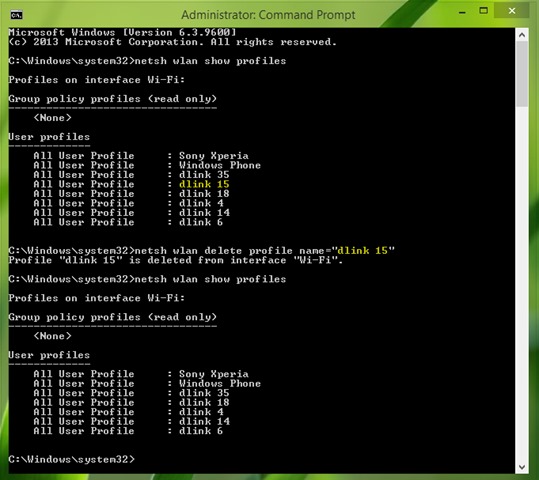
- Open one Command Prompt with privileges of administrator If you taste command netsh wlan show profiles to display a list of all WiFi networks to which the last computer was connected system reinstallation and their profiles
- identified the profiles you want to delete, then type the following command for each of them:
- netsh wlan delete profile name=”profile“ (where profile between the quotation marks is replaced with the name of that profile, for example dlink 15)
- Then open Registry Editor to completely remove traces of that profile from the system
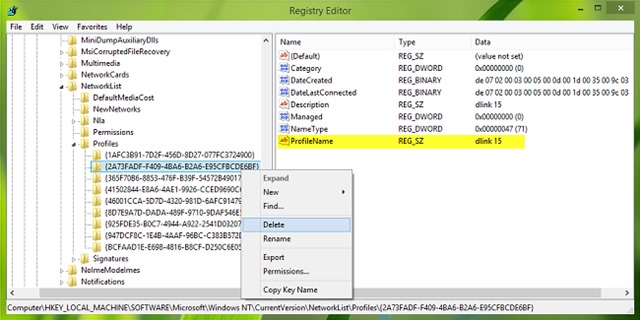
- Navigati Catre HKEY_LOCAL_MACHINE\SOFTWARE\Microsoft\Windows NT\CurrentVersion\NetworkList\Profiles
- under the key Profiles you will discover more subkey-uri, each of which represents a network profile (WiFi or Ethernet)
- select each subkey separately, and check profile name in the right panel (this is displayed in the String input value ProfileName)
- when you identify the profile you deleted, right-click on the corresponding key and select Delete from the displayed menu
Thus, you will completely delete a network profile registered in the system. Success!
STEALTH SETTINGS – How to completely delete a WiFi Network Profile in Windows 8.1


You may also be interested in...
