
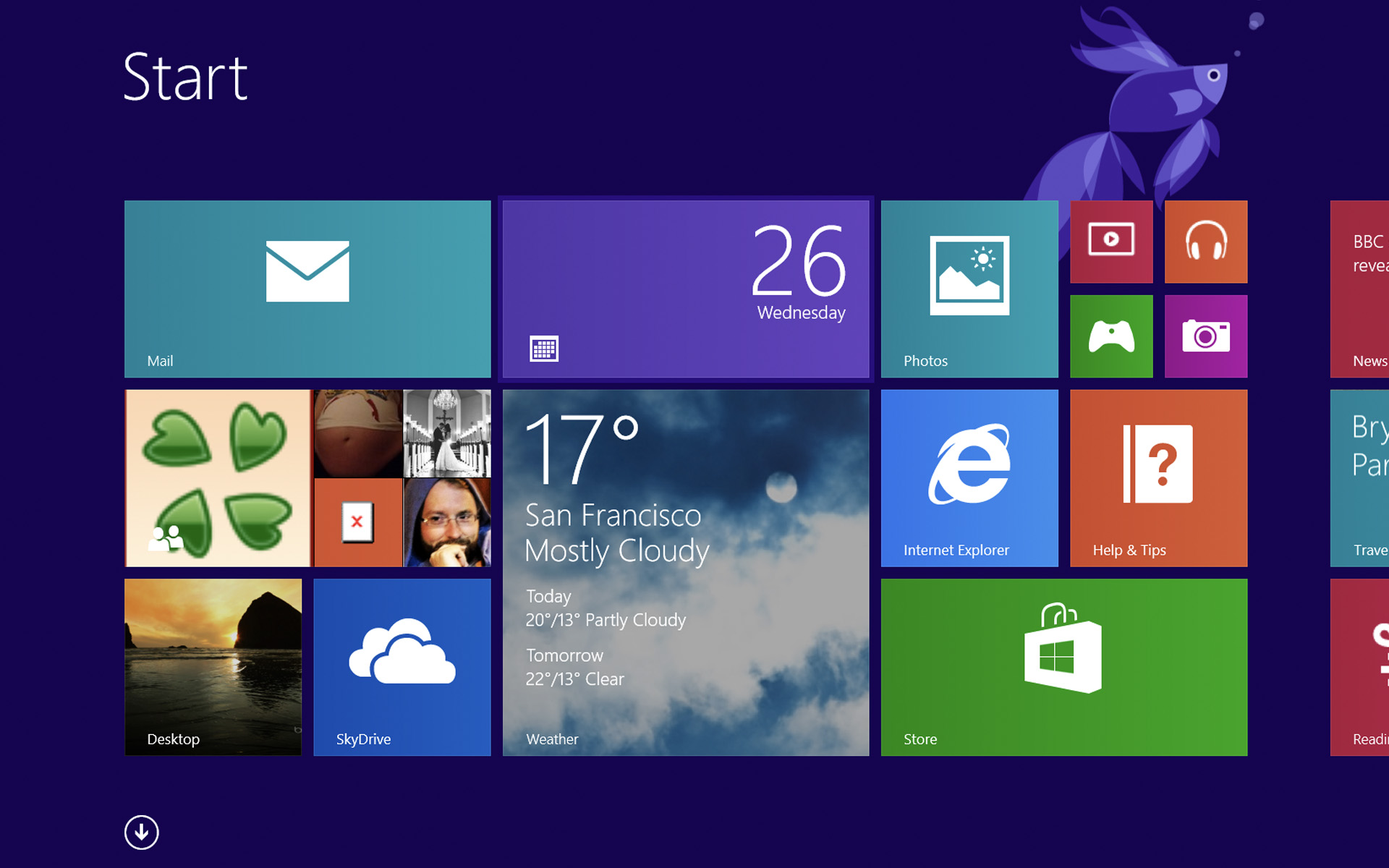

Operating systems Windows 8 and Windows 8.1 come up with two packs feature-uri we, Autocorrect and Spell Checker, which is supposed to be warning the user on Words tasted wrong and, in some situations, to Correct automatically typing mistakes. If the user of a system Windows 8/8.1 It has set that the default language of the system a particular language (eg English) when he will write a text IN A Different language by the default, most likely Spell Checker-ul will consider most of the words in it as wrong, and Autocorrect-ul will try to correct those words, replacing you with various words in the default language (and that is because Spell Checker and Autocorrect are useful only for the default system of the system). To solve this problem, the simplest solution is Disable Spell checker and self-corrected features.
How do we disable the features Spell Checker and Auto-Correct in Windows 8/Windows 8.1?
- in Start Screen Open the menu Charms and click on Settings, then on Change PC settings
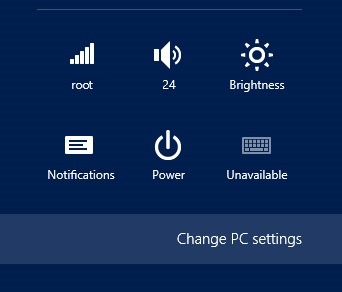
- In the displayed set of settings, click on PC and devices (on the left side), then on Typing (still on the left)
- then, on the right side, Disable choice Autocorrect misspelled words and Highlight misspelled words Using the switch displayed below these
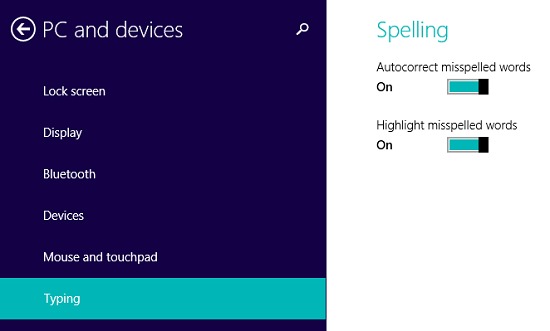
And ready. After you make these changes, features Autocorrect and Spell Checker will be disabled and will not overcome your head texts written in a language different from the default language of the system.
STEALTH SETTINGS – Disable Auto-Correct and Spell Checker features in Windows 8/8.1


You may also be interested in...
