


We can consider this tutorial as a presentation of the previous article in which we said about the types of keyboards depending on the layoutthe general QWERTY, QWERTZ, AZERTY and about the differences of these key arrangements according to the language of each country.
content
Read: What does "keyboard layout" mean and how do we choose the keyboard according to the language?
A few years ago I bought a MacBook Pro laptop from France, which of course came with typing in AZERTY format, I am from an Eastern European country where the key layout format is QWERTY International US or Romanian Standard QWERTY (with diacritics).
To give us an idea, for many years I wrote digitally on a keyboard whose format looks like this:
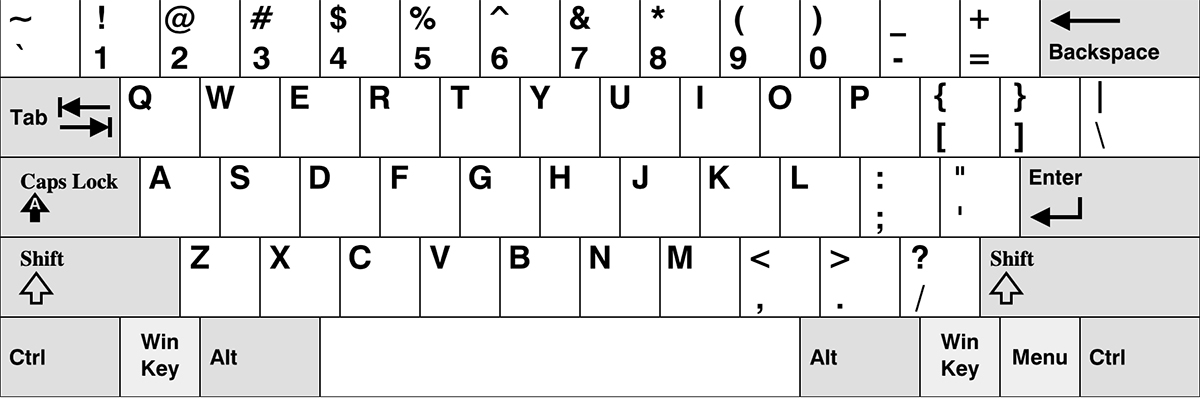
… and I woke up in front of me with a MacBook Pro on whose keyboard I couldn't even write my name if I looked at her. I mean like that…
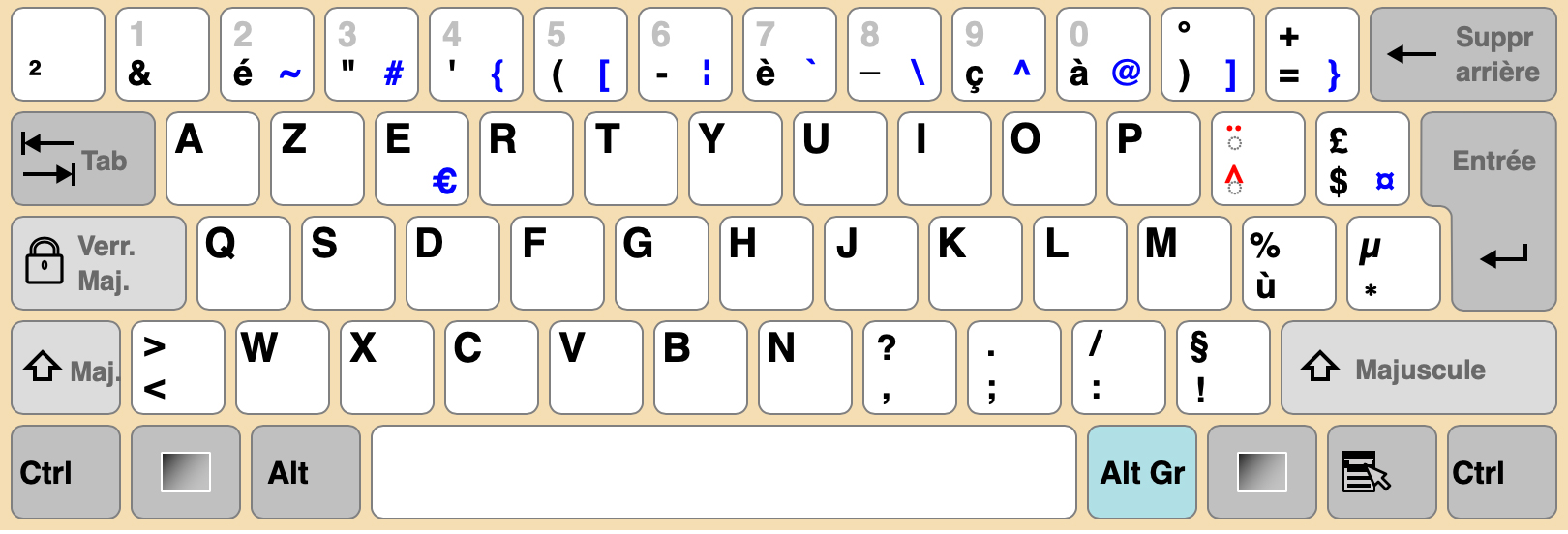
As can be seen from the images above, the differences between the QWERTY and AZERTY keyboards are quite large. A regular user with one of the two systems would have a hard time managing the other. Besides the fact that the positions of some letters are physically changed on the keyboard, the punctuation marks, the key combinations for symbols and not even the numbers do not match.
Fortunately for one user who can write without looking at the keys, the layout of a keyboards can be changed from the operating system. The user can choose both the international layout and the one specific to a language. Even if the inscriptions on the keys will no longer fit, they will be where it was learned and will respect the actions of the set layout.
How to change the keyboard layout and language layout for the keyboard on Mac (macOS)
This is the first thing I did after I bought a MacBook Pro with a physical keyboard in French.
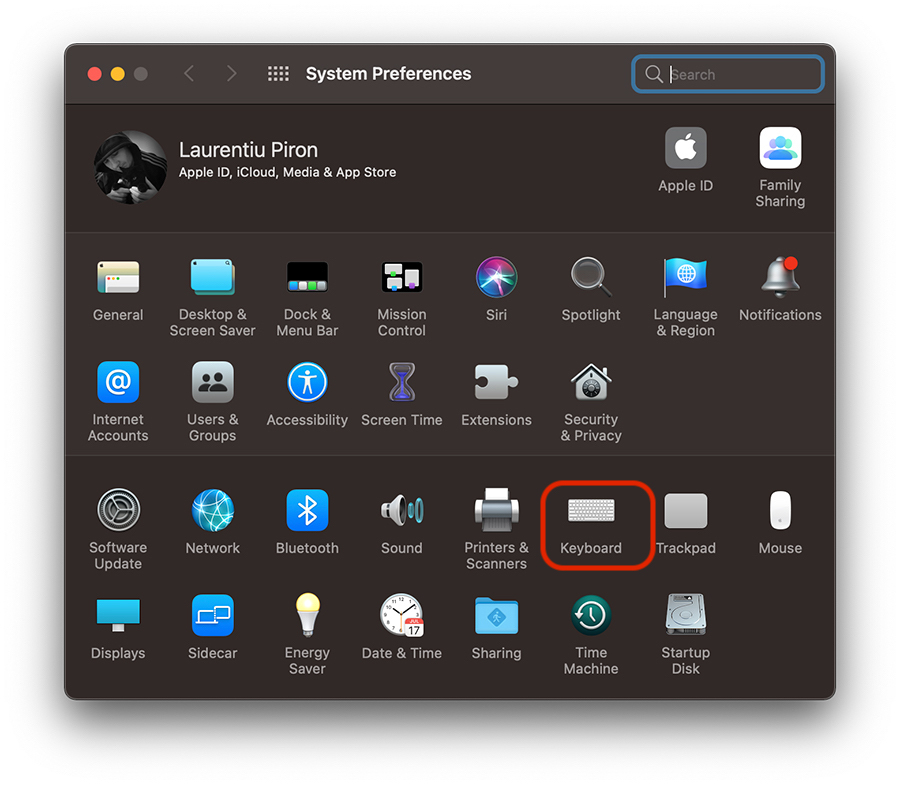
1. We go to “System Preferences” the “Keyboard“.
2. In the keyboard settings go to “Input Sources“, then click on the sign “+” from the bottom left.
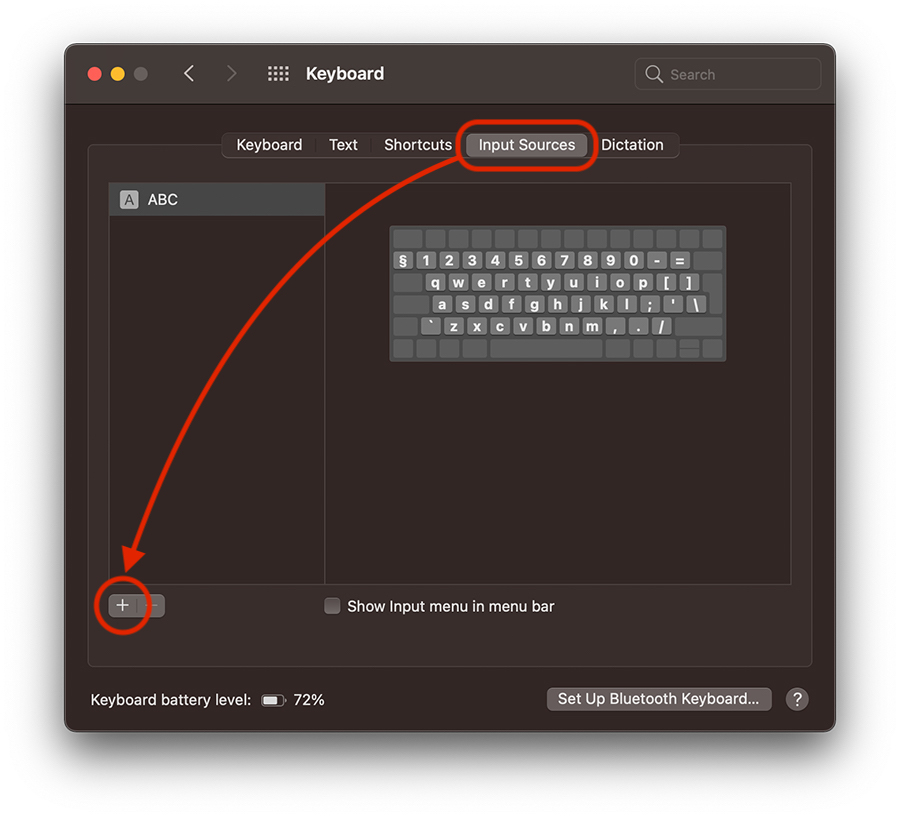
3. In the box that opens, select the new language layout that we want to install and activate for the keyboard, then click on “Add“.
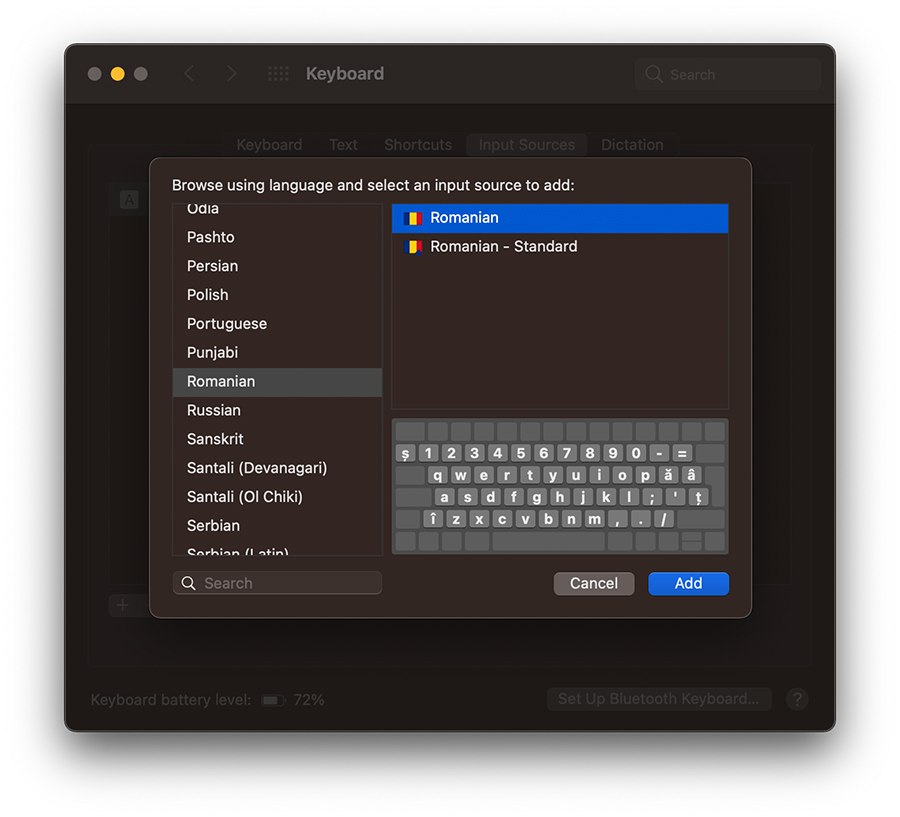
As can be seen in the image above, Apple also offers us a virtual preview of the layout to be activated. Thus we can see what is the new arrangement of the keys.
4. After we click on the button “Add“, the language selected by us will be installed alongside the existing one.
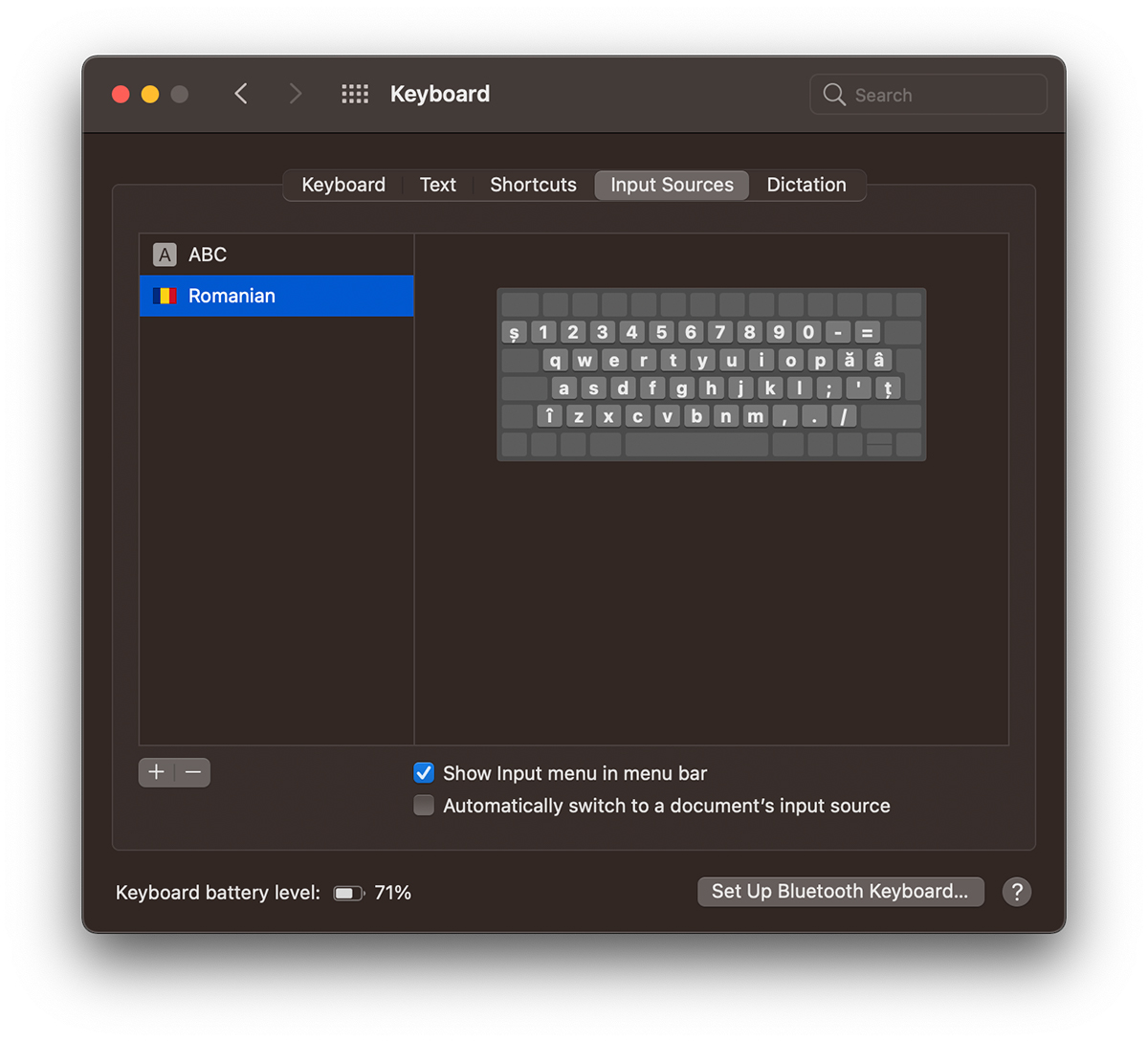
5. With the option checked “Show Input menu in menu bar“, we will be able to quickly change the language layout whenever we want directly from “Bar menu”. “ABC” or “Romanian” In my case.
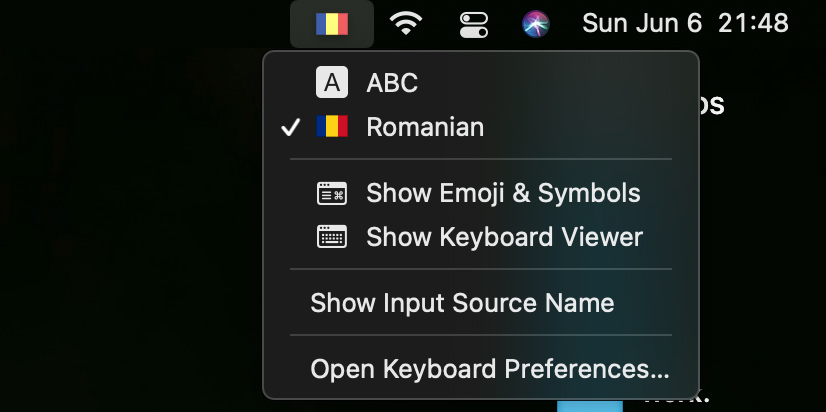
This layout from the operating system will ignore the letters and characters written on the physical keyboard and will respect the standard set by the user.
How do we disable / uninstall a keyboard language layout on macOS?
Deactivating a language layout on macOS is at least as simple as the activation process. All we have to do is go in “System Preferences” → “Keyboard” → “Input Sources“, select the language we want to remove, then click on the sign “-” from the bottom left.
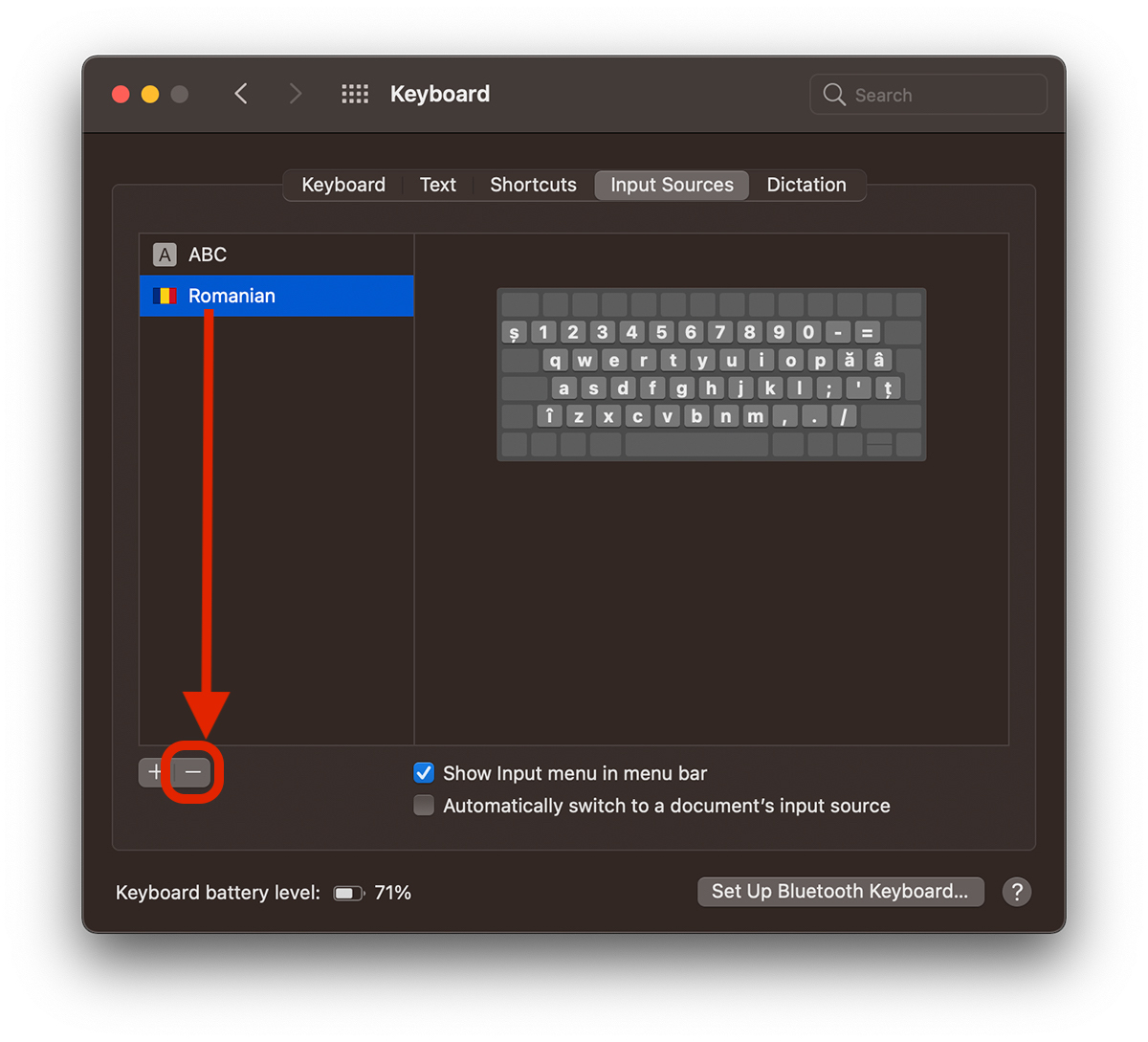
A nice option on Mac is the automatic change of the language layout for the keyboard depending on the documents we open. The keyboard language can be adapted especially for documents and for some text editing applications.
option “Automatically switch to a document’s input source” do this if it is enabled.
How to install a new keyboard language and how to change the keyboard language on Windows 10?
On Windows 10 it might seem a little more complicated than on Mac, but if you carefully follow the following steps you will be able to change the language layout of the keyboard on Windows very easily.
I must specify that this tutorial is made on Windows 10 Build 21390 co_release, a beta version on which there are some differences compared to the current final version of Windows 10 for the public.
1. We go to “Windows Settings“, then to “Time & Language” .
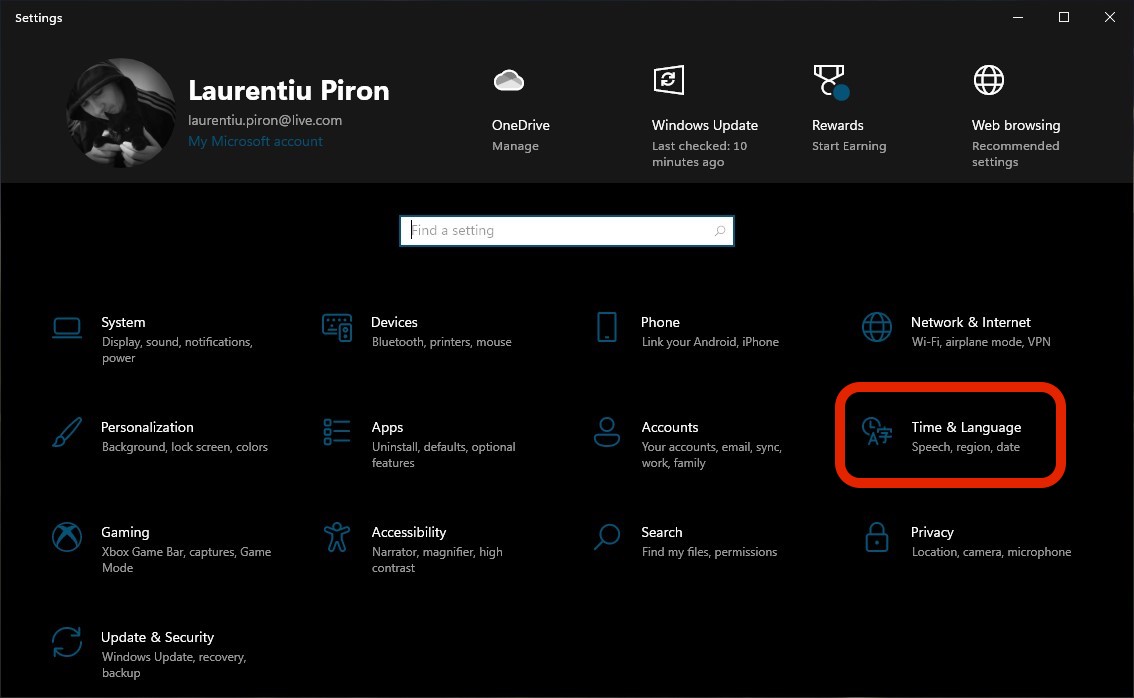
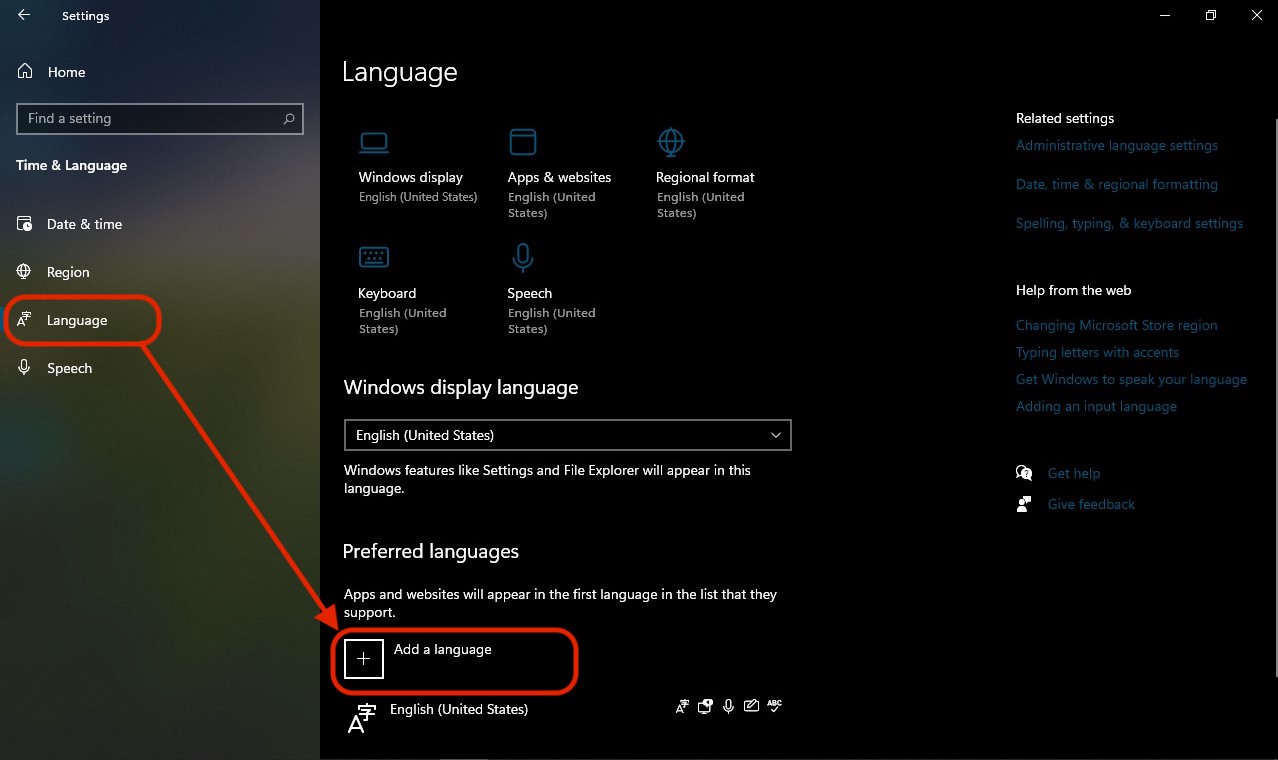
2. On the left side we go to “Languages”, where we find all the language settings of Windows 10. From here we can change the language of the Windows 10 operating system, language for applications and web pages, limba in care sa said vocal and the one for the keyboard.
Sub “Preferred language” We click on “Add a language”.
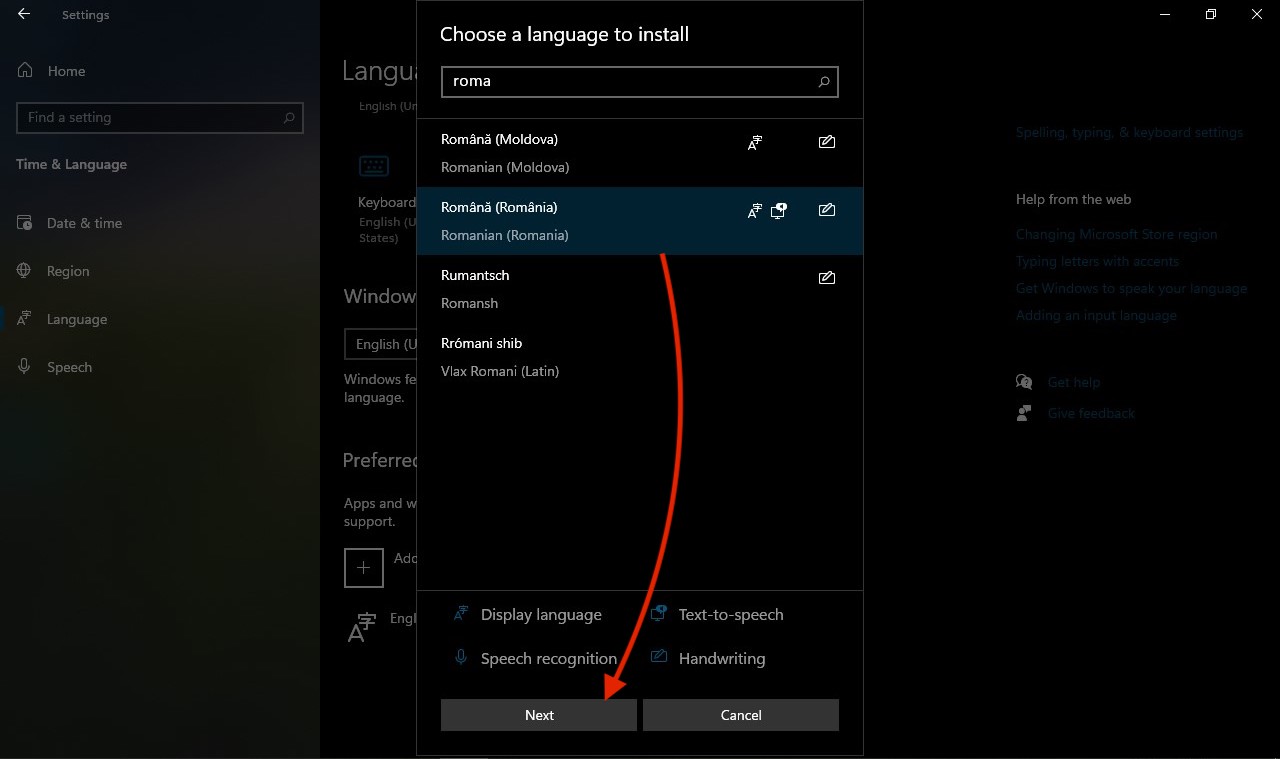
3. In the box that opens, a list will appear with all the language layouts available for installation, and next to them, icons that indicate which components each one is available for. “Display language”, “Text-to-speech”, “Speech recognition”, “Handwriting“.
We use the search bar to find the language we are interested in installing for the keyboard, then select it and click on “Next“.
4. In the next screen we have to be a little careful. We have to select what we are interested in installing from the language pack. That is, from here we can install a new one “Language Pack” for the interface of the entire Windows 10 operating system. If we are only interested in the keyboard language, the other options can be unchecked. We are only interested “Basic typing“.
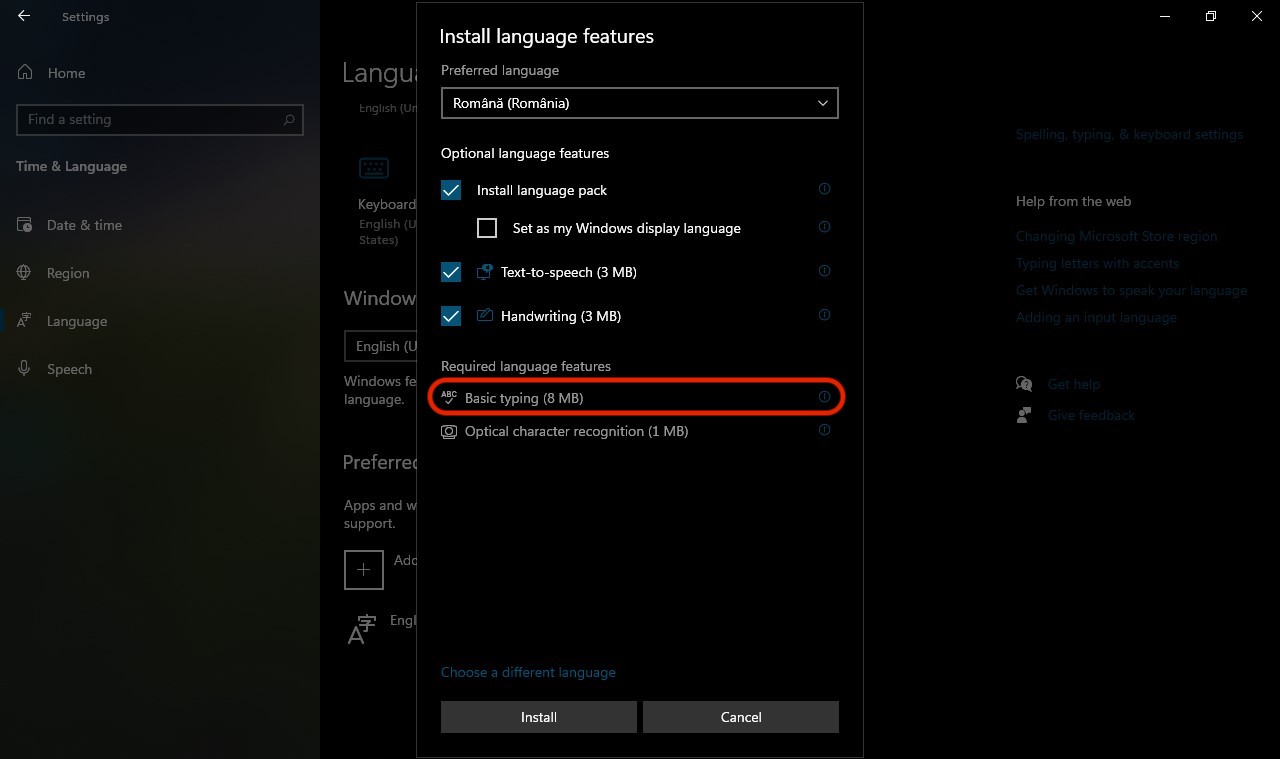
Click “Install” and the new language will be available for the keyboard. Language Keyboard Layout.
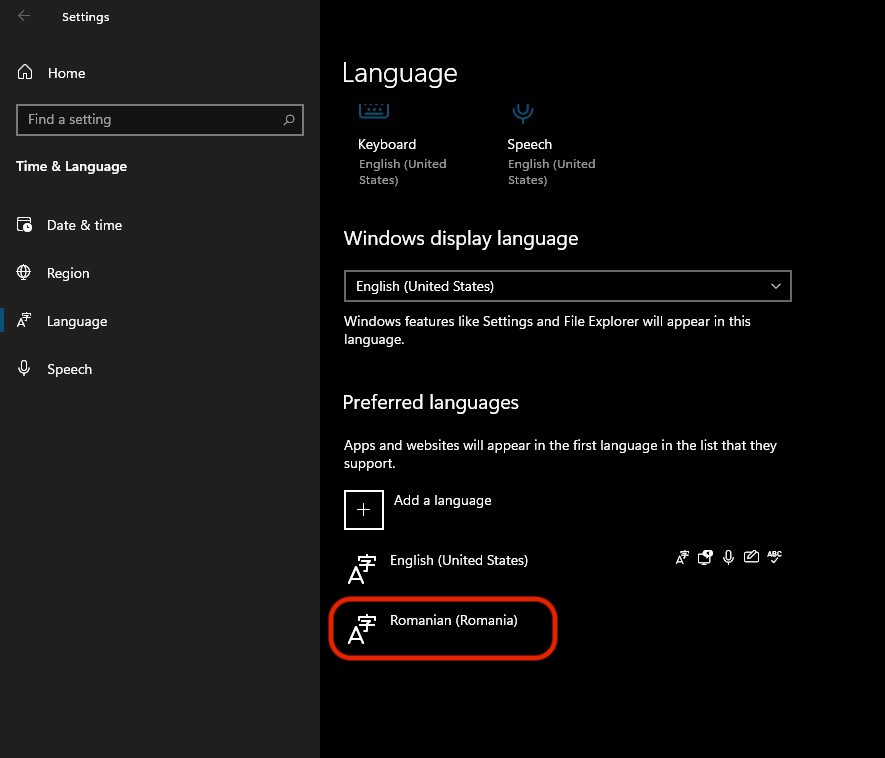
We can choose to leave active both language layouts for the keyboard and use them according to our needs. From the systray / taskbar we can always change from EN / US Layout to Romanian Layout or vice versa.
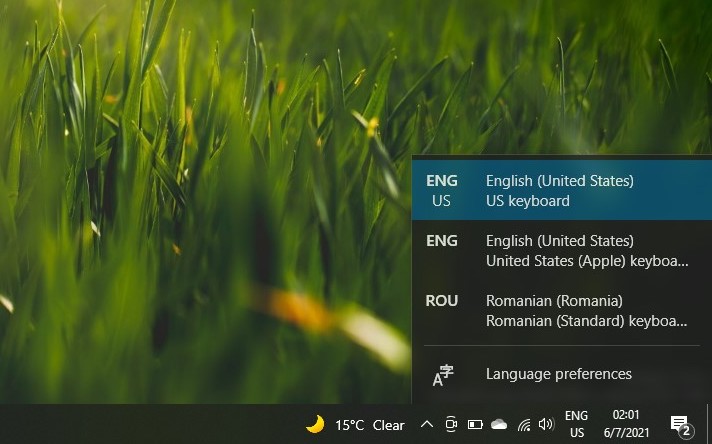
Uninstalling a language layout for the keyboard on Windows 10 is done by following the steps above, with the difference that you will click on “Remove” on the already installed language.
As far as I'm concerned, I went a little further with the French keyboard on the MacBook Pro that I was talking about at the beginning of the article.
I have physically changed the position of some keys to give it an image as much as QWERTY INT US.
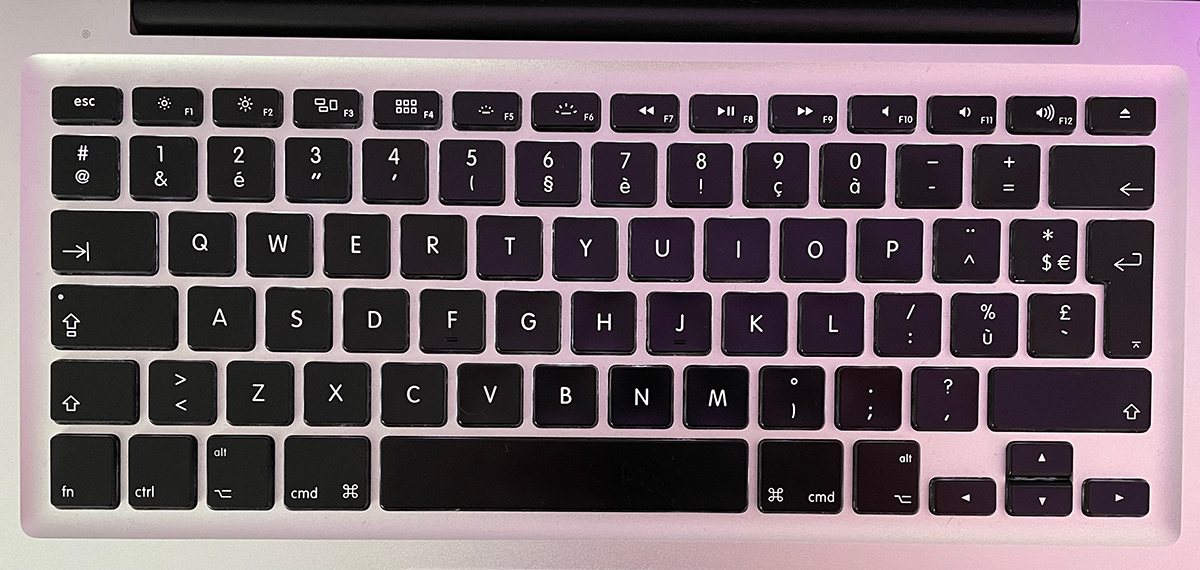
However, I do not advise you to do this unless you know very well how to change the physical keys of a laptop.
Depending on the model and technology of the keyboard, the fastening system of the buttons can differ from one model to another, and if you don't know how, it's not long until you break the fastening system.


You may also be interested in...
