

The first feature that stands out at Windows 11 It's new Graphic interface. The button “Start” Positioned on the center of the activities bumper (Taskbar) and the new Widgets field in which Microsoft seems to want to promote their news and news from MSN. I haven't found yet How can I eliminate the Windows 11 Widgets news.
content
If at Windows 11 Widgets I was not very successful and I honestly see them a little useless in the current version, in terms of menu “Start“, Microsoft has put some personalization options interesante care ajuta foarte mult utilizatorii. For example, in the menu “Start” We can add quick access horses to folders such as: Downloads, Pictures, Movies, Documents, Network (LAN), we can remove from “Start” lists with the latest installed applications and the latest files accessed. The latter option is very useful if more people have access to the same computer, and the last person who accessed him does not want to see someone else who has looked through the computer. I know people who asked me How can I delete the History of files accessed on PC or how can I disable perament The historical storage option of the files accessed. “Recommended” files in Windows 11 Start Menu.
How to personalize “Start” menu in Windows 11
By default, the Start menu of Windows 11 is composed of four areas. Search bar (Search) at the top, an area for Applications, one for the latest files accessed and another area at the bottom we find system user and shut down button.
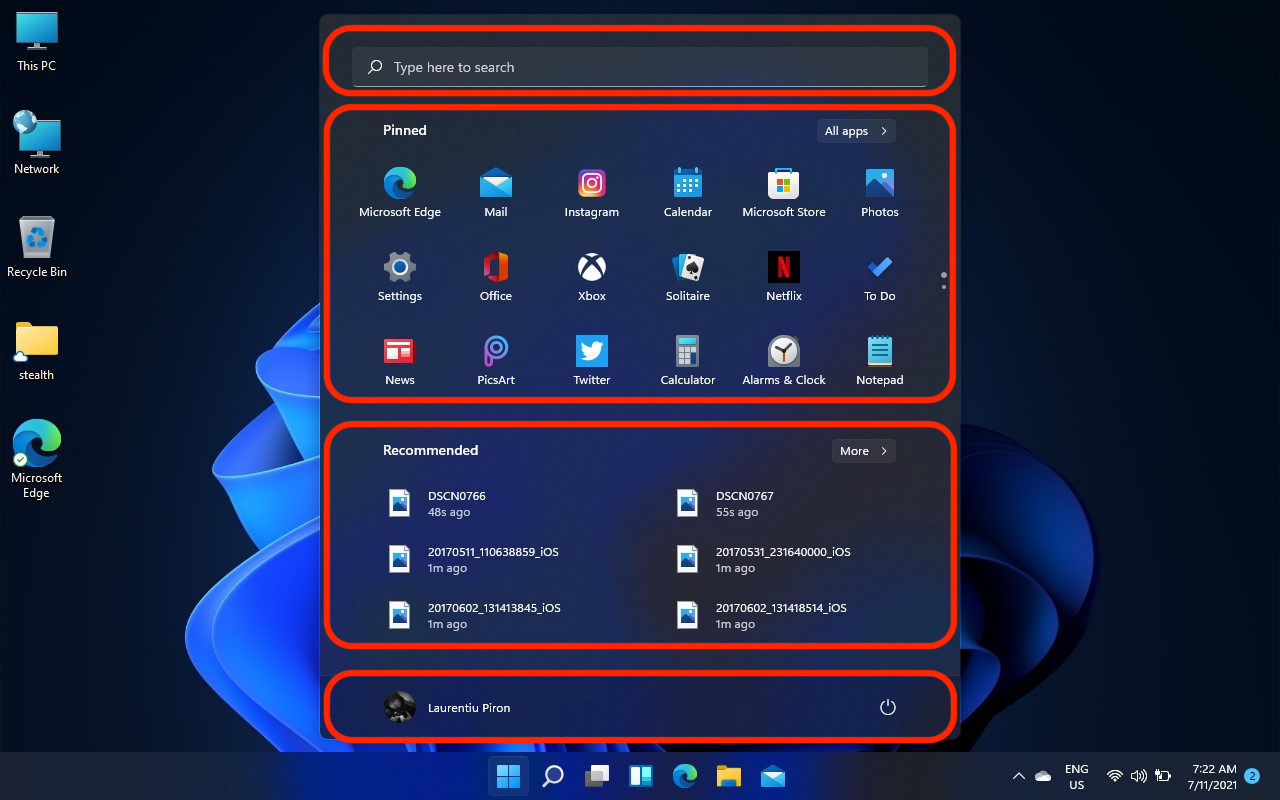
In an attempt to make a more visible change, Microsoft has eliminated in Windows 11 Fast access through Shortcuts to user folders. Downloads, Videos, Photos, Documents, Music. If we return in time, Windows XP had these folders by default at the start.
Din fericire, meniul Start al Windows 11 poate fi personalizat in totalitate. We can choose which applications to appear in the menu, through a simple “Pin”, to eliminate the list of the last files accessed and bring to the lower bar to start quick access to user folders.
How do we add user folders to the Start menu of Windows 11
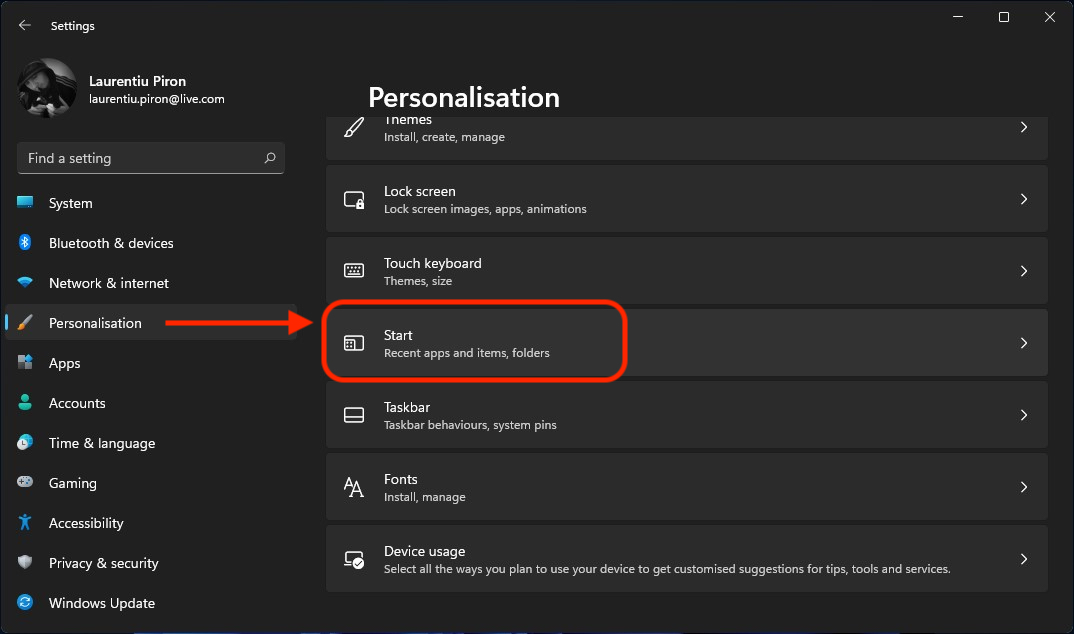
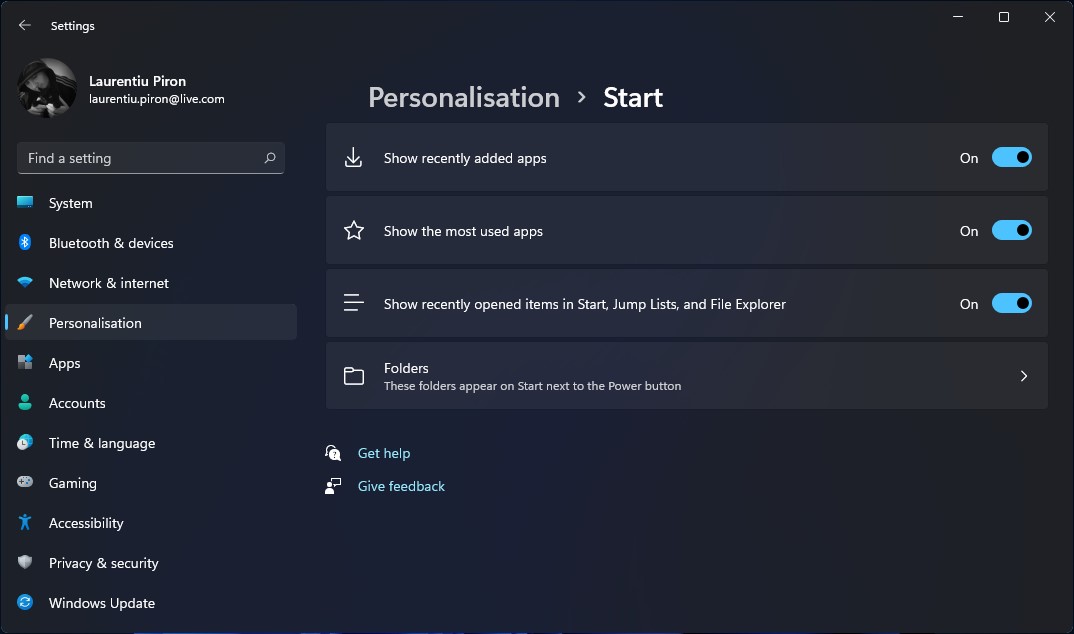
Start Menu Personalisation Settings in Windows 11.
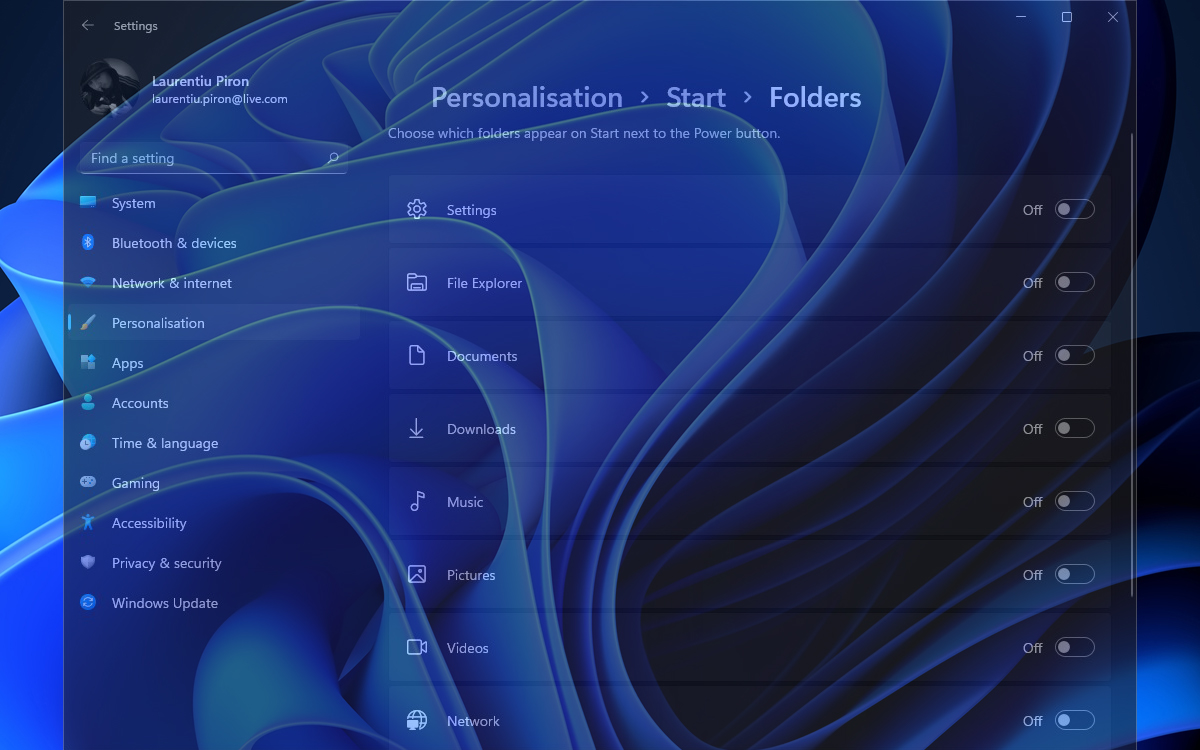
Add Shortcut Folder User in Windows 11 Start Menu
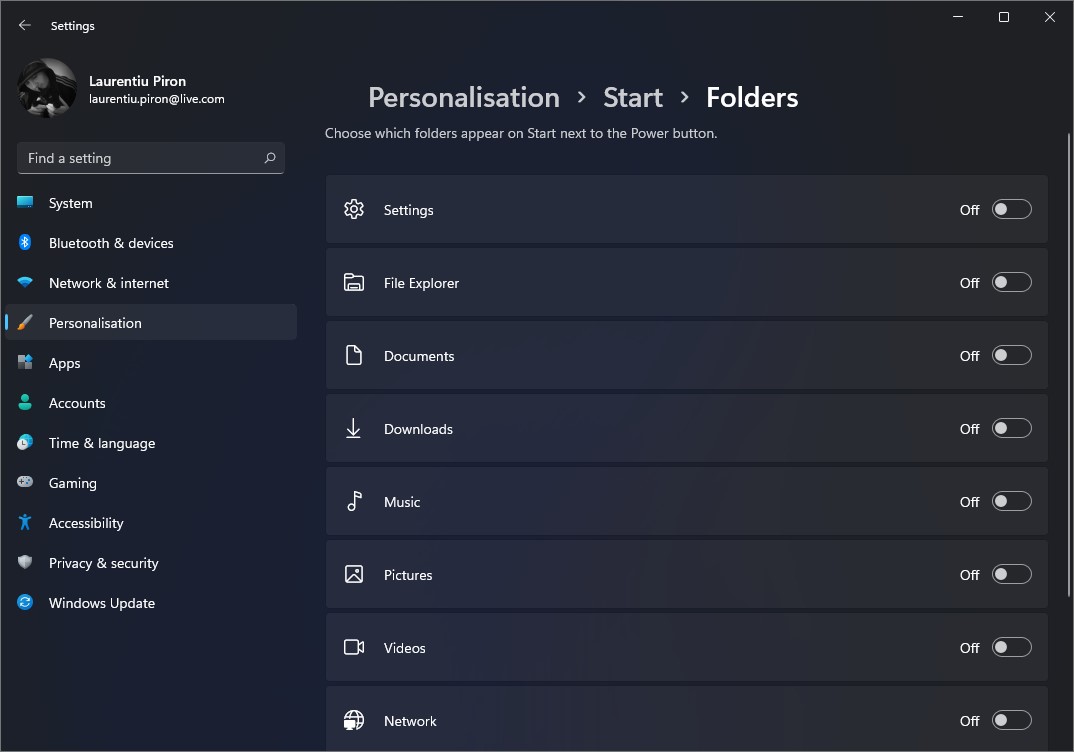
The result will be quick access directly from the beginning to the folders that interest us. In addition, as can be obedient in the image above, we can add shortcut to “Settings”.
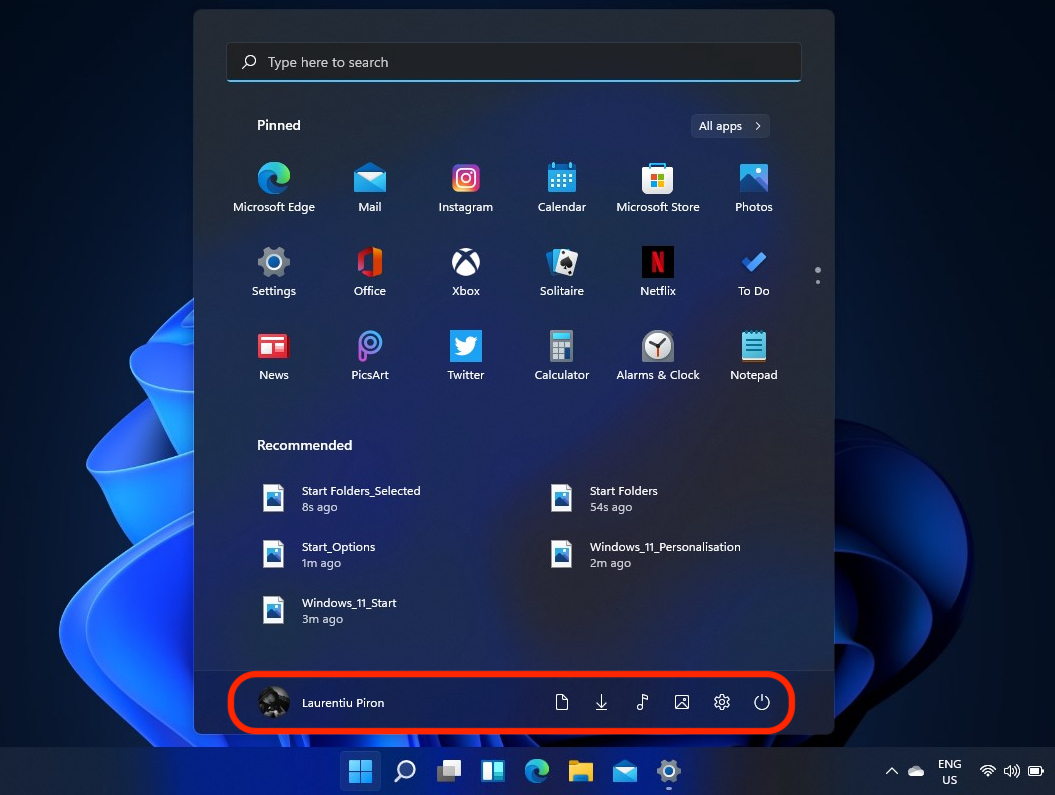
I think it would have been more fine if on the space occupied by “Recommended” Users could choose one, maximum two widgets of interest. Maybe something will change until the final version of Windows 11.


You may also be interested in...

One thought on “How to customize the Start menu in Windows 11 – Recently opened files, applications and folders”
As always in such articles on the screenshots English ((well, right with us all English -speaking, bastard. Who is it designed for?