

OS X and Macs in general are known as stable systems. As a daily Windows PC user and MacBook Pro cu The x, I can say that I am on OS X much less problems than on Windows systems. This does not mean that the Mac is not completely free of problems and errors. One of the most frequently encountered is related to Bluetooth connection cu devicethe auxiliaries.
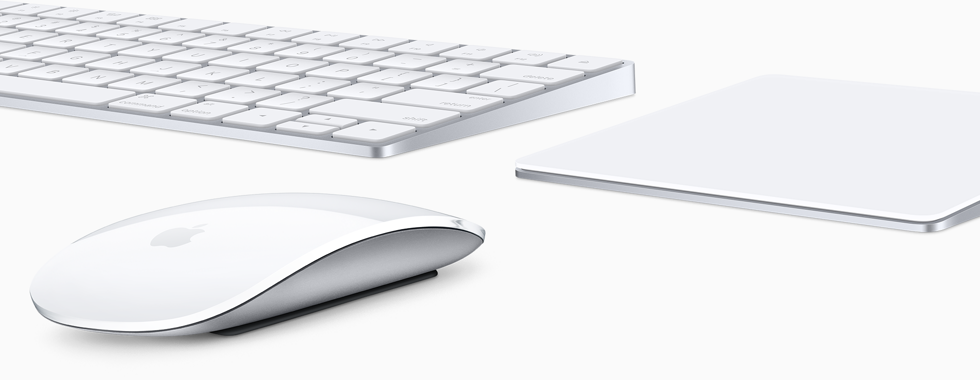
It happened to me many times to receive bluetooth connection lost messages “Connection Lost” / “Connected” coming from the unstable Bluetooth connection between the MacBook Pro and the Apple mouse Magic Mouse. Other users have reported Bluetooth connection problems between MacBook and Magic Trackpad or Magic Keyboard.
Causes of Bluetooth connection problems and solutions
#1 Battery or accumulator discharged on the device connected to Mac OS X via Bluetooth
In general, these connection problems between Mac OS X and the auxiliary components Apple Wireless Keyboard, Magic Mouse and Magic Mouse, occur when battery level on the auxiliary device decreases a lot. Normally, when the battery level in the mouse (for example) drops to 10%, the user will be notified in Notifications that must be considered battery change or recharging the batteries, yes batteries are used.
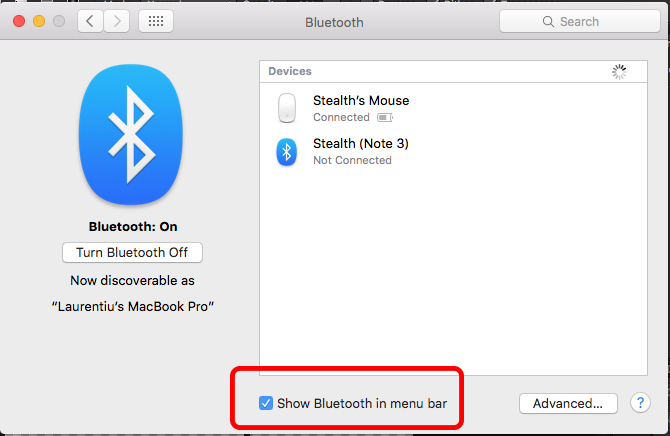
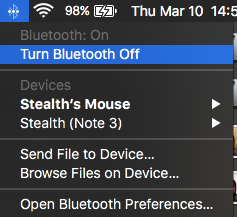
To have a quick control of the devices connected via Bluetooth to Mac OS X it is good to addshortcut-ul “Bluetooth” in Bar menu. Do this from System Preferences > Bluetooth > Show Bluetooth in menu bar.
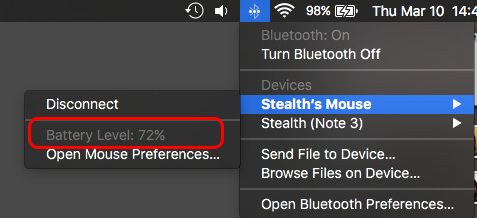
After doing this, you have access to the battery status of the mouse directly from “Bar menu”.
#2 Disconnecting and connecting devices connected via Bluetooth.
Another method is to disconnect and reconnect auxiliary devices. It is very possible that some mouse disconnections, for example, are caused by the inferences with another device in the aropiere which has bluetooth enabled. Removing them can fix this problem.
#3 Stopping and restarting Bluetooth on Mac OS X / Turn OFF & ON
In the menu bar, we have the easiest option to turn Bluetooth on and off.
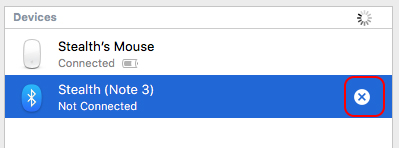
#4 Deleting the external device and re-adding it to the list of Bluetooth connections.
Go to System Preferences > Bluetooth > select the device that gives connection errors or does not want to connect, then click on the sign “x” from his right. Re-add the device.
Normally, these steps should help you stop having Bluetooth connection problems with Apple devices. Magic Mouse, Magic Keyboard or Magic Trackpad.


You may also be interested in...
