

Let's make screenshot (print screen) we need many times, both on the smartphone, iPhone, tablet and on the computer. Unfortunately, on Windows 11 we cannot default make screenshots at all the items we would like, because of some System limitations. In this tutorial we will see How can you screenshot on notifications UAC (User Account Control) pe Windows 11.
Until Windows Vista, those who caught the operating system Windows XP or older versions know that for screenshots was used “Print Screen“ (The key PrtScn). Starting with Windows Vista, Microsoft has introduced the utility Snipping Tool dedicated to Ecan captures. (Screenshot) Snipping Tool It has been improved over the years and kept until our days, on Wndows 11.
Theoretically we could do screenshot to absolutely anything on Windows 11, but when a dialog box intervenes User Account Control (UAC), Snipping Tool And the keyboard shortcomings for screenshot become useless. This is because the Desktop area receives the UAC alert in a secure environment that no longer allows any action of the oil before making the decisions indicated by the notification of the UAC.
Fortunately, there is a method by which it can be done at the UAC notification boxes.
How do you screenshot to UAC notifications on Windows 11
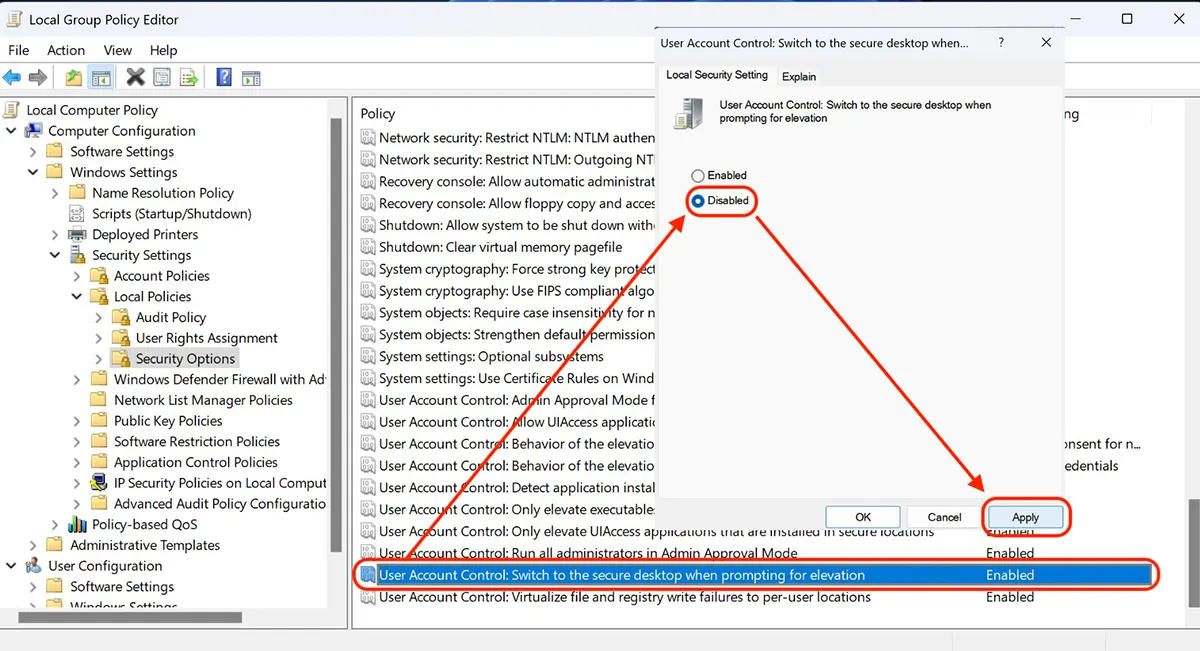
So you can do screenshot to notifications UAC On Windows 11, you must disable “User Account Control: Switch to the secure desktop when prompting for elevation“.
Most of the safety, functionality and options settings of Windows are located in Local Group Policy.
To access Local Group Policy, press the keys Windows + R, write gpedit.msc, then Enter to open Local Group Policy Editor.
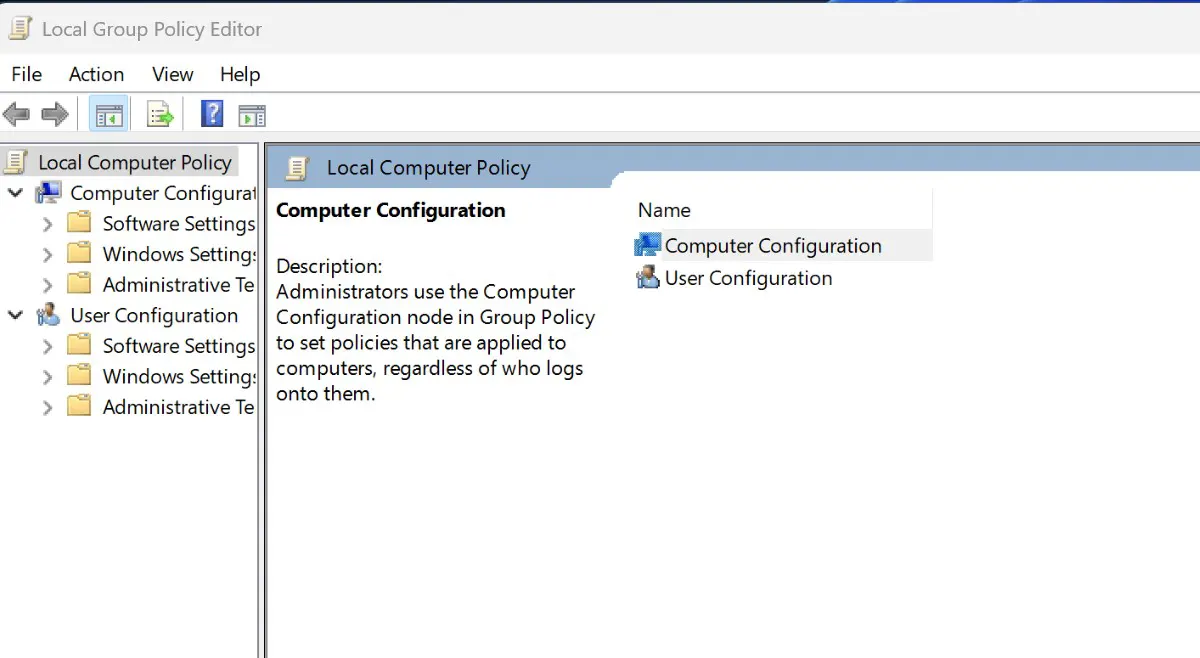
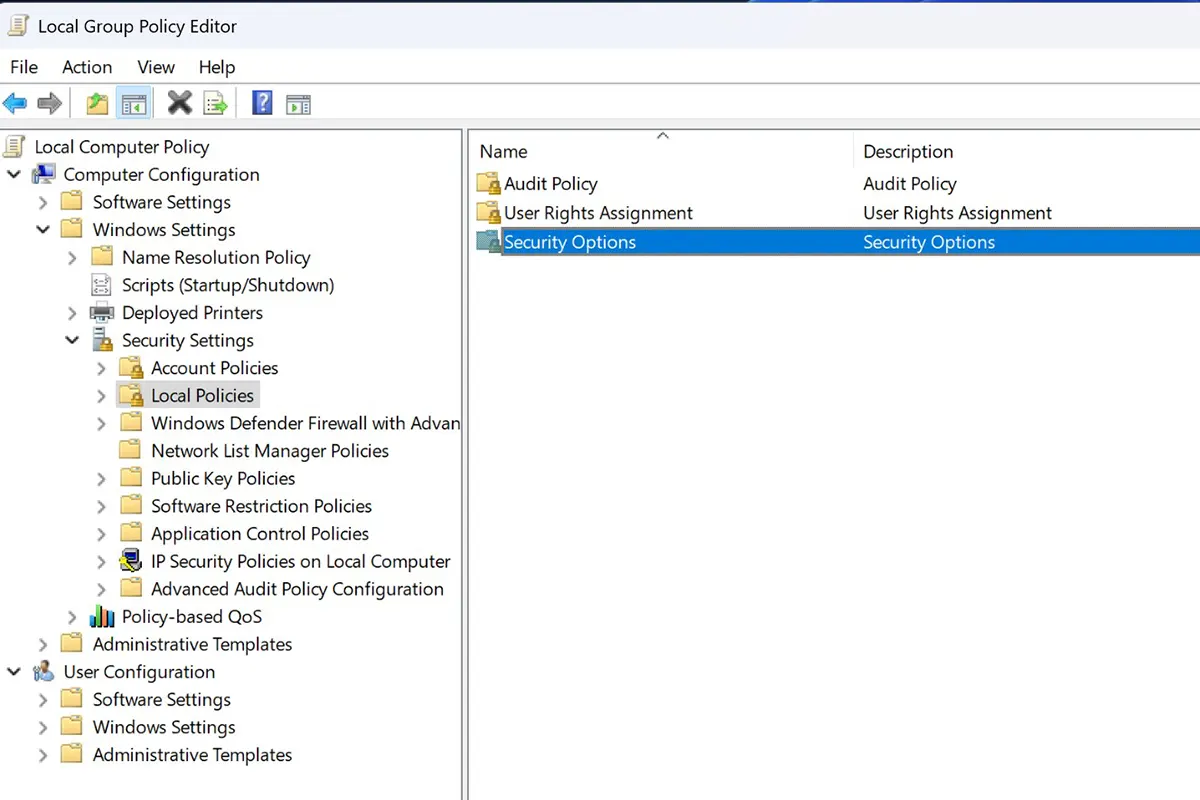
The next step is to browse in Local Group Policy Editor the Computer Configuration > Security Settings > Local Policies > Security Options.
In the list that unfolds, somewhere in the bottom you have to set “Disabled“ for “User Account Control: Switch to the secure desktop when prompting for elevation“.
After this step you can use keyboard shortcuts (Windows + Shift + S) To make the screenshot of the User Control notifications in Windows 11.
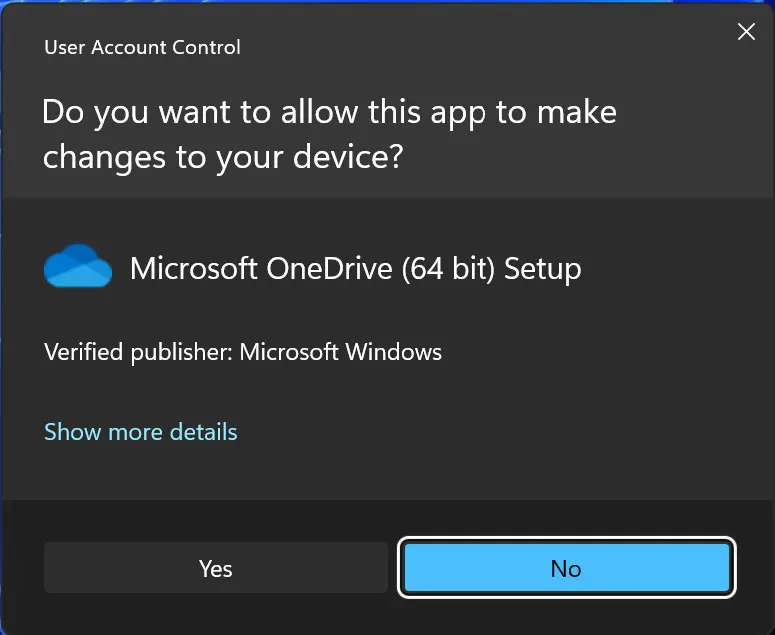
Without the above setting in this tutorial I couldn't have screenshot on notice User Account Control care appears every time When I start Windows 11, and ask if they allow Microsoft OneDrive to make changes on the device.


You may also be interested in...
