

Folder-ul Windows.old in Windows 10 Present on the system partition occupies a considerable space on disk, but it also has a very important utility. If you want to delete the folder Windows.old It is good that first you know what this folder helps and then how it can be erased.
content
How To Delete Windows.old
What is and what helps Windows.old or Windows.old000
Windows.old orWindows.old000 There are folders located on the system partition (usually partition C: ), and these are created then When we don't make a clean Windows installation. Windows.old keeps user files (Desktop, Pictures, Downloads, Documents, etc), the old operating system and folders and files of pROGRAMS that were present before the reinstalling the new operating system Windows 10.
Windows.old000 It is the folder that contains older installations of the operating systems that were present on the PC or laptop.
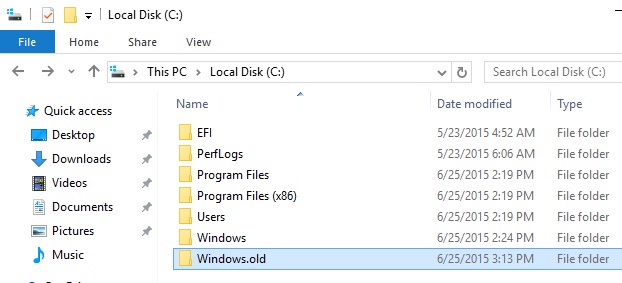
In mod normal, Windows.old help us return to the previous operating system, if we are not satisfied with the current one. This folder although it occupies a lot of space on disk, he cannot be deleted by simply selecting and pressing the key “Delete“. Having many files and folders protected by the system with rank of Administrator, before starting effective deletion of Windows.old, you will need that the user we are logged in on Windows 10 devina ownereveryone Folders and FILES din Windows.old.
How we delete the Windows.old folder in Windows 10
Before we can delete it, we will have to have full administrative privileges on it with our user, so that the operating system does not interrupt our operation. To do this, we will have to follow some simple steps carefully.
Takeown Folders and files in Windows 10 with Command Prompt
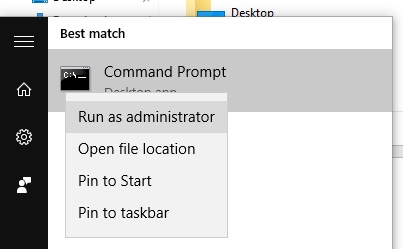
1. We open Command Prompt (cmd) with the prevention of Administrator. Click Start > tastam “cmd” > it will be found in the program list Command Prompt. Right click and “Run as administrator…“
2. In CMD we execute the order “takeown” to give the user we are logged in to in Windows 10. full privileges on the folder Windows.old and the files it contains.
takeown /F "C:\Windows.old" /R /D Y*the order is valid for the situation in which the system partition is “C”. If you have the folder Windows.old on the other partition replace the letter “C” with the partition letter on your hard drive.
3. After executing this command, wait until the process is complete “takeown“.
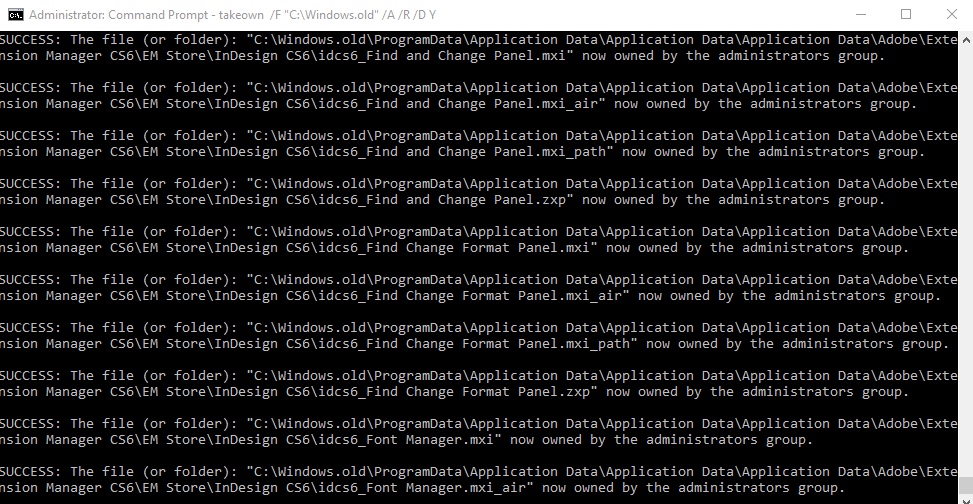
This operation may take a few minutes. Wait until you receive the confirmation message that the operation has been successfully performed.
4. After completion, close Command Prompt And go in “This PC” the MAINTAINED. Right-click on the partition (C: in our case) > Properties > click pe “Disk Cleanup“. Wait until the files that can be deleted from the drive are calculated, and then in the box to open, click on “Clean up system files“.
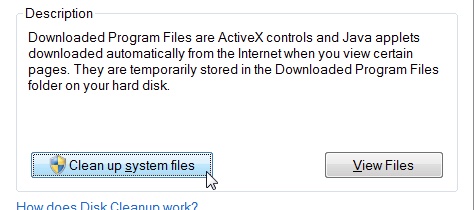
5. Wait until the calculation of the files that can be deleted, then in the list that opens up and tick. “Previous Windows installation(s)”.
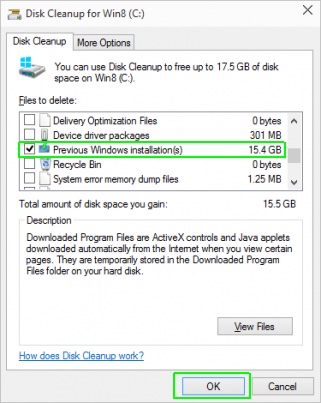
Click OK, and at the end of the cleaning process the folder Windows.old will be deleted from the Windows 10 system partition.
Takeown & Delete Windows.old folder in Windows 10
StealthSettings.com – What is Windows.old and how can it be deleted? Delete Windows.old, Windows.old000 Folder in Windows 10.


You may also be interested in...
