

[After the release of Windows 10, Microsoft withdrew all versions of Windows 8 from download. Use the article only as an installation tutorial, if you have purchased an image of Windows 8.]
Many users Windows 8 have installed this operating system ca upgrade la Windows 7, due to the advantageous price offered by Microsoft. For this reason, although they use a licensed Microsoft product, I don't have Windows 8 installation image.
Although Microsoft has integrated two in Windows 8 feature-uri which practically allow the reinstallation of the system or reset of this at the original settings (Reset and Refresh PC), and also provided users with the option to create a Recovery Drive for system repair in case of need, sometimes these solutions are simply not helpful, and the only solution is to completely reinstall the system from a DVD or USB Stick bootabil (also, in certain cases, the installation image is also necessary for system repair).
In case you did it too upgrade-ul la Windows 8 online and not from a installation device (DVD/USB drive) and you want to download the ISO installation image of this Windows Opere System (it is not recommended to download it from stream, because it can be modified and can include elemente malware), following the instructions below you will be able to download the official image, directly from Microsoft (it is not necessary to have an account MSDN or Technet to use this method).
Cum download Windows 8 ISO direct from Microsoft?
Remember that in order to download the ISO image of Windows 8 using the instructions described below, you must have a valid license code for this operating system.
- open official page Microsoft of upgrade the Windows and navigate down it until you see the button Install Windows 8
- click on it and download the setup utility (Windows 8 Setup)
- run the setup utility and enter the license code for Windows 8 (this step is only necessary if you want to download the image on a computer with Windows 7; on a computer with Windows 8 installed, this step is skipped) to get started download the installation image
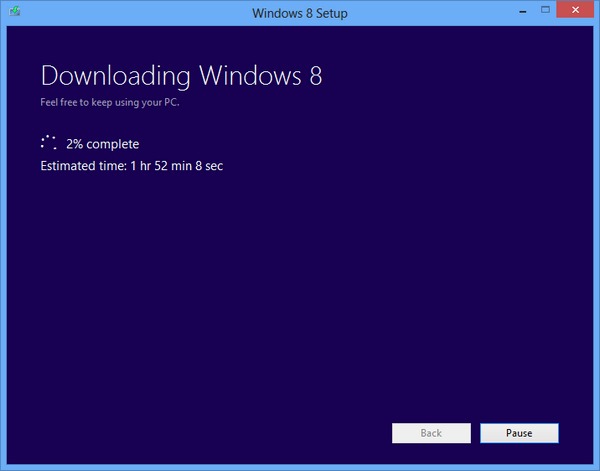
- when the download is complete, the image files will be checked (the process may take a few minutes)
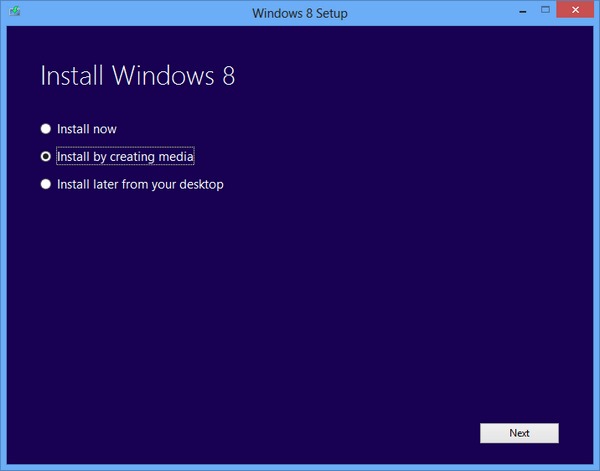
- after checking the files, the setup utility will offer you 3 possibilities to install the system; select the option Install by creating media and click on Next
- depending on your preferences, you can select creating a bootable USB Stick using the option USB flash drive (make sure you don't have important files on it, because you will lose them; the stick must be at least 4GB) or you can select save as ISO file on the computer (ISO file)
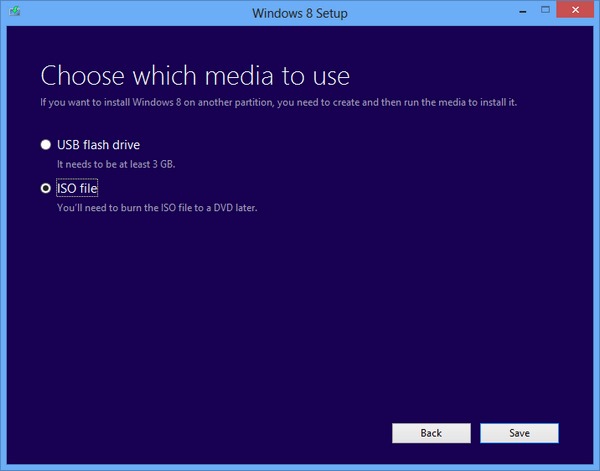
- select the location where you want to save the Windows 8 installation image and the setup utility will start creating the ISO image
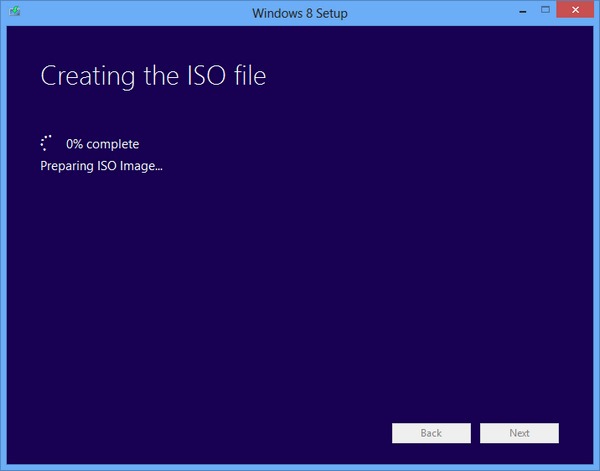
Once the image is created, you can use it to either create a Installation DVD, either one USB Stick bootabil, which you can then use to (re)install/repair Windows 8 (obviously you will also need License code used to download the ISO image).
Note: Using this method, the downloaded ISO image will have the same architecture as the system from which it is downloaded (if the system from which you use the setup utility to download the ISO image is 32-bit, the Windows 8 installation image will also be 32-bit; the same is true for 64-bit)
STEALTH SETTINGS – Download Windows 8 installation image (Original ISO)


You may also be interested in...

2 thoughts on “Download the installation image of Windows 8 (original ISO)”
where is the link or direct download button
Unfortunately, Microsoft has withdrawn that link and invites users to use Windows 10.
The article is from May 2013.